
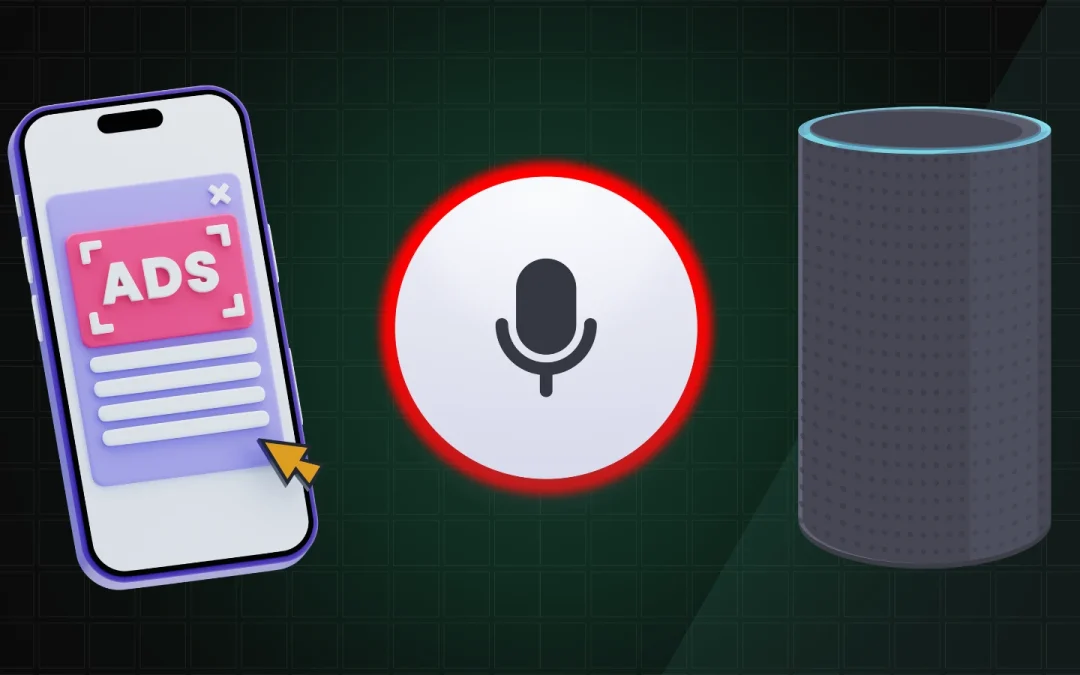

If you’ve ever talked about something near your phone or Alexa and then saw an ad for it later, you’re not alone. Many people ask: “Is my phone listening to me?” or “Is Alexa always listening?” The short answer is: your devices can listen for a “wake word” (like “Hey Siri,” “Hey Google,” or “Alexa”), and apps can access your microphone if you allow it, but most of the time the ad experience is explained by tracking, search history, and app activity rather than your phone secretly recording every conversation.

This guide explains what’s really going on in plain language, how to check your settings on iPhone and Android, how Alexa listening works, and the exact steps you can take to reduce or stop microphone access and targeted ads. It’s written for seniors and beginners and focuses on safe, practical actions you can do today.

Related step-by-step guides (recommended):

Quick Answer: Is My Phone or Alexa Listening to Me?

Your phone and smart speakers listen for a wake word (like “Hey Siri” or “Alexa”). They are not supposed to record everything all the time, but they can record after the wake word is detected, and they may store recordings depending on your settings. Also, apps on your phone can use your microphone if you’ve given permission.

To increase privacy, turn off microphone permissions for apps you don’t trust, disable voice assistant wake words if you want, and review or delete voice recordings in your account settings.

Simple rule: If an app does not need your microphone, turn its microphone access off.

Want the fastest way to see what’s using your mic? Follow this guide:
How to Check Which Apps Are Using Your Microphone (iPhone & Android).

Table of Contents

Why It Feels Like Your Phone Is “Listening”

It can feel creepy when you mention something out loud and then see it online. In many cases, this happens because of data signals your phone and apps collect that are not the microphone. For example, ads can be influenced by:

  • Your searches (Google, Safari, YouTube searches)
  • Websites you visit (shopping, news, health sites)
  • Apps you use (social media, shopping, games)
  • Location signals (stores you visit, areas you spend time)
  • Who you interact with (contacts, shared Wi-Fi, shared interests)
  • What you click or watch (videos, posts, ads)

This creates a strong illusion: it looks like your phone heard your conversation, but it may be using other clues that are just as powerful.

If you want a deeper explanation of why ads appear right after conversations, read this:
Why Do Ads Appear After I Talk About Something?

The good news is you can reduce many of these signals with a few settings changes.

What Wake Words Are (Siri, Google Assistant, Alexa)

Wake words are phrases like “Hey Siri,” “Hey Google,” and “Alexa”. Your device listens for that wake word so it can respond quickly when you ask a question.

Important detail: wake-word listening is different from recording everything. Wake-word systems are designed to “wake up” and start processing after they think they heard the wake word. Sometimes they get it wrong and activate by accident, especially if the TV, radio, or another person says a similar phrase.

If you prefer maximum privacy, you can usually turn off wake-word listening and only use voice assistants manually (or not at all).

Microphone Permissions: The Most Important Setting

The most important privacy control on your phone is microphone permission. If an app has microphone access, it can use the microphone while you’re using that app, and sometimes in the background depending on settings and the operating system rules.

Many apps ask for microphone access even when they do not truly need it. Common examples include:

  • Social media apps
  • Games
  • Shopping apps
  • Flashlight or utility apps (these should NOT need microphone access)

Best practice: Only allow microphone access for apps that obviously require it (phone calls, video chat, voice recording, voice search).

Need help checking this quickly? Use this step-by-step guide:
How to Check Which Apps Are Using Your Microphone.

How to Check Microphone Access on iPhone (Step-by-Step)

If you want a full iPhone-specific walkthrough, use this guide:
Is My iPhone Listening to Me? How to Check and Turn It Off.

Check which apps have microphone access

  1. Open Settings.
  2. Tap Privacy & Security.
  3. Tap Microphone.
  4. You will see a list of apps. Turn OFF the microphone for any app that does not need it.

Check if apps are tracking you (optional but helpful)

  1. Open Settings.
  2. Tap Privacy & Security.
  3. Tap Tracking.
  4. Turn off Allow Apps to Request to Track (or disable tracking app-by-app).

Turn off “Hey Siri” (if you want)

  1. Open Settings.
  2. Tap Siri & Search.
  3. Turn off Listen for “Hey Siri”.

You can still use Siri by pressing the side button (if you choose), without always-on wake word listening.

How to Check Microphone Access on Android (Step-by-Step)

Android menus can vary by phone brand, but these steps are very similar on most devices.

If you want a full Android-specific guide, use this:
Is My Android Phone Listening to Me? How to Turn It Off.

Check microphone permissions for apps

  1. Open Settings.
  2. Tap Privacy (or Security & privacy).
  3. Tap Permission manager (or Permissions).
  4. Tap Microphone.
  5. Review the list and set apps to Don’t allow if they do not need microphone access.

Turn off “Hey Google” wake word (if you want)

On many Android phones:

  1. Open the Google app.
  2. Tap your profile icon.
  3. Tap Settings > Google Assistant.
  4. Find “Hey Google” settings and turn off wake word detection.

If you can’t find it, search within Settings for: Assistant or Hey Google.

Is Alexa Always Listening? What’s True and What to Change

Alexa devices listen for the wake word “Alexa” (or another wake word you choose). That means the microphone is on so the device can detect the wake word. After the wake word is detected, Alexa records your request and sends it for processing.

If you want a full Alexa privacy walkthrough, use this step-by-step guide:
Is Alexa Always Listening? How to Check and Disable It.

If you want stronger privacy with Alexa, these are the most useful actions:

  • Use the microphone mute button on the Echo device when you want complete silence (the light usually turns red).
  • Review and delete voice recordings in your Alexa app privacy settings.
  • Change settings to reduce how recordings are stored or used (depending on what options your Alexa app provides).

Senior-friendly tip: If you only use Alexa sometimes, keep it muted most of the day and unmute when you want to use it. That is the simplest “set it and forget it” privacy habit.

Why You Get Ads That Feel “Too Accurate”

Even if the microphone is not being used, targeted ads can feel extremely personal. Here are common reasons:

  • You searched for something once weeks ago.
  • You watched a video about a topic.
  • You visited a store, and your phone’s location signals connected the dots.
  • A family member on the same Wi-Fi searched for something similar.
  • Apps share data through advertising networks and tracking identifiers.

This is why many people feel like they were “listened to.” The truth is that modern tracking can be accurate without needing audio recordings.

How to Reduce Ad Tracking on Your Phone

These steps help reduce creepy targeted ads and reduce data sharing. You don’t need to do everything, but doing a few of these can make a noticeable difference.

On iPhone

  • Turn off unnecessary microphone permissions: Settings > Privacy & Security > Microphone.
  • Limit app tracking: Settings > Privacy & Security > Tracking.
  • Review location settings: Settings > Privacy & Security > Location Services (set apps to “While Using” or “Never” if not needed).

On Android

  • Turn off unnecessary microphone permissions: Settings > Privacy > Permission manager > Microphone.
  • Review location permissions and set “While in use” where possible.
  • Check your Google ad settings and limit personalization (in Google account settings).

Simple goal: Give fewer apps access to your microphone and location. Those two changes alone can reduce a lot of tracking.

Best Privacy Habits for Seniors

  • Only allow microphone access when it’s truly needed.
  • Keep your phone updated. Updates often improve security and privacy controls.
  • Avoid random “utility” apps. Many are unnecessary and can be risky.
  • Use strong passwords and enable two-factor authentication when available.
  • Be cautious with links from texts and emails. Many scams start there, not with listening.

Frequently Asked Questions

Is my phone listening to me all the time?

Your phone may listen for a wake word if voice assistant features are enabled. Apps can use your microphone if you allow permission. If you turn off unnecessary microphone permissions and disable wake words, you greatly reduce the chance of microphone listening.

Why do ads show up after I talk about something?

Often it’s because of search history, websites you visited, videos you watched, location signals, and app tracking—not necessarily because your phone recorded your conversation. For a deeper explanation, see:
Why Do Ads Appear After I Talk About Something?

Is Alexa always listening even if I’m not talking to it?

Alexa listens for its wake word so it can respond. If you want complete silence, use the microphone mute button on the device. Step-by-step instructions here:
Is Alexa Always Listening? (Step-by-Step)

How do I know if an app is using my microphone?

Your phone may show a small indicator when the microphone is active. The most reliable method is to review microphone permissions and turn off access for apps that do not need it. Use this guide:
How to Check Which Apps Are Using Your Microphone.

Should I turn off Siri or Google Assistant?

You don’t have to, but you can disable wake-word listening and keep the assistant available manually if you prefer more privacy.

Final Thoughts

If your phone or smart speaker feels like it’s “listening,” you’re not imagining the pattern—you’re noticing how powerful modern tracking can be. The best approach is not fear. It’s control. Review microphone permissions, limit tracking where you can, and disable wake words if you want a quieter, more private experience.

📤 Share this guide:

Facebook | Email | Text | Copy Link

🛡️ Online Safety & Scam Protection Hub

This article is part of our complete Online Safety & Scam Protection guide for seniors covering phone scams, phishing emails, identity theft, privacy, and fraud prevention.
