
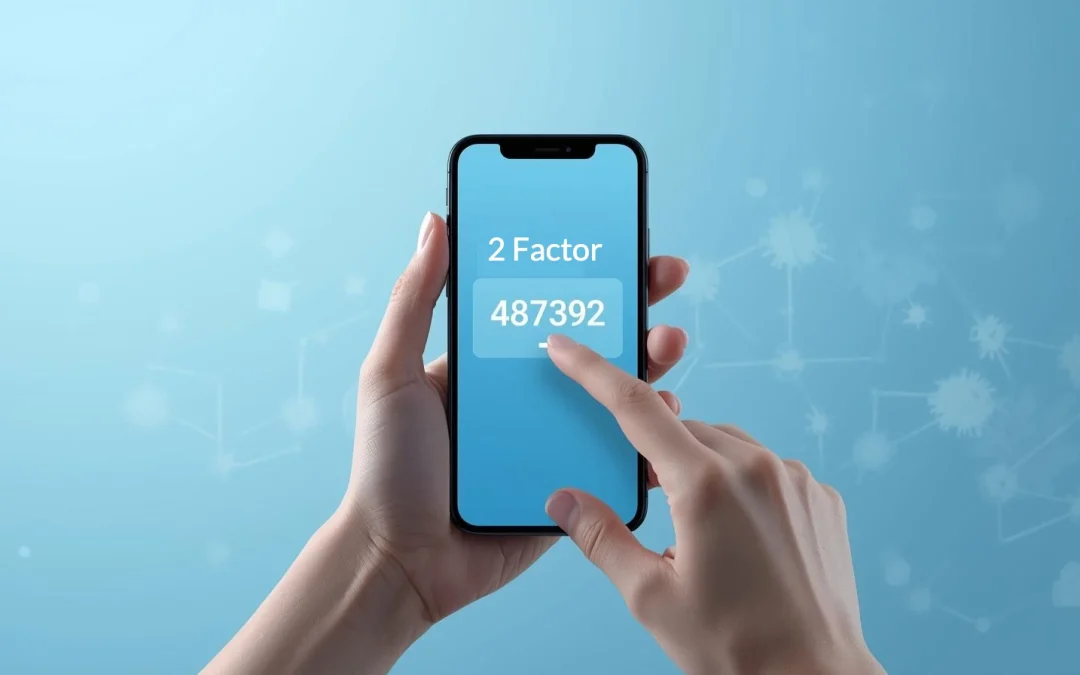
You create a strong password for your bank account. You’re careful not to share it with anyone. But one day, you get an email saying someone tried to log in to your account from another state—or another country. How did they get your password? And more importantly, how do you stop them from getting into your account even if they have your password?

Table of Contents
What Is Two-Factor Authentication?
Two-factor authentication (2FA) is a security system that requires two different ways to prove you are who you say you are before letting you into an account. Think of it like needing both a key and a security code to open a bank vault—having just one isn’t enough.
The Simple Explanation
Normally, logging into an account works like this:
- You enter your username
- You enter your password
- You’re in
With two-factor authentication, it works like this:
- You enter your username
- You enter your password (first factor: something you know)
- You enter a code sent to your phone or email (second factor: something you have)
- You’re in
Even if a hacker steals your password, they can’t get into your account because they don’t have access to your phone or email to receive the second code.
Why It’s Called “Two-Factor”
The word “factor” means a piece of proof. The two factors are:
- Something you know (your password)
- Something you have (your phone, email, or a security key)
You need both to get in. It’s like a bank requiring both your debit card (something you have) and your PIN (something you know) to withdraw money at an ATM.
Why Do You Need Two-Factor Authentication?
Two-factor authentication is essential because passwords alone aren’t enough to protect your accounts anymore. Here’s why:
Passwords Get Stolen All the Time
Your password can be stolen through:
- Data breaches: When companies get hacked, millions of passwords are stolen at once
- Phishing emails: Scammers trick you into entering your password on fake websites
- Keyloggers: Malware that records everything you type
- Weak passwords: Hackers can guess simple passwords in seconds
- Reused passwords: If you use the same password everywhere, one breach compromises all accounts
Two-Factor Authentication Stops Hackers Even With Your Password
According to Microsoft, enabling two-factor authentication blocks 99.9% of automated attacks on accounts. Even if hackers have your password, they can’t log in without that second code—which they can’t get without access to your phone or email.
Real-World Example
Imagine this scenario:
Without 2FA: A scammer sends you a phishing email that looks like it’s from your bank. You click the link and enter your password on their fake website. They now have your password and can log into your real bank account. Your money is gone.
With 2FA: The same thing happens—you accidentally give them your password. But when they try to log into your bank account, the bank sends a code to your phone. The scammer doesn’t have your phone, so they can’t get the code. They can’t get into your account. Your money is safe.
How Does Two-Factor Authentication Work?
Let’s walk through what happens when you log into an account that has two-factor authentication enabled:
Step-by-Step Login Process
Step 1: Visit the Website or App
You go to the login page for your account (email, bank, social media, etc.).
Step 2: Enter Your Username and Password
You type in your username and password as you normally would. This is the first factor—something you know.
Step 3: Request for Second Factor
Instead of logging you in immediately, the website says something like:
- “Enter the code we just sent to your phone”
- “Check your authenticator app for your code”
- “We’ve sent you an email with a verification code”
Step 4: Receive the Code
Within seconds, you receive a 6-digit code like “487392” via:
- Text message to your phone
- Email to your inbox
- An authenticator app on your phone
Step 5: Enter the Code
You type the 6-digit code into the website. The code is typically only good for a few minutes before it expires.
Step 6: You’re In
The website verifies the code matches what it sent. Now it knows it’s really you (you have the password AND your phone), so it lets you in.
Important: One-Time Codes
These codes are one-time use only and expire quickly (usually after 5-10 minutes). Even if someone sees your code, they can’t use it later. Each time you log in, you get a brand new code.
Trusted Devices
Many services let you mark devices as “trusted.” For example:
- Your home computer might be marked as trusted
- You’ll only need the second code once every 30-90 days on that device
- If you (or someone else) tries to log in from a new device or location, the code is always required
This balances security with convenience—you’re not entering codes every single time on your regular devices.
What Are the Different Types of Two-Factor Authentication?
There are several ways to receive your second factor. Here they are, from most common to most secure:
1. Text Message Codes (SMS)
How it works: The website sends a 6-digit code to your phone via text message. You read the text and enter the code.
Pros:
- Very easy to use
- Works on any phone, including flip phones
- No apps to install
- Most common method
Cons:
- Requires cell service to receive texts
- Can be intercepted by sophisticated hackers (rare but possible)
- Less secure than other methods
Best for: Most people, especially seniors who want the simplest option
2. Email Codes
How it works: The website sends a code to your email address. You check your email and enter the code.
Pros:
- Easy to use
- Works without a phone
- Can access from any device
Cons:
- Only secure if your email account itself has 2FA
- Requires internet access to check email
- Less secure than other methods
Best for: People without smartphones or as a backup method
3. Authenticator Apps (Most Secure for Daily Use)
How it works: You install an app on your smartphone (Google Authenticator, Microsoft Authenticator, Authy, etc.). The app generates a new 6-digit code every 30 seconds that you enter when logging in.
Pros:
- More secure than text messages
- Works without cell service or internet (once set up)
- Codes refresh every 30 seconds
- Free to use
- Can manage multiple accounts in one app
Cons:
- Requires a smartphone
- Slightly more complicated to set up initially
- Need to have the phone with you to log in
Best for: Smartphone users who want the best balance of security and convenience
4. Phone Call Verification
How it works: The website calls your phone (landline or mobile) and an automated voice reads you a code.
Pros:
- Works on landlines
- Good for people without smartphones
- Easy to understand
Cons:
- Not all services offer this option
- Takes longer than other methods
- Need to answer the call
Best for: Seniors without smartphones who have a landline
5. Security Keys (Most Secure Overall)
How it works: You buy a small physical device (looks like a USB drive) that you plug into your computer or tap against your phone to verify your identity.
Pros:
- Most secure option available
- Can’t be phished or intercepted
- Very fast once set up
- Works offline
Cons:
- Costs money ($25-50)
- Must carry it with you
- Can be lost
- More technical to set up
Best for: Tech-savvy users or those with very sensitive accounts
Popular options: YubiKey, Google Titan Security Key
Which Type Should You Use?
For most seniors, start with text message codes (SMS)—they’re the easiest and most widely supported. If you have a smartphone and feel comfortable, authenticator apps are better and worth learning.
Which Accounts Should Have Two-Factor Authentication?
You should enable two-factor authentication on your most important accounts. Here’s the priority order:
Essential (Enable Immediately)
- Email accounts (Gmail, Yahoo, Outlook, AOL)
- Why: Email can be used to reset passwords for all your other accounts
- If someone hacks your email, they can access everything else
- This is your #1 priority
- Banking and financial accounts
- Bank accounts
- Credit card accounts
- Investment accounts
- PayPal, Venmo, Zelle
- Why: Direct access to your money
- Password manager (if you use one)
- 1Password, Bitwarden, LastPass, etc.
- Why: Contains all your other passwords
Very Important (Enable Soon)
- Social media accounts
- Facebook, Instagram, Twitter/X
- Why: Scammers use hacked accounts to scam your friends and family
- Shopping sites with saved payment information
- Amazon, eBay, Walmart, Target
- Why: Stored credit cards can be used for purchases
- Phone carrier account
- AT&T, Verizon, T-Mobile
- Why: Prevents SIM swap attacks that can bypass 2FA
Good to Have
- Cloud storage (Google Drive, iCloud, Dropbox)
- Medical accounts (patient portals)
- Work accounts
- Any account with personal information
Not Necessary For
- Accounts with no payment info or personal data
- One-time registrations you’ll never use again
- Accounts that don’t offer 2FA as an option
How to Set Up Two-Factor Authentication
The process is similar across most services. Here’s how to enable it on the most important accounts:
How to Enable 2FA on Gmail (Google Account)
- Go to myaccount.google.com in your web browser
- Click “Security” on the left side menu
- Scroll down to find “2-Step Verification”
- Click “Get Started”
- Sign in again to confirm it’s you
- Enter your phone number
- Choose how to receive codes: Text message or Phone call
- Click “Send”
- Enter the code you received
- Click “Turn On”
- Save your backup codes (see section below)
Important: Google will now send you a code every time you log in from a new device.
How to Enable 2FA on Your Bank
Each bank is slightly different, but the general process:
- Log into your online banking
- Look for “Settings,” “Security,” or “Profile”
- Find “Two-Factor Authentication,” “Multi-Factor Authentication,” or “Enhanced Security”
- Follow the prompts to add your phone number
- Verify with a test code
- Save any backup codes provided
Can’t find it? Call your bank’s customer service number (on the back of your debit card) and ask them to help you enable two-factor authentication.
How to Enable 2FA on Facebook
- Open Facebook and click your profile picture in the top right
- Click “Settings & Privacy” → “Settings”
- Click “Security and Login” on the left side
- Scroll to “Two-Factor Authentication”
- Click “Edit” next to “Use two-factor authentication”
- Choose “Text Message (SMS)” or “Authentication App”
- Follow the setup instructions
- Save your backup codes
How to Enable 2FA on Amazon
- Go to Amazon.com and sign in
- Hover over “Accounts & Lists” and click “Account”
- Click “Login & Security”
- Next to “Two-Step Verification,” click “Edit”
- Click “Get Started”
- Enter your phone number
- Click “Send code”
- Enter the code you receive
- Click “Verify code and continue”
General Tips for Any Service
- Look for settings under: Security, Privacy, Account Settings, or Profile
- Search for: “Two-factor,” “2FA,” “Two-step,” “MFA,” or “Multi-factor”
- If you can’t find it, search online: “[service name] enable two-factor authentication”
- Most services have help articles with screenshots
What Are Backup Codes and Why Do You Need Them?
When you enable two-factor authentication, most services give you a set of backup codes (also called recovery codes). These are extremely important.
What Backup Codes Are
Backup codes are usually a list of 10 one-time-use codes that look like this:
- 4829-3847
- 9284-7563
- 1847-5639
- 7362-9485
- And so on…
Why You Need Them
Backup codes are your emergency access if:
- You lose your phone
- Your phone breaks or dies
- You upgrade to a new phone and forget to transfer your authenticator
- You’re traveling without your phone
- You can’t receive text messages
Without backup codes, you could be permanently locked out of your account.
How to Use Backup Codes
- When logging in, you’re asked for your 2FA code
- Look for a link that says “Use backup code” or “Can’t get your code?”
- Enter one of your backup codes
- You’re logged in
- That specific code is now used up and won’t work again
How to Store Backup Codes Safely
Do this:
- Print them out and store them in a safe place, like a locked drawer or safe
- Write them down in a notebook kept at home
- Take a photo and email it to yourself (then delete it from your phone)
- Store in your password manager if you use one
- Keep copies in multiple secure locations
Don’t do this:
- Don’t leave them on your phone’s notes app without protection
- Don’t store them on your computer in an unencrypted file
- Don’t put them on a sticky note on your monitor
- Don’t share them with anyone
How to Get New Backup Codes
You can generate new backup codes anytime:
- Go to the security settings of your account
- Find the two-factor authentication section
- Look for “Backup codes” or “Recovery codes”
- Click “Generate new codes”
- Save the new codes (old ones stop working)
It’s smart to regenerate backup codes after using one or periodically (once a year).
What If You Lose Your Phone?
Losing your phone when you have 2FA enabled can be stressful, but there are ways to handle it:
Immediate Steps
- Use your backup codes to access accounts (this is why they’re so important!)
- Log into accounts from a computer you’ve previously marked as trusted (may not require 2FA)
- Contact your phone carrier to suspend service and prevent someone else from using your number
After Getting a New Phone
- Update your phone number in all accounts if your number changed
- Re-enable 2FA with your new phone number
- Reinstall authenticator apps if you were using them
- Generate new backup codes
If You Don’t Have Backup Codes
You’ll need to go through account recovery:
- Most services have a “Lost phone?” or “Can’t access your account?” option
- You’ll be asked security questions or to verify your identity in other ways
- This process can take several days
- You may need to contact customer support
This is why backup codes are so critical—they make recovery immediate instead of taking days.
Prevention
To prepare for phone loss:
- Always save backup codes when enabling 2FA
- Keep backup codes in a physical location (not just on your phone)
- Consider marking one trusted device (home computer) that doesn’t require 2FA every time
- If using authenticator apps, use one that backs up to the cloud (like Authy)
Common Concerns About Two-Factor Authentication
Let’s address the most common worries people have about 2FA:
“Isn’t This a Lot of Hassle?”
It adds a few extra seconds to logging in, but:
- Most sites only ask for codes on new devices or every 30-90 days on trusted devices
- You’re not entering codes every single time you check your email
- The security benefit far outweighs the minor inconvenience
- It becomes routine after a few times
“What If I’m Traveling and Don’t Have My Phone?”
- Bring your backup codes with you (written down, not on your phone)
- Use trusted devices that don’t require codes every time
- Plan ahead by marking your laptop as a trusted device before traveling
“What If Someone Steals My Phone?”
They still can’t access your accounts because:
- They need your phone’s unlock code or fingerprint first
- They need your account passwords (which they don’t have)
- Having the phone alone isn’t enough—they need passwords too
Lock your phone with a PIN, password, or fingerprint to protect against this.
“What If I Forget to Bring My Phone?”
- If you’re on a trusted device (like your home computer), you might not need it
- Use backup codes you’ve stored at home
- Ask someone to text you your phone to get the code
“Is My Information Safe Being Sent to My Phone?”
Yes, the 6-digit codes are:
- One-time use only
- Expire after a few minutes
- Useless to anyone who doesn’t also have your password
- More secure than not using 2FA at all
Can You Use Two-Factor Authentication Without a Smartphone?
Yes! Here are options for people without smartphones:
Text Messages to a Basic Phone
- Even flip phones can receive text messages with codes
- Works exactly the same as on smartphones
- Most widely supported option
Phone Calls to a Landline
- Some services will call your home phone
- An automated voice reads you the code
- You enter it on the computer
- Not all services offer this, but many do
Email Codes
- Receive codes via email
- Check your email on your computer or tablet
- Works without a phone at all
- Make sure your email account itself has 2FA enabled another way
Security Keys
- Small USB devices you plug into your computer
- No phone needed at all
- Requires one-time purchase ($25-50)
- More technical but very secure
Asking for Help
- Contact the service’s customer support
- Explain that you don’t have a smartphone
- They can often accommodate alternative methods
- Banks especially, are good about offering alternatives
Practical Tips for Using Two-Factor Authentication
Here are practical tips to make 2FA easier to use:
Keep Your Phone Charged and Nearby
- When logging into accounts, have your phone within reach
- Keep your phone charged so you can receive codes
- Consider getting a phone charging station for your desk
Update Your Contact Information
- Make sure accounts have your current phone number
- If you change phone numbers, update all your accounts immediately
- Check that email addresses are current too
Don’t Rush
- Take your time entering codes—they don’t expire that quickly (usually 5-10 minutes)
- If a code doesn’t work, request a new one
- Double-check you’re entering the right code from the right account
Mark Trusted Devices
- When asked, “Trust this device?” on your home computer, say yes
- This means you won’t need codes as often on that device
- Only do this on devices that you use, not shared or public computers
Test It First
- After enabling 2FA, log out and log back in to test it
- Make sure you can receive and enter codes successfully
- Try using a backup code to ensure those work
- Do this while you’re at home with time to troubleshoot
Start with One Account
- Enable 2FA on your email first
- Get comfortable with how it works
- Then gradually add it to other accounts
- Don’t try to do everything at once
Keep Records
- Write down which accounts have 2FA enabled
- Note which phone number or email receives codes for each account
- Store this list with your backup codes
- Makes troubleshooting easier later
Ask for Help When Needed
- Contact customer support if you’re stuck
- Ask a tech-savvy family member or friend to help you set it up
- Many banks will walk you through it over the phone
- It’s okay to need help—2FA is worth the effort
Frequently Asked Questions About Two-Factor Authentication
Does two-factor authentication really make a difference?
Yes, absolutely. Microsoft reports that 2FA blocks 99.9% of automated attacks on accounts. Even if hackers have your password, they can’t access your account without that second code. It’s the single most effective security measure you can take beyond using strong passwords.
Will I need to enter a code every single time I log in?
No. Most services let you mark devices as “trusted,” so you only need codes every 30-90 days on those devices. You’ll typically only need a code when logging in from a new device, a new location, or after a certain time period. On your home computer, you might only enter codes once a month or less.
What happens if I’m somewhere without cell phone service?
If you use text message codes, you won’t receive them without cell service. Solutions: Use authenticator apps (they work offline once set up), use backup codes you’ve written down, log in on a trusted device that doesn’t require codes, or wait until you have service. This is another reason backup codes stored at home are so important.
Can hackers intercept my two-factor authentication codes?
Intercepting SMS codes is technically possible but extremely rare and requires sophisticated equipment and expertise. For the vast majority of people, SMS-based 2FA is far better than no 2FA at all. If you’re concerned about advanced threats, use authenticator apps or security keys, which are virtually impossible to intercept.
What if I lose my backup codes?
You can generate new backup codes anytime by logging into your account (from a trusted device or using your current 2FA method), going to security settings, and creating new backup codes. The old codes will stop working once you generate new ones. It’s good practice to generate new codes once a year anyway.
Should I use the same phone number for all my accounts?
Yes, using your primary phone number for all accounts makes it simpler to manage. However, make sure your phone carrier account itself has 2FA enabled to prevent “SIM swap” attacks where someone tries to steal your phone number. Keep all your accounts updated if you change phone numbers.
Is two-factor authentication required by law?
No, 2FA is optional for most services, though some high-security services (certain banks, government sites) may require it. However, even when optional, you should still enable it on all important accounts. The service won’t force you, but you should protect yourself anyway.
What’s the difference between two-factor authentication and two-step verification?
They’re the same thing—just different names. You might also see it called “multi-factor authentication (MFA)” or “two-step login.” All refer to requiring something beyond just your password to log in. Don’t worry about the terminology differences; they all work the same way.
Can I turn off two-factor authentication if I don’t like it?
Yes, you can disable 2FA in your account security settings, but this is strongly not recommended. If you’re finding it inconvenient, try marking your regular devices as trusted so you need codes less often, or switch to authenticator apps, which are faster than waiting for text messages. The security benefit is worth the minor inconvenience.
What if someone gets access to both my password and my phone?
If someone has both your password and physical access to your phone, they could potentially access your accounts. However, they’d still need to unlock your phone first (PIN, fingerprint, or face recognition). Always lock your phone with a strong method. Also, if your phone is stolen, immediately contact your carrier to suspend service and change your important passwords from another device.
How do authenticator apps work if they don’t need the internet?
Authenticator apps use a mathematical formula that generates codes based on the current time and a secret key shared between your app and the service during setup. Both your app and the service can independently generate the same code at the same time without communicating. That’s why the codes change every 30 seconds and why the apps work offline.
Can I use two-factor authentication on accounts I share with my spouse?
Yes, but coordinate carefully. You can both have the same account’s codes sent to both phones, use shared authenticator apps, or both know the backup codes. For shared accounts like streaming services, one person can set up 2FA and mark the devices both people use as trusted. For financial accounts, consider having separate logins even for joint accounts.
What should I do before upgrading to a new phone?
Before switching phones: (1) Save all backup codes from accounts using 2FA, (2) If using authenticator apps, check if they back up to the cloud (Authy does, Google Authenticator can), (3) Make a list of all accounts using 2FA, (4) Consider temporarily marking your computer as a trusted device so you can access accounts during the transition, (5) After getting your new phone, re-enable 2FA with the new number.
Why do some services send codes that expire in 10 minutes while others expire in 1 minute?
Different services choose different expiration times based on their security policies. Shorter times (1-5 minutes) are more secure but can be frustrating if you’re slow to enter codes. Longer times (10-30 minutes) are more convenient but slightly less secure. For regular users, the differences don’t matter much—just enter the code when you receive it.
Can I have two-factor authentication on my tablet but not my phone?
Yes, you can set up 2FA using your tablet if it has cellular service or use email codes that you check on your tablet. You can also use authenticator apps on tablets. However, phones are more convenient since you usually have them with you. Some people use their tablet at home as their trusted 2FA device and keep backup codes for when traveling.
What’s a “security key” and do I need one?
A security key is a small physical device (like a USB stick) that you plug into your computer or tap against your phone to verify your identity. They’re the most secure form of 2FA and can’t be phished or intercepted. However, they cost $25-50, require you to carry them, and are mainly useful for people with very sensitive accounts or who are targeted by sophisticated attackers. Most seniors don’t need them—SMS or authenticator apps provide excellent security.
If two-factor authentication is so important, why don’t all websites require it?
Many companies make 2FA optional because they worry about customer complaints or people getting locked out of accounts. They prioritize ease of use over security. This is unfortunate but means you must take responsibility for your own security by enabling 2FA yourself on optional accounts. Some high-security services (certain banks, government agencies) do require it.
Can I get locked out of my accounts forever if I lose my phone and backup codes?
Most services have account recovery processes if you lose everything. You’ll typically need to verify your identity through security questions, providing identification documents, or contacting customer support. This process can take days or weeks and isn’t guaranteed to work. This is exactly why saving backup codes is so critical—it makes recovery instant instead of a lengthy ordeal.
What does “SIM swap attack” mean and should I worry about it?
A SIM swap attack is when scammers convince your phone carrier to transfer your phone number to their SIM card, letting them receive your 2FA codes. It’s rare and typically targets high-value victims. Protect yourself by: (1) enabling 2FA on your phone carrier account itself, (2) setting a PIN or password on your carrier account, (3) using authenticator apps instead of SMS when possible for very important accounts. For most people, SMS-based 2FA is still far better than no 2FA.
Is it safe to save backup codes in my password manager?
Yes, storing backup codes in your password manager is generally safe and convenient, especially since your password manager itself should have 2FA enabled. However, keep physical copies too (printed or written down) in case you can’t access your password manager. Having backup codes in multiple secure locations is smart—don’t rely on just one place.
Take Action Today: Enable Two-Factor Authentication
Two-factor authentication is the single most important security measure you can take to protect your online accounts—more important than using strong passwords, security software, or anything else. It blocks 99.9% of automated attacks and stops hackers even when they have your password.
Your action plan starting today:
- Enable 2FA on your email first (Gmail, Yahoo, Outlook, etc.)—this is your highest priority
- Enable 2FA on your bank accounts and any financial services
- Save your backup codes in a safe place immediately (print them or write them down)
- Enable 2FA on social media and shopping sites with saved payment information
- Test it by logging out and logging back in to make sure the codes work
Key points to remember:
- 2FA requires your password AND a code sent to your phone/email
- Even if hackers steal your password, they can’t get in without the second code
- Text message codes (SMS) are the easiest option for most seniors
- Backup codes are critical—save them in a secure physical location
- You won’t need codes every time on trusted devices
- The minor inconvenience is worth the massive security improvement
Yes, two-factor authentication adds an extra step to logging in. But that extra step could be the difference between having your accounts hacked and staying completely safe. It takes just a few minutes to set up and could save you from losing thousands of dollars, having your identity stolen, or being locked out of your own accounts by criminals.
Don’t wait until after you’ve been hacked. Enable two-factor authentication today on at least your email and banking accounts. Your future self will thank you.
