
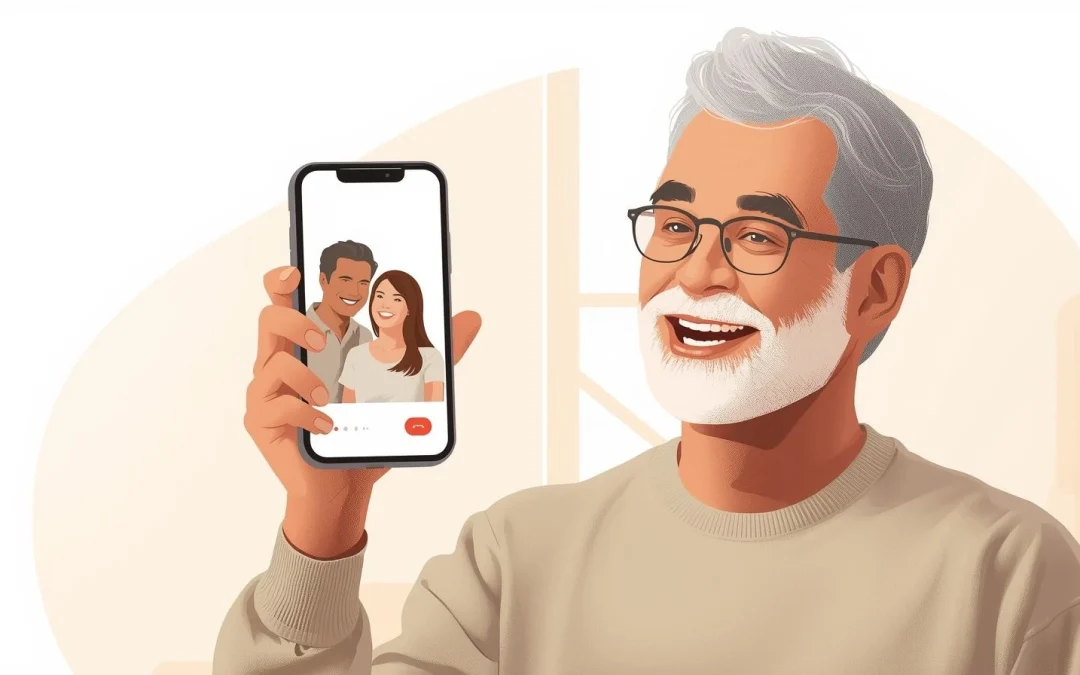

Yes, most seniors can learn to use FaceTime in just a few minutes with a simple step-by-step approach. FaceTime is Apple’s built-in video calling feature that lets you talk face-to-face with family or friends using an iPhone, iPad, or Mac. This guide is designed for beginners and seniors who have never used FaceTime before. It may not apply if you are using a non-Apple phone such as Android.

Table of Contents

Quick Summary

  • FaceTime allows Apple device users to make free video calls over the internet.
  • The most common requirement is that both people must have Apple devices.
  • Most people can start their first FaceTime call in under five minutes.
  • If FaceTime is not working, checking settings or internet connection usually fixes it.

What FaceTime Is and How It Works

FaceTime is Apple’s video and audio calling service that comes built into iPhones, iPads, and Mac computers. It allows you to see and talk to someone through your device’s camera and microphone. Many families use FaceTime to stay connected with grandchildren, friends, or relatives who live far away.

Instead of using a traditional phone line, FaceTime uses the internet. This means the call travels through Wi-Fi or your mobile data connection rather than a standard phone signal. Because of this, FaceTime calls are usually free unless your mobile carrier charges for data usage.

For example, a grandparent might use FaceTime on an iPhone to talk with a grandchild who also has an iPhone or an iPad. When the call starts, both people can see each other on the screen and speak naturally, just like a regular phone conversation.

A common misunderstanding is that FaceTime works with all phones. It does not. FaceTime only works with Apple devices such as iPhones, iPads, and Macs. If someone uses an Android phone, they usually cannot start a FaceTime call in the same way.

The good news is that starting a FaceTime call is very simple once you know where to look.

How to Use FaceTime on iPhone or iPad

The most common way seniors use FaceTime is through an iPhone or iPad. Apple places the FaceTime app directly on the device, so you usually do not need to install anything.

Most seniors can start their first FaceTime call in about two to three minutes.

Difficulty: Easy

To start a FaceTime call on an iPhone or iPad:

  1. Open the FaceTime app on your home screen.
  2. Tap the New FaceTime button.
  3. Type the person’s phone number, email, or contact name.
  4. Tap the Video button to start a video call.
  5. Wait for the other person to answer.

Once the other person answers, you will see their face on the screen. Your camera will also appear in a small window so they can see you.

If the screen looks different, your device may be using a newer version of iOS (Apple’s operating system). The button names may move slightly, but the process is still the same: open FaceTime, select a contact, and tap the video icon.

A common mistake is trying to call someone who does not have FaceTime turned on. If that happens, the call may fail or the video button may appear unavailable.

Another limitation is internet connection. FaceTime requires a stable Wi-Fi or mobile data signal. If the internet is weak, the video may freeze or the call may disconnect.

How to Use FaceTime on a Mac

You can also make FaceTime calls using a Mac computer such as a MacBook or iMac. This can be helpful if you prefer a larger screen or are already using your computer.

FaceTime works almost the same way on a Mac as it does on an iPhone.

Difficulty: Easy

To start a FaceTime call on a Mac:

  1. Open the FaceTime application from the Applications folder or Dock.
  2. Sign in using your Apple ID if prompted.
  3. Click the New FaceTime button.
  4. Enter the contact name, phone number, or email.
  5. Click the Video button to begin the call.

The camera at the top of your Mac screen will automatically turn on when the call begins.

If the layout looks slightly different, it may be due to macOS updates. Apple occasionally changes the appearance of buttons or menus, but the basic process remains the same.

A common mistake is forgetting to allow camera or microphone permissions. If FaceTime cannot access the camera, the call may connect but the video will not appear.

Another limitation is older Mac models. Very old computers may not support newer FaceTime features.

How to Answer a FaceTime Call

Receiving a FaceTime call is even easier than making one. When someone calls you, your device will ring just like a normal phone call.

The screen will display the caller’s name along with options to answer or decline the call.

Difficulty: Easy

To answer a FaceTime call:

  1. Wait for the FaceTime notification to appear.
  2. Tap the Accept button.
  3. The camera will turn on automatically.
  4. Begin speaking normally.

If you prefer not to use video, some devices allow you to switch to audio-only FaceTime.

Sometimes seniors worry that answering a FaceTime call will accidentally turn on other settings. In reality, answering the call simply activates the camera and microphone for the conversation.

One common confusion occurs when the phone is locked. In that case, you may see a swipe option instead of a simple tap.

Another limitation is internet connection. If your Wi-Fi is slow, the call may take a few seconds longer to connect.

What Can Go Wrong

Even though FaceTime is simple, a few common issues can sometimes occur. These are usually easy to fix.

The button looks different

Apple occasionally updates the layout of apps. If the buttons appear slightly different, try looking for the camera icon or the “New FaceTime” option.

FaceTime is missing

Some users accidentally remove the app from the home screen. If that happens, you can search for “FaceTime” in the App Library or Spotlight search.

The call will not connect

This is often caused by poor internet connection. Try switching to Wi-Fi or moving closer to your router.

The camera is not working

If the camera shows a black screen, check whether the device has permission to use the camera in Settings.

Older device

Very old iPhones or iPads may not support the latest version of FaceTime.

Safety Tips When Using FaceTime

FaceTime itself is a secure Apple feature and is generally safe to use. However, it is still important to follow basic safety habits when communicating online.

Legitimate FaceTime calls do not require payment or subscriptions. If anyone claims you must pay to use FaceTime, that is almost certainly a scam.

Also remember that real Apple services will never ask for verification codes during a video call. If someone asks you to share codes sent to your phone, do not provide them.

Another good safety habit is only answering FaceTime calls from people you recognize. Unknown callers should be treated cautiously.

In general, FaceTime is safest when used with friends, family members, and trusted contacts.

Frequently Asked Questions

Is FaceTime free?

Yes. FaceTime calls are free when using Wi-Fi. If you use mobile data, your phone carrier may count the data toward your plan.

Do both people need Apple devices?

Usually yes. FaceTime works best when both people are using an iPhone, iPad, or Mac.

Will FaceTime use my phone minutes?

No. FaceTime uses internet data instead of traditional phone minutes.

What if I make a mistake?

Nothing serious will happen. You can simply end the call and try again.

Is FaceTime safe?

Yes. FaceTime uses encrypted communication designed to protect privacy.

How long does it take to learn?

Most seniors learn to make their first FaceTime call within five minutes.

Final Summary

FaceTime is one of the easiest ways for seniors to stay connected with friends and family through video calls. Most people can learn to make their first call in just a few minutes by opening the FaceTime app and selecting a contact. The most common requirements are having an Apple device and a stable internet connection. If something seems confusing, a family member can usually help you get comfortable with it quickly.

📤 Share this guide:

Facebook | Email | Text | Copy Link

📱 Smartphone Help Hub

This article is part of our complete Smartphone Help for Seniors guide covering iPhone and Android safety, privacy, emergency features, and everyday tips.
