


The short answer: open your email app, tap Compose (or New), type the person’s email address in the To box, add a short subject, write your message and tap Send. The steps are nearly the same in every email app. The buttons are just in slightly different places (Google, Apple, Microsoft).
What the boxes mean
- To: the main person you’re writing to. Start typing a name and your app will suggest people from your contacts.
- Cc: “carbon copy.” Anyone you add here gets a copy, and everyone can see who else got it.
- Bcc: “blind carbon copy.” People here get a copy, but the other people on the email can’t see that they did, and Bcc people can’t see each other (Google). Bcc is handy when you email a large group of people who don’t know each other.
- Subject: a few words that say what the email is about, like “Photos from Sunday.”
Gmail (phone app)
- Open the Gmail app and tap Compose at the bottom right.
- In the To field, add who you’re writing to. You can also add people in the Cc and Bcc fields. Put a comma between addresses if you’re writing to more than one person.
- Add a subject, write your message, then tap Send at the top (Google).
Changed your mind? Right after you send, Gmail shows an Undo button for a few seconds. Tap it to stop the email (Google).
Gmail (computer)
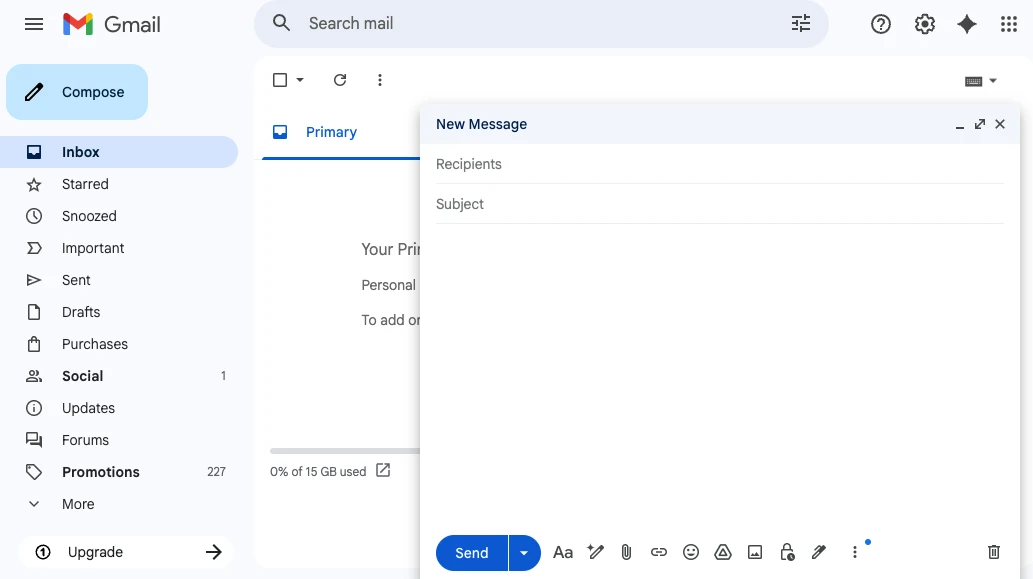
- Go to gmail.com and click Compose at the top left.
- Add recipients in the To field, then a subject and your message.
- Click Send at the bottom (Google).
On a computer you can choose how long the Undo button stays: 5, 10, 20 or 30 seconds. Click Settings, then See all settings, and choose a time next to “Undo Send” (Google).
iPhone Mail app
- Open the Mail app and tap the compose button (a square with a pencil).
- Tap the To field and type a name or email address. Tap Cc/Bcc if you want to copy others.
- Type a subject and your message, then tap the send button (an upward arrow) (Apple).
Outlook
- Select New mail (on a Windows PC you can also press Ctrl + N).
- Add recipients in the To, Cc or Bcc boxes. Outlook suggests names as you type.
- Type a subject and your message, then select Send (Microsoft).
Before you hit Send
- Double-check the address. One wrong letter sends your email to a stranger.
- Never email your Social Security number, bank account numbers or passwords. Real companies won’t ask for them by email. See how to spot fake emails and phishing.
- Want to include pictures? See how to attach photos to an email.
- Need help wording it? See how to use AI to write an email.
