
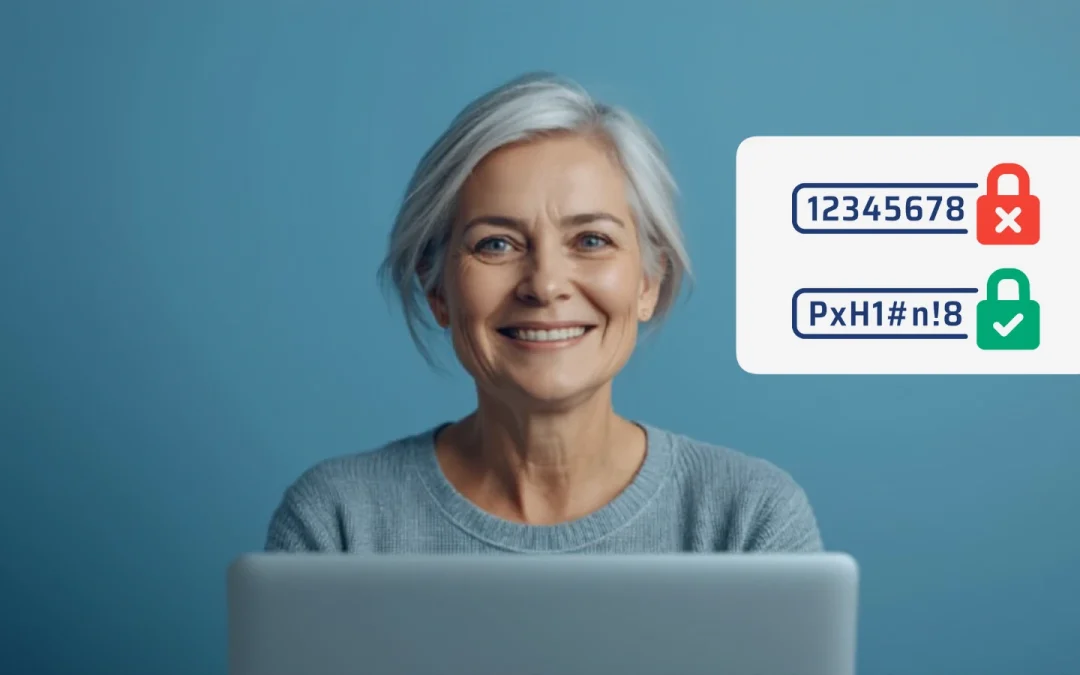

You need a password for your email, your bank account, Amazon, Facebook, your phone, your computer—the list goes on and on. Security experts tell you to make passwords long, complicated, and different for every account. But how are you supposed to remember dozens of random strings of letters, numbers, and symbols? You can’t. And when you forget your passwords, you’re locked out of important accounts, forced to reset everything, and frustrated with technology.

Table of Contents

  1. Why Do Strong Passwords Matter?
  2. What Makes a Password Strong?
  3. What Makes a Password Weak?
  4. How to Create a Memorable Passphrase
  5. How to Turn a Sentence Into a Strong Password
  6. How to Use Patterns to Create Passwords
  7. Should You Use a Password Manager?
  8. How to Store Passwords Safely
  9. What Password Mistakes Should You Avoid?
  10. What Is Two-Factor Authentication and Why Use It?
  11. When Should You Change Your Passwords?
  12. What to Do If Your Password Has Been Compromised
  13. Frequently Asked Questions

Why Do Strong Passwords Matter?

Your passwords are the keys to your digital life. They protect access to your:

  • Bank accounts and credit cards
  • Email (which can be used to reset all your other passwords)
  • Social media accounts
  • Shopping accounts with saved payment information
  • Medical records and health information
  • Photos, documents, and personal files

**Prefer to watch? This 9-minute video walks you through the entire process:**

What Happens When Passwords Are Weak

Hackers use sophisticated programs that can try millions of password combinations per second. A weak password like “password123” can be cracked in less than one second. Even slightly better passwords like “Sarah2024” can be broken in minutes.

When hackers gain access to your accounts, they can:

  • Steal your money from bank accounts or make unauthorized purchases
  • Steal your identity to open credit cards, take out loans, or file fake tax returns
  • Lock you out of your own accounts by changing your passwords
  • Access sensitive information like medical records, personal emails, or private photos
  • Scam your contacts by sending messages that appear to be from you
  • Use your accounts for illegal activities

The Password Challenge for Seniors

Security experts recommend:

  • Passwords should be at least 12-16 characters long
  • Include uppercase letters, lowercase letters, numbers, and symbols
  • Should be completely random and unique
  • Should be different for every single account
  • Should never be written down (they say)

That’s impossible to manage without help! The average person has 70-80 online accounts. No one can remember 70 completely random, 16-character passwords.

The good news: You don’t have to. This guide will show you realistic, practical methods that actually work.

What Makes a Password Strong?

A strong password has these characteristics:

Length Is Most Important

Length matters more than complexity. Here’s why:

  • An 8-character password with uppercase, lowercase, numbers, and symbols can be cracked in about 8 hours
  • A 12-character password with just lowercase letters takes 200 years to crack
  • A 16-character password takes millions of years to crack, even without special characters

Recommendation: Aim for passwords that are at least 12 characters long, preferably 16 or more.

Unpredictability

Strong passwords avoid:

  • Dictionary words (hackers have lists of every word in multiple languages)
  • Common patterns (123456, abcdef, qwerty)
  • Personal information (names, birthdays, addresses, pet names)
  • Simple substitutions everyone uses (@ for a, 3 for e, 0 for o)

Variety of Characters

While length is most important, adding variety helps:

  • Uppercase letters (A, B, C)
  • Lowercase letters (a, b, c)
  • Numbers (0-9)
  • Symbols (!, @, #, $, %, etc.)

Uniqueness

Each important account should have its own unique password. If you reuse passwords, one data breach can compromise all your accounts.

What Makes a Password Weak?

Avoid these common weak passwords and patterns:

The Most Common (and Worst) Passwords

These passwords are cracked instantly:

  • 123456
  • password
  • 12345678
  • qwerty
  • 123456789
  • 12345
  • 1234
  • 111111
  • 1234567
  • dragon

Millions of people use these exact passwords. Never use them.

Personal Information

Avoid using information that can be found or guessed:

  • Your name, spouse’s name, children’s names
  • Pet names (Fluffy, Max, Bella)
  • Birthdays, anniversaries, graduation years
  • Street addresses or street names where you’ve lived
  • Phone numbers
  • Favorite sports teams
  • Your hometown

Hackers can find this information on social media, public records, or data breaches.

Simple Patterns

These patterns are in hacker dictionaries:

  • Password1, Password123, Password2024
  • Qwerty123, Abcdefg, Asdfgh
  • Summer2024, Winter2024, Spring2024
  • Any single word followed by a number or an exclamation mark

Simple Substitutions

Replacing letters with similar-looking numbers doesn’t fool modern hacking software:

  • P@ssw0rd (Password)
  • H3ll0 (Hello)
  • Gr@ndm@2024 (Grandma2024)

These predictable substitutions are built into hacking programs.

How to Create a Memorable Passphrase

A passphrase is a string of random words that creates a long, strong password that’s easy to remember. This is one of the best methods for creating secure passwords you won’t forget.

The Passphrase Method

Step 1: Choose 4-6 Random, Unrelated Words

Pick words that have no connection to each other or to you personally. The randomness is what makes it secure.

Good examples:

  • correct horse battery staple
  • purple elephant submarine Thursday
  • coffee mountain jazz socks
  • telescope rainbow waffle penguin

Bad examples:

  • Mary John grandma house (all personal information)
  • New York Yankees baseball (related words, personal interests)
  • dog puppy canine pet (all related words)

Step 2: Add Numbers and Symbols

Place numbers or symbols between the words:

  • purple-elephant-submarine-Thursday
  • coffee37mountain&jazz92socks
  • telescope!rainbow!waffle!penguin

Step 3: Vary Capitalization

Randomly capitalize some words (but make it memorable for you):

  • Purple-elephant-Submarine-thursday
  • Coffee37Mountain&Jazz92Socks
  • Telescope!Rainbow!waffle!penguin

Why Passphrases Work

  • Length: 4-6 words easily create 20-30+ character passwords
  • Memorability: Easier to remember “coffee mountain jazz socks” than “C8m#J2s!”
  • Security: The randomness and length make them extremely difficult to crack
  • Typing: Real words are easier to type than random characters

How to Pick Random Words

To ensure true randomness:

  • Open a dictionary to random pages and point to random words
  • Look around the room and pick objects you see
  • Use a random word generator website (search “random word generator”)
  • Think of your favorite things from different categories: food, color, animal, object

The key is that the words shouldn’t tell a story or relate to each other.

How to Turn a Sentence Into a Strong Password

Another memorable method is turning a meaningful sentence into a password.

The Sentence Method

Step 1: Choose a Memorable Sentence

Pick a sentence that’s meaningful to you but not publicly known:

  • “I love to garden on sunny days in April”
  • “My favorite vacation was to Hawaii in 2015”
  • “Coffee tastes best with two sugars and cream”

Step 2: Take the First Letter of Each Word

From “I love to garden on sunny days in April”:

Iltgosdia

Step 3: Add Numbers and Symbols

Include numbers from your sentence or add them strategically:

Iltgosd!a (added ! for emphasis)

Step 4: Make It Longer and Stronger

Add more from the sentence or relevant numbers:

  • ILove2GardenOnSunnyDays!April
  • Iltgosd!inApril2024

Variation: Use Full Words

You can also keep the full sentence but modify it:

  • Original: “I love to garden on sunny days”
  • Modified: “iLove2Garden0nSunnyDays!”
  • Modified: “I-Love-Garden-Sunny-Days”

Why the Sentence Method Works

  • You can remember the original sentence easily
  • The password becomes muscle memory as you type it
  • Creates passwords long enough to be secure
  • Personal but not guessable since the sentence isn’t public

How to Use Patterns to Create Passwords

This method uses a keyboard pattern that your fingers can remember.

The Pattern Method

Create a base pattern by typing a shape on your keyboard:

  • Type a zigzag across your keyboard: 1qaz2wsx3edc
  • Type a square pattern: qwer-asdf-zxcv
  • Type a diagonal line: qazwsx

Make it stronger:

  • Add capital letters: 1Qaz2Wsx3Edc
  • Add symbols: !Qaz@Wsx#Edc
  • Make it longer: 1Qaz2Wsx3Edc4Rfv

Account-Specific Variations

Use your base pattern and add account identifiers:

Base pattern: !Qaz@Wsx#Edc

  • For email: !Qaz@Wsx#Edc-Email
  • For bank: !Qaz@Wsx#Edc-Bank
  • For Amazon: !Qaz@Wsx#Edc-Amzn

Important: This makes passwords similar to each other, which is less secure than completely unique passwords. This method is better than reusing the same password, but a password manager is more secure.

Should You Use a Password Manager?

A password manager is software that stores all your passwords securely and generates strong, random passwords for you. This is the method security experts actually use themselves.

How Password Managers Work

  1. You create one strong master password (using the passphrase or sentence method)
  2. The password manager stores all your other passwords encrypted
  3. When you visit a website, it automatically fills in your username and password
  4. You only need to remember your one master password

Benefits of Password Managers

  • Security: Can generate truly random passwords like “X$9mK#2pQw@7nL5vB” for every account
  • Convenience: You only remember one master password
  • Unique passwords: Every account has a different, strong password
  • Auto-fill: Automatically enters passwords on websites and apps
  • Sync across devices: Access passwords on your phone, tablet, and computer
  • Phishing protection: Won’t auto-fill passwords on fake websites

Recommended Password Managers for Seniors

Free options:

  • Google Password Manager: Built into Chrome browser and Android phones, free, easy to use
  • Apple Keychain: Built into iPhones, iPads, and Macs, free, integrates seamlessly

Paid options with more features ($3-5/month):

  • 1Password: Very user-friendly, excellent customer support, works on all devices
  • Bitwarden: Affordable, secure, good free version available
  • LastPass: Popular, easy to use, though the free version is limited

How to Get Started with a Password Manager

If you use Google Chrome:

  1. Google Password Manager is already built in
  2. Go to passwords.google.com
  3. Make sure “Offer to save passwords” is turned on
  4. When you log into websites, Chrome will offer to save passwords
  5. Chrome will auto-fill passwords on future visits

If you use an iPhone or Mac:

  1. Apple Keychain is already built in
  2. Go to Settings → Passwords on iPhone, or System Preferences → Passwords on Mac
  3. Turn on AutoFill Passwords
  4. Your passwords will sync across all Apple devices

For a paid password manager like 1Password:

  1. Sign up at 1password.com
  2. Install the app on your phone and computer
  3. Install the browser extension
  4. Start adding your passwords or import from your browser
  5. Create a strong master password using the passphrase method

Is It Safe to Store All Passwords in One Place?

Yes, when done properly:

  • Password managers use military-grade encryption
  • Your master password is never stored—only you know it
  • Even the password manager company can’t access your passwords
  • It’s safer than using weak passwords or reusing the same password everywhere
  • It’s safer than writing passwords on paper that could be lost or stolen

The only risk is forgetting your master password—which is why you should make it memorable using the methods in this guide.

How to Store Passwords Safely

If you’re not ready for a password manager, here are safe ways to store passwords:

Physical Storage

Password notebook (acceptable for most people):

  • Keep a dedicated notebook with all your passwords
  • Store it in a locked drawer or safe at home
  • Don’t carry it with you
  • Don’t label it “PASSWORDS”—use a code word you’ll remember

Why this is acceptable: For most people, the threat isn’t someone breaking into your home to find your passwords—it’s hackers on the internet. A notebook at home is safe from hackers.

Important exception: For your most critical accounts (bank, email), use extra security:

  • Use unique passwords you’ve memorized
  • Or use a password manager for these critical accounts
  • Enable two-factor authentication (explained below)

What NOT to Do

  • Don’t save passwords in your browser without encryption (anyone who accesses your computer can see them)
  • Don’t write passwords on sticky notes near your computer
  • Don’t save passwords in a Word document on your computer
  • Don’t email passwords to yourself
  • Don’t save passwords in your phone’s notes app without protection
  • Don’t store passwords in photos on your phone (cloud backup could expose them)

What Password Mistakes Should You Avoid?

Beyond creating weak passwords, here are other critical mistakes to avoid:

Reusing the Same Password

The problem: If one website gets hacked (and data breaches happen constantly), hackers immediately try your email and password combination on other popular sites like banks, Amazon, Facebook, etc.

The solution: Use unique passwords for important accounts, especially:

  • Email (can be used to reset all other passwords)
  • Banking and financial accounts
  • Shopping sites with saved payment information
  • Social media
  • Work accounts

Acceptable compromise: You can reuse passwords for unimportant accounts (like one-time registrations for downloading PDFs), but never for anything important.

Sharing Passwords

When it’s okay:

  • Sharing with a spouse for joint accounts
  • Emergency access plans with trusted family

When it’s not okay:

  • Giving passwords to customer service (real companies never ask)
  • Sharing via text message or email
  • Telling passwords to people who call claiming to be tech support

Never Changing Passwords

While you don’t need to change passwords constantly (unless there’s a breach), you should update passwords when:

  • You learn of a data breach affecting a service you use
  • You’ve shared a password and no longer want that person to have access
  • You used a weak password and want to strengthen it
  • It’s been 2+ years since you created it

Ignoring Security Alerts

Pay attention when:

  • A service email that your password was changed (if you didn’t change it)
  • You see login attempts from unfamiliar locations
  • Your browser warns that a password was found in a data breach
  • A service forces you to change your password

These are signs your account may be compromised.

What Is Two-Factor Authentication and Why Use It?

Two-factor authentication (also called 2FA or two-step verification) adds a second layer of security beyond your password.

How It Works

  1. You enter your password (first factor: something you know)
  2. The service sends a code to your phone or email (second factor: something you have)
  3. You enter that code to complete the login

Even if a hacker steals your password, they can’t log in without also having access to your phone or email.

Types of Two-Factor Authentication

Text message codes (SMS):

  • Service sends a 6-digit code to your phone via text
  • You enter the code to log in
  • Easy to use, but the least secure option

Email codes:

  • Similar to SMS, but the code is emailed
  • Only use if SMS isn’t available

Authenticator apps (most secure):

  • Apps like Google Authenticator, Microsoft Authenticator, or Authy
  • Generate time-based codes that change every 30 seconds
  • Works even without cell service or internet
  • More secure than SMS

Security keys (very secure but require hardware):

  • A physical USB device you plug in or tap to your phone
  • Most secure option but requires buying hardware ($25-50)

Where to Enable Two-Factor Authentication

Enable 2FA on these accounts first (in order of importance):

  1. Email accounts (Gmail, Yahoo, Outlook) – most critical
  2. Banking and financial accounts
  3. Password manager (if you use one)
  4. Social media (Facebook, Instagram, Twitter)
  5. Shopping sites with saved payment info (Amazon, PayPal)
  6. Phone carrier account (AT&T, Verizon, T-Mobile)

How to Enable Two-Factor Authentication

Each service has a slightly different process, but generally:

  1. Log in to your account
  2. Go to Settings or Security Settings
  3. Look for “Two-Factor Authentication,” “Two-Step Verification,” or “Security”
  4. Follow the prompts to add your phone number or authenticator app
  5. Save backup codes in a safe place (in case you lose your phone)

For Gmail:

  1. Go to myaccount.google.com
  2. Click “Security” on the left
  3. Click “2-Step Verification”
  4. Follow the steps to set it up

For your bank:

  1. Log in to online banking
  2. Look for “Security Settings” or “Profile Settings”
  3. Enable two-factor authentication or multi-factor authentication

Backup Codes

When you enable 2FA, you’ll receive backup codes (usually 10 one-time-use codes). These are critical:

  • Save them in a safe place (write them down and store with important documents)
  • Use them if you lose your phone or can’t receive the code
  • Each code typically works only once

When Should You Change Your Passwords?

You don’t need to change passwords constantly (this actually leads to weaker passwords), but you should change them in these situations:

Immediately Change When:

  • You learn of a data breach: If a service you use announces a breach, change your password immediately
  • You used the password on a suspicious website: If you think you might have entered your password on a phishing site
  • You shared it with someone: If you gave your password to someone and no longer want them to have access
  • You used a weak password: If you realize your password is easy to guess
  • You see suspicious activity: Unrecognized logins, changed settings, or emails you didn’t send

Consider Changing:

  • Every 1-2 years for important accounts (bank, email)
  • When you start using a password manager (upgrade all passwords at once)
  • After breaking up with someone who had your passwords
  • After firing an employee who had access to work accounts

No Need to Change:

  • Every 90 days (old advice that’s no longer recommended)
  • Just because it’s been “a while,” if the password is strong and unique
  • If there’s no reason to believe it’s been compromised

What to Do If Your Password Has Been Compromised

If you discover or suspect your password has been stolen or exposed:

Immediate Steps

  1. Change the password immediately: On the affected account and any other accounts where you used the same password
  2. Enable two-factor authentication: If not already enabled
  3. Check for unauthorized activity: Look for unfamiliar emails sent, changed settings, unauthorized purchases
  4. Review recent login activity: Most services show where and when your account was accessed
  5. Log out all devices: Most services have an option to sign out of all devices at once

For Specific Account Types

If your email was compromised:

  1. Change your email password immediately
  2. Check for forwarding rules scammers may have set up
  3. Check for password reset emails for other accounts
  4. Change passwords on other important accounts (they may be compromised too)
  5. Notify contacts that your email may have been hacked

If your bank account was compromised:

  1. Call your bank immediately (use the number on the back of your card)
  2. Report unauthorized transactions
  3. Request new cards if needed
  4. Set up fraud alerts
  5. Monitor statements closely for weeks

If your social media was compromised:

  1. Change password and enable 2FA
  2. Check for posts you didn’t make
  3. Review connected apps and remove suspicious ones
  4. Warn friends about any scam messages sent from your account

Check If Your Passwords Have Been Exposed

Visit haveibeenpwned.com (a legitimate security website):

  • Enter your email address
  • It shows if your email appeared in any data breaches
  • Lists which services that were breached
  • Tells you what information was exposed

If your email shows up, change passwords on those services.

Frequently Asked Questions About Creating Safe Passwords

How long should my password be?

Aim for at least 12 characters, with 16 or more being ideal. Length is the most important factor in password strength. A 16-character password made of random words is stronger than an 8-character password with complex symbols. Every additional character makes your password exponentially harder to crack.

Is it safe to write my passwords down on paper?

Yes, for most people this is perfectly acceptable—as long as you store the paper in a secure location at home like a locked drawer or safe, not carried with you or left near your computer. The biggest threat to your passwords is hackers on the internet, not burglars in your home. However, for your most critical accounts (email, banking), consider using a password manager or memorizing unique passwords with two-factor authentication enabled.

Should I use the same password for multiple accounts?

No, never reuse passwords for important accounts. If one service gets hacked (which happens frequently), hackers will try your username and password combination on other popular sites. At minimum, use unique passwords for: email, banking, shopping sites with saved payment info, and social media. You can reuse passwords for truly unimportant accounts, but a password manager makes unique passwords easy for everything.

What’s better: a password manager or writing passwords in a notebook?

A password manager is more secure because it can generate truly random passwords, automatically fills them in (protecting against phishing), and syncs across devices. However, a notebook is still much better than reusing weak passwords. Start with whichever method you’ll actually use consistently—you can always transition to a password manager later. Many people use both: a password manager for most accounts and a notebook as backup.

How often should I change my passwords?

You don’t need to change passwords on a schedule (like every 90 days) unless required by your employer. Change passwords immediately when: you learn of a data breach affecting that service, you used a weak password, you shared the password with someone, or you see suspicious account activity. For strong, unique passwords with two-factor authentication enabled, changing every 1-2 years or when there’s a specific reason is sufficient.

What is two-factor authentication and do I really need it?

Two-factor authentication (2FA) requires both your password AND a code sent to your phone or generated by an app. Even if someone steals your password, they can’t access your account without that second code. You absolutely need 2FA enabled on: your email, banking, password manager (if used), and any account with financial information. It’s the single most important security measure beyond having strong passwords.

Can hackers guess my password if I use a common phrase or song lyric?

Yes, hackers have databases of common phrases, song lyrics, movie quotes, and famous sayings. If you use the sentence method, make sure it’s a sentence only you would know—not something famous or googleable. Better yet, use the passphrase method with 4-6 random, unrelated words that don’t form a meaningful sentence.

What should I do if I forget my master password for my password manager?

Unfortunately, if you forget your master password, you typically cannot recover it—this is by design for security. This is why your master password should be memorable (use the passphrase or sentence method) and why you should write it down and store it securely as a backup. Some password managers offer emergency access features where a trusted person can access your account after a waiting period.

Is using my browser’s built-in password manager safe enough?

Yes, browser-based password managers (Chrome, Safari, Firefox, Edge) are generally safe and much better than reusing passwords or using weak passwords. They encrypt your passwords and sync across devices. However, dedicated password managers like 1Password or Bitwarden offer additional features like breach monitoring, secure sharing, and better security audits. For most people, browser password managers are a good balance of security and convenience.

What if I can’t set up two-factor authentication because I don’t have a smartphone?

Many services offer alternatives to smartphone-based 2FA: email codes (less secure but better than nothing), phone call verification (they call your landline and read you a code), or security keys (small USB devices you can purchase). If none of these work, focus on creating very strong, unique passwords for each account and monitoring your accounts regularly for suspicious activity.

Should I include special characters in my passphrase?

Adding symbols between words (like hyphens, exclamation points, or numbers) makes passphrases stronger, but the length of using multiple words is already very strong. If you’re creating a 20+ character passphrase, symbols are a bonus but not required. However, adding them doesn’t hurt and can satisfy website requirements that demand special characters.

Can I share my passwords with my spouse or family members?

Sharing passwords with trusted family members for joint accounts (like streaming services or shared bank accounts) is common and generally acceptable. However, each person should have their own account for: email, social media, banking (even if you have a joint account, you should each have login credentials), and work accounts. Password managers have secure sharing features that let you share specific passwords without revealing them in plain text.

What makes a password “memorable”?

A memorable password connects to something you can recall easily—either a pattern your fingers remember from typing, a mental image of random words (purple elephant submarine), or a sentence you can reconstruct. The key is that it should be memorable to YOU specifically, not something obvious to others. Passphrases tend to be most memorable because our brains easily remember random, vivid images.

Is “P@ssw0rd123!” a strong password?

No, this is a very weak password despite having uppercase, lowercase, numbers, and symbols. It’s based on the common word “password” with predictable substitutions (@ for a, 0 for o) that hacking software expects. It would be cracked in seconds. A much stronger password would be something like “Canoe!Trumpet!Mango!Castle” (random word passphrase) or “ILove2Garden0nSunnyDays!” (personal sentence method).

How do hackers actually crack passwords?

Hackers use several methods: (1) Trying common passwords from lists of billions of leaked passwords, (2) Dictionary attacks using every word in multiple languages, (3) Brute force trying every possible combination of characters (which is why length matters), (4) Targeted guessing using information about you from social media, and (5) Phishing to trick you into giving them your password directly. Strong, long, random passwords defeat the first four methods.

What happens if the password manager company gets hacked?

Reputable password managers use “zero-knowledge” encryption, meaning they never have access to your actual passwords—everything is encrypted with your master password before it even leaves your device. Even if a password manager’s servers are breached, hackers only get encrypted data that they cannot read without your master password (which the company doesn’t have). This has happened to major password managers and no user passwords were compromised because of this encryption.

Should I use security questions, and what should I answer?

Security questions (like “What’s your mother’s maiden name?”) are often weak because the answers can be found on social media or public records. If required to use them: (1) Don’t answer honestly—use random words as answers and store them in your password manager, (2) Treat them like additional passwords, not real questions, or (3) Use a password manager to generate and store random answers. For example, for “Mother’s maiden name?” you could answer “TropicalPenguin47” and store it in your password manager.

Can I use a password I’ve used before if I just add a number to the end?

No, this is not secure. If your old password was compromised, hackers will try variations like adding numbers (Password1, Password2, Password123, Password2024, etc.), years, and common patterns. This is one of the first things hacking software tries. When you need to change a password, create a completely new one using a different method or let your password manager generate a fresh random password.

What should I do about websites that have ridiculous password requirements?

Some websites demand specific requirements (exactly one symbol, no more than 12 characters, must include uppercase and lowercase, etc.) that actually make passwords weaker. Work within their requirements using passphrases when possible: “Blue$Sky2Day!” fits many requirements while still being memorable. Use your password manager to generate and store passwords that meet weird requirements—you’ll never need to remember them anyway.

Is it safe to reset my password using the “Forgot Password” link?

Yes, using the legitimate “Forgot Password” feature on a website’s official login page is safe. However, NEVER click “reset password” links in unexpected emails—these are often phishing scams. Instead, open a new browser tab, type the website address yourself, and use their password reset feature. The reset link will be sent to your registered email address, where you can safely complete the process.

Take Control of Your Password Security Today

Creating safe passwords you won’t forget doesn’t require superhuman memory or technical expertise. The methods in this guide—passphrases, sentence-based passwords, and password managers—are all used by security professionals because they work.

Your action plan:

  1. Choose your method: Pick either the passphrase method, sentence method, or password manager approach
  2. Start with critical accounts: Update your email, banking, and most-used accounts first
  3. Enable two-factor authentication: On email, banking, and password manager at a minimum
  4. Store passwords safely: Use a password manager or secure notebook, never sticky notes or unsecured documents
  5. Make each important password unique: Don’t reuse passwords for critical accounts
  6. Check for breaches: Visit haveibeenpwned.com to see if your email has been in any data breaches

Remember these key principles:

  • Length beats complexity—longer passwords are stronger passwords
  • Randomness is crucial—avoid personal information and common patterns
  • Unique passwords for important accounts protect you when breaches happen
  • Two-factor authentication is essential for critical accounts
  • Password managers make strong security achievable for everyone

You don’t need to be perfect—even improving your most important passwords makes a significant difference in your security. Start with one account today, then gradually work through the rest. Your future self will thank you for taking these steps to protect your digital life.

📤 Share this guide:

Facebook | Email | Text | Copy Link

🛡️ Online Safety & Scam Protection Hub

This article is part of our complete Online Safety & Scam Protection guide for seniors covering phone scams, phishing emails, identity theft, privacy, and fraud prevention.
