
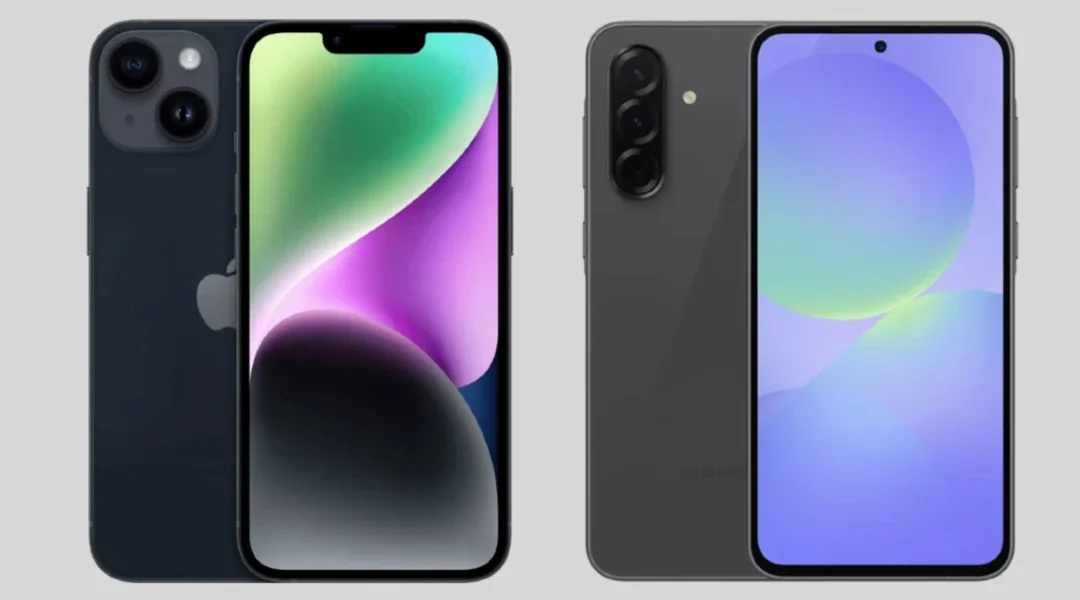
Printing from your phone can seem tricky, but it doesn’t have to be! With just a few simple steps, you can easily print photos, documents, and more directly from your smartphone. This guide will walk you through the process in a clear and friendly way, perfect for seniors and beginners.
Quick Answer

To print from your phone: Connect your phone and printer to the same Wi-Fi network, open the document or photo you want to print, tap the Share icon, select Print, choose your printer from the list, adjust any settings if needed, and tap Print. This works for both iPhone and Android devices with most modern wireless printers.
**Prefer to watch? This 5-minute video walks you through the entire process:**
Table of Contents
- Before You Start: What You’ll Need
- How to Print from iPhone
- How to Print from Android
- Step-by-Step Guide for All Phones
- Practical Tips for Seniors
- Troubleshooting Common Problems
- Common Mistakes to Avoid
- Safety and Security Notes
- Summary
- Frequently Asked Questions
What You’ll Need
Before you begin, make sure you have:
- A smartphone (iPhone or Android)
- A wireless printer (most printers made after 2010 have Wi-Fi)
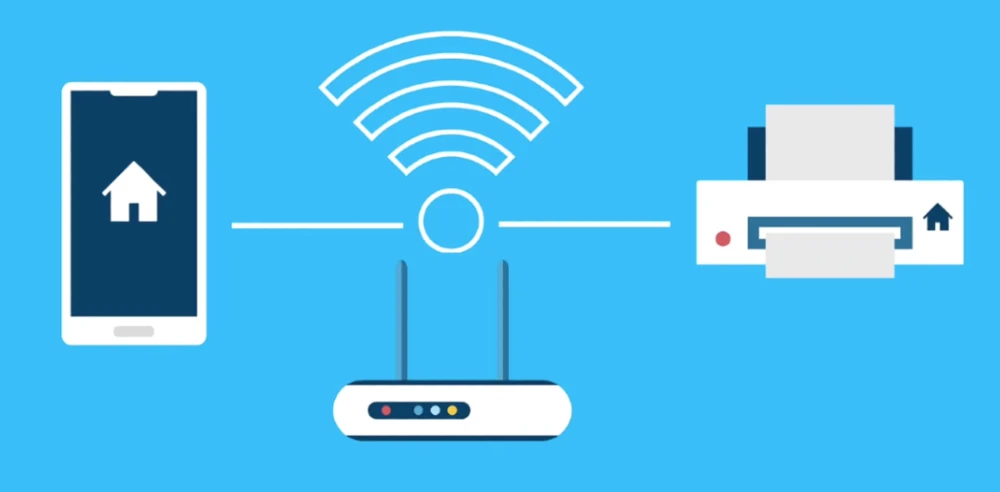
- Both devices are connected to the same Wi-Fi network
- Paper and ink in your printer
Do I need a special printer? Most modern printers support mobile printing. Look for labels like “Wi-Fi,” “Wireless,” “AirPrint” (for iPhone), or “Google Cloud Print Ready” on your printer.
How to Print from iPhone
iPhones use a built-in feature called AirPrint that works with most wireless printers. No app download needed!
iPhone Printing Steps:
- Make sure your iPhone and printer are on the same Wi-Fi network
- Open the photo, document, email, or webpage you want to print
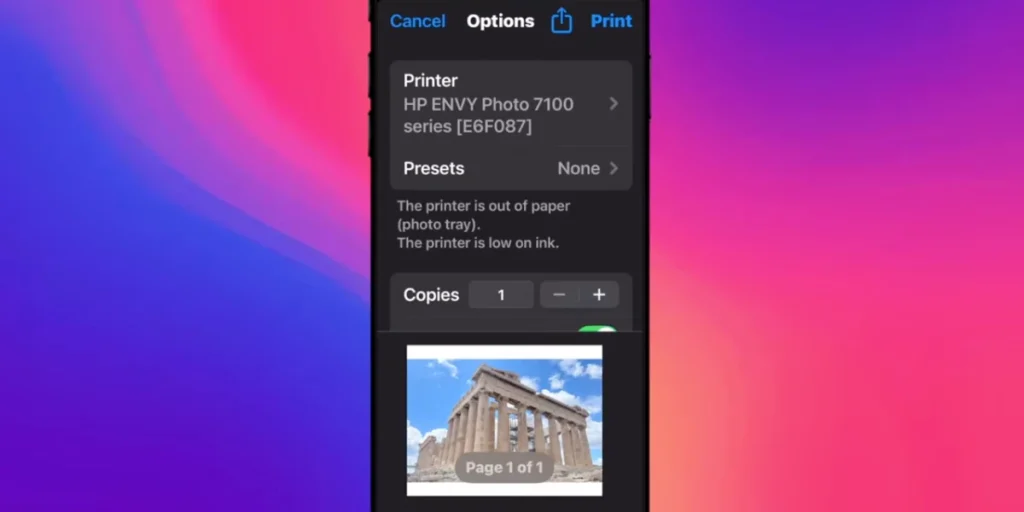
- Tap the Share button (square with an arrow pointing up)
- Scroll down and tap Print
- Tap Select Printer and choose your printer from the list
- Choose the number of copies and other options
- Tap Print in the upper right corner
Tip: If your printer doesn’t appear, make sure it’s turned on and connected to Wi-Fi. You may need to restart both devices.
How to Print from Android
Android phones have built-in printing support that works with most wireless printers. You may need to download your printer’s app for the best experience.
Android Printing Steps:
- Connect your phone and printer to the same Wi-Fi network
- Open the document, photo, or file you want to print
- Tap the three dots menu (⋮) or Share icon
- Select Print from the menu
- Tap the dropdown menu to select your printer
- Adjust copies, color, and paper size if needed
- Tap the Print button (usually a printer icon)
Note: If you don’t see your printer, you may need to tap “All printers” and then “Add printer” to search for it.
Step-by-Step Guide to Print from Your Phone
This detailed guide works for both iPhone and Android users.
Step 1: Check Your Printer
First, make sure your printer can connect to your phone. Most modern printers have Wi-Fi capabilities. Look for a label or manual that mentions Wi-Fi, Wireless, or Mobile Printing.
Where to check: Look on the front panel, top of the printer, or in the printer’s settings menu for a Wi-Fi symbol.
Step 2: Connect Your Phone to the Same Wi-Fi Network
Your phone and printer must be on the same Wi-Fi network. Here’s how to check:
For iPhone:
- Open Settings
- Tap Wi-Fi
- Check the network name with a checkmark (this is your current network)
For Android:
- Open Settings
- Tap Connections or Network & Internet
- Tap Wi-Fi
- Check the connected network name
Important: Make sure your printer is also connected to this same network. Check your printer’s display screen or print a network configuration page to verify.
Step 3: Install the Printer App (If Needed)
Some printers work better with their official app. Check your printer brand:
- HP: Install the HP Smart app
- Canon: Install the Canon PRINT app (not “Cannon”)
- Epson: Install the Epson iPrint app
- Brother: Install the Brother iPrint&Scan app
Search for the app in your phone’s App Store (iPhone) or Google Play Store (Android) and download it for free.
Do I need an app to print from my phone? Not always! iPhones can use AirPrint without an app, and Android has built-in printing. However, printer apps often provide more features and easier setup.
Step 4: Open the Document or Photo You Want to Print
Find the document or photo you wish to print. This could be in:
- Your Photos or Gallery app
- Google Docs or Microsoft Word
- Email attachments
- Web pages in your browser
- PDF files
Step 5: Select the Print Option
Once you have your document or photo open:
- Tap the Share icon (usually looks like an arrow pointing out of a box, or three connected dots)
- Look for the Print option and select it
- On some Android phones, you may need to tap the three dots menu first
Can’t find the Print option? Some apps hide it under different menus. Look for “More,” “Options,” or the three-dot menu.
Step 6: Choose Your Printer
Your phone will search for available printers on your Wi-Fi network. Select your printer from the list.
Why won’t my phone find my printer?
- Make sure your printer is turned on
- Verify both devices are on the same Wi-Fi network
- Restart your printer and wait 30 seconds
- Restart your phone
- Make sure your printer isn’t in sleep mode
Step 7: Adjust Print Settings (If Needed)
Before printing, you can customize:
- Number of copies: How many prints you want
- Color or Black & White: Save ink by choosing black and white
- Paper size: Usually Letter (8.5″ x 11″) or A4
- Orientation: Portrait (vertical) or Landscape (horizontal)
- Page range: Print all pages or select specific pages
Tip: For photos, select “Best” or “High Quality” for better results. For draft documents, “Normal” or “Draft” saves ink.
Step 8: Print!
Finally, tap the Print button. Your document or photo should start printing within a few seconds!
What if nothing happens? Check that your printer has paper loaded and isn’t showing any error lights. You may need to press a button on the printer itself to confirm the print job.
Practical Tips for Seniors
- Keep it Simple: Start with printing photos before trying documents. Photos are often easier to manage and more rewarding to print.
- Ask for Help: Don’t hesitate to ask a family member or friend for assistance the first time you print. They can help you through the setup process.
- Practice Regularly: The more you print, the easier it will become. Try printing different types of files like recipes, coupons, or family photos.
- Read the Manual: If you have it, the printer’s manual can provide helpful tips specific to your model.
- Keep Your Apps Updated: Regularly update your printer app for the best performance and newest features.
- Save Favorite Settings: Once you find print settings you like, many printer apps let you save them as presets.
- Print a Test Page: Before printing something important, do a test print to make sure everything looks right.
Troubleshooting Common Problems
My printer isn’t showing up on my phone
Solutions:
- Restart both your phone and printer
- Make sure both are on the same Wi-Fi network (not guest networks)
- Check that your printer’s Wi-Fi is turned on (look for a Wi-Fi button or setting)
- Move your phone closer to the printer
- Update your printer’s firmware through its settings or app
The print quality is poor
Solutions:
- Check your ink or toner levels
- Select “High Quality” or “Best” in print settings
- Clean the printer heads (usually in printer settings or maintenance menu)
- Use the correct paper type setting for your paper
My document is printing blank pages
Solutions:
- Check if your printer has ink or toner
- Make sure you’re printing the correct file (some PDFs have formatting issues)
- Try printing a test page from the printer itself to rule out phone issues
- Update your printer app or reinstall it
Can I print without Wi-Fi?
Yes! You have a few options:
- USB cable: Some printers have a USB port you can connect to your phone with an adapter
- Bluetooth: Some printers support Bluetooth printing
- Wi-Fi Direct: Many printers can create their own Wi-Fi network that your phone connects to directly
The colors look wrong when I print photos
Solutions:
- Use photo paper instead of regular paper
- Select “Photo” as the paper type in settings
- Choose “Best” quality for photo printing
- Make sure you’re using genuine ink cartridges
- Calibrate your printer through its settings menu
Common Mistakes to Avoid
- Not Connecting to Wi-Fi: Always ensure both your phone and printer are on the same Wi-Fi network. Guest networks often don’t work.
- Ignoring App Updates: Keep your printer app updated for the best performance and bug fixes.
- Forgetting to Load Paper: Always check that the printer has paper before printing. Also check the paper tray is pushed in fully.
- Using the Wrong Paper: Don’t use photo paper for documents or regular paper for photos. Match the paper type to what you’re printing.
- Printing Too Many Copies by Accident: Double-check the number of copies before hitting print to avoid waste.
- Ignoring Low Ink Warnings: Replace ink cartridges when warned to avoid poor quality prints or damage to the printer.
- Not Checking Print Preview: Always preview before printing to catch formatting issues, especially with documents.
Safety and Security Notes
When printing sensitive documents, be cautious about security:
- Use Secure Wi-Fi: Always use your private home Wi-Fi network. Avoid printing sensitive documents on public Wi-Fi at coffee shops, libraries, or airports.
- Password Protect Your Wi-Fi: Make sure your home network has a strong password to prevent unauthorized access.
- Be Careful with Cloud Printing: Some printer apps store documents in the cloud temporarily. Read the privacy policy if you’re printing confidential information.
- Remove Documents Promptly: Don’t leave printed documents sitting in the printer tray, especially in shared spaces.
- Secure Your Printer: Some printers have security settings that require a PIN code to print. Consider enabling this for extra protection.
- Update Printer Firmware: Keep your printer’s software updated to protect against security vulnerabilities.
Summary
Printing from your phone is a straightforward process once you understand the basics. The key steps are connecting your phone and printer to the same Wi-Fi network, finding the print option in whatever app you’re using, selecting your printer, and adjusting any necessary settings before printing.
Whether you have an iPhone using AirPrint or an Android phone with built-in printing support, the process is similar and user-friendly. With a little practice, you’ll be printing photos, documents, emails, and web pages with ease.
Remember that most problems can be solved by checking your Wi-Fi connection, restarting your devices, and making sure your printer has paper and ink. Don’t be afraid to experiment and practice – printing from your phone is a valuable skill that gets easier every time you do it!
Frequently Asked Questions
Can I print from any app? Most apps that allow sharing will have a print option, including Photos, Safari, Chrome, Mail, Messages, Google Docs, and Microsoft Office. However, some specialized apps may not support printing.
What if my printer doesn’t have Wi-Fi? You can connect your phone to the printer using a USB cable with an appropriate adapter (Lightning to USB for iPhone, USB-C or micro USB for Android). Some older printers also support Bluetooth printing.
How do I know if my printer is compatible with my phone? Check the printer’s manual or the manufacturer’s website for compatibility information. Look for terms like “AirPrint” (for iPhone), “Mopria” (for Android), or “Mobile Printing.” Most printers made after 2012 support mobile printing.
What should I do if my printer isn’t working? Try restarting both your printer and phone. Make sure they are connected to the same Wi-Fi network. Check for error messages on the printer display. Verify the printer has paper and ink. If problems persist, consult your printer’s manual or contact the manufacturer’s support.
Can I print in color from my phone? Yes, if your printer supports color printing, you can select the color option in the print settings. You can also choose black and white to save colored ink. Make sure your color ink cartridges aren’t empty.
How much does it cost to print from my phone? Printing from your phone doesn’t cost anything beyond the usual costs of paper and ink or toner. The software and apps are free. Your only ongoing costs are replacing ink cartridges and buying paper.
Can I print photos from my phone in high quality? Absolutely! Select “Best” or “High Quality” in your print settings and use proper photo paper for the best results. Make sure your photos are high resolution (not blurry or pixelated on your phone screen).
Do I need an internet connection to print? You need Wi-Fi to connect your phone to your printer, but you don’t need internet access. Your phone and printer communicate through your local Wi-Fi network. However, some cloud-based printing services do require internet.
Can I print text messages or emails from my phone? Yes! Open the text message or email, tap the share or menu button, and select Print. This is a great way to keep records of important conversations or confirmation emails.
What’s the difference between AirPrint and regular printing? AirPrint is Apple’s built-in printing technology for iPhones and iPads that doesn’t require any app installation. Regular printing on Android works similarly through Google’s built-in printing service. Both are easy to use and don’t require special software.
Now that you know how to print from your phone, you can confidently share your memories and important documents with ease. Remember, practice makes perfect, so don’t hesitate to try printing different things! Start with something simple like a favorite photo, then work your way up to documents and web pages. Before you know it, you’ll be printing like a pro!
