
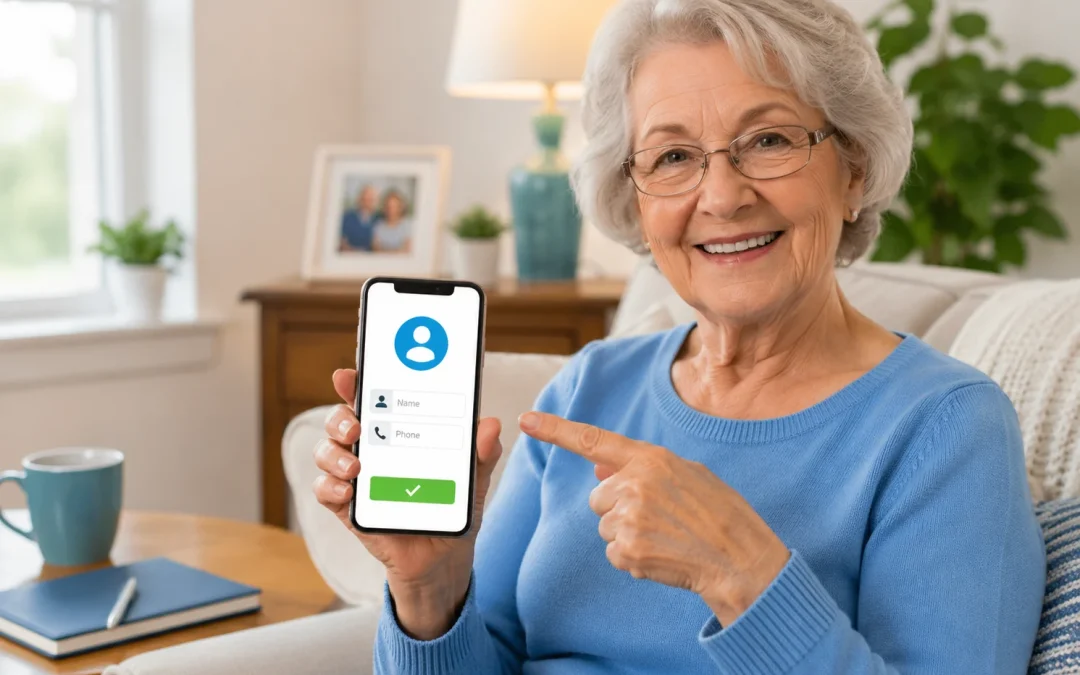

To add a contact on your phone, open the **Phone** or **Contacts** app, tap the **Add** or **+** button, type the person’s name and phone number, then tap **Save**. On an iPhone, you usually tap **Contacts > + > Done**; on most Android phones, you tap **Contacts > + > Save**. This guide is for seniors who want a simple way to save family, friends, doctors, and other important numbers. It should take only a few minutes, but very old phones or unusual models may look different and need a little extra patience.

Table of Contents

Quick Summary

  • What the problem usually means: You are not sure how to save a phone number so you do not have to dial it each time.
  • Most common cause: The **Contacts** or **Add** button is hard to find or looks different after an update.
  • How long it takes to fix: About 2–5 minutes per contact once you know where to tap.
  • When help may be needed: If your screen looks very different, your phone is very old, or you cannot find the **Contacts** app at all.

Why Adding Contacts Matters

Adding contacts makes your phone easier and safer to use. Instead of remembering or writing down phone numbers, you can tap a name and call or text right away.

Saved contacts are especially helpful for doctors, pharmacies, family members, neighbors, and emergency contacts. When a number is saved, you are less likely to dial the wrong person by mistake.

Having contacts stored also helps with other features on your phone. For example, it is easier to block spam calls when real people are saved in your contacts. If you are interested in reducing unwanted calls, you can later read How to Block Spam Calls or, for iPhone users, How to Block Scam Calls on iPhone.

In this guide, you will see simple steps for both iPhone and Android phones. You do not need to know which exact model you have, only whether it is an iPhone or another brand like Samsung, Motorola, or Google.

How to Add a Contact on iPhone

On an iPhone, you can add a contact from the **Phone** app or the **Contacts** app. Both ways lead to the same place. The easiest method is to start from the **Phone** app, which most people already use to make calls.

This section is for anyone using an iPhone, including older models. The buttons may be in slightly different places, but the names are almost always the same: **Phone**, **Contacts**, **+**, and **Done**.

Steps to add a contact on iPhone

  1. Tap the green **Phone** app on your Home screen (the icon with a white phone on a green background).
  2. At the bottom of the screen, tap **Contacts** (it may be in the middle or near the bottom right).
  3. In the top right corner, tap the **+** button (this is the **Add** button to create a new contact).
  4. Tap the **First name** and **Last name** boxes and type the person’s name. Then tap **add phone** and type their phone number carefully.
  5. If you like, tap **add email** or **Notes** to add extra details (for example, “Doctor” or “Neighbor”).
  6. When you are done, tap **Done** in the top right corner to save the contact.

What to do if it looks different

If you do not see **Contacts** at the bottom of the **Phone** app, look for a separate **Contacts** app on your Home screen and open that instead. The **+** button might be at the top left on some older versions, but it will still look like a plus sign. If your keyboard covers part of the screen, tap **Done** on the keyboard or tap a blank area to close it.

Time estimate: About 2–3 minutes for one contact once you know where the buttons are.

Difficulty level: Easy.

One common mistake

A common mistake is typing the phone number in the **Notes** section instead of in the **add phone** field. If you do this, your iPhone may not recognize it as a phone number when you try to call. Make sure you tap **add phone** and see the number appear next to a label like **mobile** or **home**.

One realistic limitation

If your iPhone is very old and has not been updated for a long time, some screens may look different or respond slowly. You can still add contacts, but it may take a little longer. If your storage is almost full, you may also want to learn how to free up space using a guide like How to Clean Up Storage on Your Phone.

How to Add a Contact on Android Phones

On Android phones (such as Samsung, Motorola, Google Pixel, and others), you usually add contacts through the **Contacts** app or the **Phone** app. The look may change slightly between brands, but the main idea is the same: find **Contacts**, tap **+**, fill in the details, then tap **Save**.

This section is for anyone who does not use an iPhone. If your phone has a **Back** button at the bottom or the brand name is not Apple, you are likely using Android.

Steps to add a contact on Android

  1. Open the **Contacts** app. If you do not see it, open the **Phone** app (the green phone icon) and then tap **Contacts** at the bottom or top of the screen.
  2. Look for an **Add** or **+** button. It is often in the bottom right corner or at the top of the screen. Tap it to create a new contact.
  3. Tap the **Name** field and type the person’s name. Then tap the **Phone** field and carefully type their phone number.
  4. If asked where to save the contact (for example, **Phone**, **SIM**, or **Google**), choose **Phone** if you are not sure. This keeps it stored on the device itself.
  5. Add any extra details you want, such as **Email**, **Address**, or **Notes**.
  6. Tap **Save** (usually at the top right or bottom of the screen) to finish.

What to do if it looks different

On some Android phones, the **Contacts** app might be called **People** or be inside the **Phone** app. If you cannot find **Contacts**, swipe up from the bottom of your Home screen to open the list of all apps, then scroll until you see **Contacts** or **People**. If the **+** button is not obvious, look for a small circle with a person and a plus sign, or tap the three dots (**⋮**) in the corner to find **Add contact**.

Time estimate: About 3–5 minutes for the first contact, then faster once you are used to it.

Difficulty level: Easy to Moderate, depending on your phone brand.

One common mistake

A common mistake is saving the contact to the **SIM card** instead of the **Phone** or **Google** account. SIM contacts can be limited and may not show all details like email or address. If you see a choice, **Phone** or **Device** is usually the safest option for most people.

One realistic limitation

Very old Android phones may not have the same layout as newer ones, and some options may be missing. You can still save names and numbers, but you might not have space for photos or extra details. If your phone is running slowly or storage is nearly full, you may want to clean it up using a guide like How to Clean Up Storage on Your Phone before adding many new contacts.

What Can Go Wrong (And How to Stay Calm)

Sometimes, things on the screen do not match what you expect. This is normal and usually easy to work around. Here are some common issues and simple ways to handle them.

Button looks different

The **+** button might look like a small person with a plus sign, or it might say **New contact** instead of just **+**. If you see anything that mentions **New contact**, **Add contact**, or shows a plus sign near a person icon, that is usually the right place to tap.

Setting or option is missing

If you do not see **Contacts** in your **Phone** app, look for a separate **Contacts** app on your Home screen or in your list of apps. On some phones, you may need to tap the three dots (**⋮**) in the corner to see more options, including **Add contact**.

Update changed the layout

After a software update, buttons may move slightly or change color, but the names usually stay the same. Look for familiar words like **Contacts**, **Add**, **New contact**, **Save**, **Done**, or a plus sign. If you feel lost, gently press the **Home** button (or swipe up to go Home) and start again from the **Phone** or **Contacts** app.

Restart did not fix it

If you have tried turning your phone off and on again and things still look strange, it does not mean your phone is broken. It may just be using a different style or theme. Take your time, read each word on the screen, and look for the closest match to the steps in this guide.

Device is older

On older phones, screens may be smaller and slower, and some features like adding photos to contacts may not be available. You can still save names and numbers, which is the most important part. If typing is hard on a small screen, you can add only the name and number and skip the extra details.

Safety and Scam Awareness

Adding a contact on your phone is a safe, normal task. You do not need to pay anyone, install special software, or give anyone access to your phone to do it.

  • You do not need to enter any credit card or bank information to add a contact.
  • You do not need to let a stranger control your phone remotely.
  • You should never share **verification codes** that are sent to you by text or email, even if someone says they are helping you.
  • Ignore any pop-up that says you must act “immediately” or “right now” to save your contacts. Adding contacts is not an emergency.

If someone calls you and asks you to add them as a contact and then follow strange instructions, hang up and call a trusted family member instead. If you are worried someone may be spying on your phone, you can read How to Tell If Someone Is Spying on Your Phone (5 Warning Signs) for more guidance.

Frequently Asked Questions

Is this serious if I do not add contacts right away?

No. Your phone will still work even if you never add a contact. Adding contacts simply makes calling and texting easier and safer, especially in emergencies.

Will I lose anything if I add a new contact?

No. Adding a contact does not delete anything. It only creates a new entry with a name and number. Your existing calls, messages, and photos stay the same.

Do I need to pay to add contacts on my phone?

No. Adding contacts is a free feature on your phone. You do not need to buy an app or pay a service to save names and numbers.

Is adding contacts a virus risk?

No. Typing in a name and phone number is completely safe. A virus usually comes from installing unsafe apps or tapping on suspicious links, not from adding contacts.

How long does it take to add a contact?

Once you know where the **Contacts** and **Add** buttons are, it usually takes about 2–5 minutes per contact. It may take a little longer at first while you get used to the steps.

What if I make a mistake when I type the number?

If you type the wrong number, you can open the contact later, tap **Edit**, and fix it. You will not break anything by making a mistake; you can always change or delete a contact if needed.

Final Summary

Adding a contact on your phone is a simple task once you know where to tap: open **Phone** or **Contacts**, tap **Add** or **+**, type the name and number, then tap **Save** or **Done**. Most problems come from buttons that look a little different after updates or on different brands of phones. With a bit of patience, you can safely build a list of family, friends, and important services so calling them is only one tap away. If you still feel unsure, ask a trusted family member, friend, or local tech helper to sit with you and follow these steps together.

📤 Share this guide:

Facebook | Email | Text | Copy Link

📱 Smartphone Help Hub

This article is part of our complete Smartphone Help for Seniors guide covering iPhone and Android safety, privacy, emergency features, and everyday tips.
