
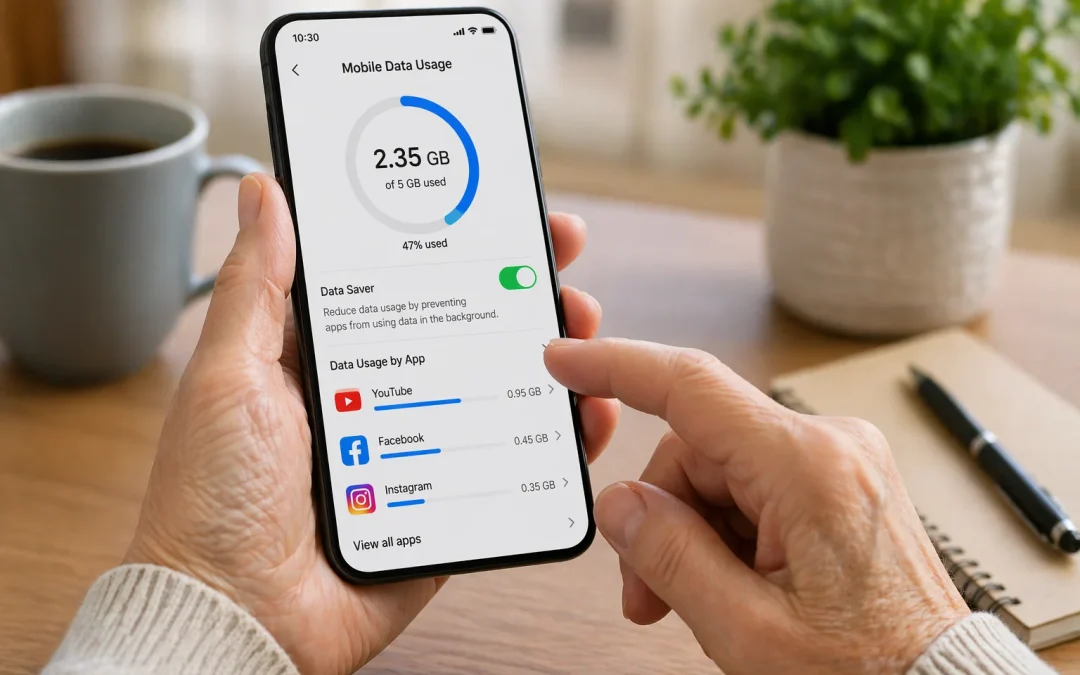
To reduce mobile data usage, first connect your phone to **Wi‑Fi** whenever possible, then turn off **Background App Refresh** (iPhone) or **Background data** (Android) for apps you do not use often. Open your phone’s **Settings**, tap **Cellular** or **Mobile data**, and turn off data for apps that use a lot, such as video or social media. You can also turn on **Low Data Mode** (iPhone) or **Data Saver** (Android) to automatically reduce how much data your phone uses in the background. These steps work for most modern smartphones, but very old phones may have fewer options and may not match exactly what you see here.

This guide is for people who have a limited data plan, get warnings from their phone company, or notice their data running out too quickly. You can expect to reduce your data usage in about 15–30 minutes by following the steps. One limitation: if you watch a lot of videos or make video calls while away from Wi‑Fi, you will still use a fair amount of data, even with these settings.
Table of Contents
- Quick Summary
- Reduce Mobile Data Usage on iPhone
- Reduce Mobile Data Usage on Android
- Use Your Home Wi‑Fi Router to Save Data
- What Can Go Wrong
- Safety and Scam Awareness
- FAQ
- Final Summary
Quick Summary
- What the problem usually means: Your phone is using the internet over your mobile plan instead of Wi‑Fi, often in the background.
- Most common cause: Video, social media, and apps updating when you are not using them.
- How long it takes to fix: About 15–30 minutes to adjust the main settings.
- When help may be needed: If menus look very different, your phone is very old, or you are unsure which apps to turn off.
Reduce Mobile Data Usage on iPhone
On an iPhone, most extra data is used by apps running in the background, automatic updates, and video or photo apps. You can quickly reduce data use by turning on **Low Data Mode**, turning off data for heavy apps, and making sure you use **Wi‑Fi** at home or in trusted places. These changes do not delete anything on your phone; they just slow down how often apps use the internet when you are not looking.
Follow these steps:
- Connect to **Wi‑Fi**: Open **Settings** > tap **Wi‑Fi** > make sure it is **On** and tap your home network name. Enter the password if asked.
- Turn on **Low Data Mode**: In **Settings**, tap **Cellular** or **Mobile Data** > tap **Cellular Data Options** > turn on **Low Data Mode**.
- Turn off data for heavy apps: Still in **Settings** > **Cellular**, scroll down to see a list of apps and how much data they use. Slide the switch **Off** for apps you do not need on mobile data (for example, video streaming or large games).
- Limit background refresh: Go to **Settings** > **General** > **Background App Refresh** > tap **Background App Refresh** and choose **Wi‑Fi** or **Off**. You can also turn it off for individual apps.
- Stop automatic app updates on data: Open **Settings** > tap **App Store** > under **Cellular Data**, turn **Automatic Downloads** **Off**, and turn **App Downloads** to **Ask If Over 200 MB** or **Always Ask**.
If your iPhone looks different, you may have an older version of iOS. The options may be under slightly different names, such as **Mobile Data** instead of **Cellular**, or **iTunes & App Store** instead of **App Store**. If you cannot find a setting, use the search bar at the top of the **Settings** app and type a word like “data” or “background.”
Time estimate: About 10–20 minutes.
Difficulty level: Easy.
Common mistake: Turning off mobile data for important apps like **Phone**, **Messages**, or **Maps**, then wondering why they do not work away from Wi‑Fi. If something stops working, go back to **Settings** > **Cellular** and turn that app’s data back **On**.
Realistic limitation: If you often use video calls like **FaceTime** when you are away from Wi‑Fi, you will still use a lot of data. When possible, make video calls over Wi‑Fi at home. If you need help with this, see our guide on How to Use FaceTime Step by Step.
Reduce Mobile Data Usage on Android
On Android phones, data is often used by apps running in the background, automatic updates from the **Play Store**, and high‑quality video or photos. You can save a lot of data by turning on **Data Saver**, limiting background data for certain apps, and using Wi‑Fi whenever you can. The exact names of menus can be slightly different depending on your phone brand (Samsung, Google, Motorola, etc.), but the ideas are the same.
Follow these steps:
- Connect to **Wi‑Fi**: Open the **Settings** app > tap **Wi‑Fi** or **Network & Internet** > tap **Wi‑Fi** > turn it **On** and choose your home network. Enter the password if needed.
- Turn on **Data Saver**: In **Settings**, tap **Network & Internet** or **Connections** > tap **Data usage** > tap **Data Saver** and turn it **On**. This reduces background data for most apps.
- Limit background data for heavy apps: Still in **Data usage**, tap **Mobile data usage** or **App data usage**. Tap an app that uses a lot of data, then turn **Background data** **Off** for apps you do not need updating in the background.
- Stop automatic app updates on mobile data: Open the **Play Store** app > tap your profile picture (top right) > tap **Settings** > **Network preferences** > **Auto-update apps** > choose **Over Wi‑Fi only**.
- Reduce video quality in streaming apps: Open your video app (such as YouTube or Netflix) > go to its **Settings** > look for **Video quality** or **Data usage** and choose **Data saver** or a lower quality when on mobile data.
If your Android phone looks different, the menus may have other names like **Connections** instead of **Network & Internet**, or **SIM & network** instead of **Data usage**. Look for words like **Data**, **Mobile data**, or **Usage**. You can also tap the search box at the top of **Settings** and type “data saver” or “data usage.”
Time estimate: About 15–25 minutes.
Difficulty level: Easy to Moderate (because menus vary by brand).
Common mistake: Turning off background data for apps that need to stay updated, such as **Email** or **Messaging**, and then missing new messages. If you stop receiving messages, go back and turn **Background data** back **On** for that app.
Realistic limitation: If you use your phone as a **hotspot** for a computer or tablet, it can use a lot of data very quickly. Try to use your home Wi‑Fi router directly for computers when possible, or limit hotspot use to short tasks.
Use Your Home Wi‑Fi Router to Save Data
Using your home **Wi‑Fi** instead of mobile data is one of the best ways to avoid going over your data limit. When your phone is connected to Wi‑Fi, most activities (browsing, email, video, calls over apps) do not count against your mobile data plan. You do not need to change your phone company plan to do this; you just need to make sure your phone connects to your home router automatically.
Follow these steps:
- Place your router in a good spot: Make sure your Wi‑Fi router is plugged in, turned on, and placed in a central area of your home, not hidden in a metal cabinet.
- Find your Wi‑Fi name and password: Look for a sticker on the router with the **Network Name (SSID)** and **Password** or **Key**. If someone set it up for you, they may have written it on a card.
- Connect your phone to Wi‑Fi: On your phone, open **Settings** > **Wi‑Fi** (or **Network & Internet** > **Wi‑Fi**) > turn **Wi‑Fi** **On** > tap your network name > enter the password and tap **Join** or **Connect**.
- Set it to connect automatically: After you connect once, your phone should remember this network. On many phones, you can tap the network name and make sure **Auto-Join** or **Auto reconnect** is turned **On**.
- Check the Wi‑Fi symbol: Look at the top of your phone’s screen. When you see the **fan-shaped Wi‑Fi symbol**, your phone is using Wi‑Fi instead of mobile data.
If your router looks different or you cannot find the sticker, your internet provider may have given you a separate card with the Wi‑Fi details. If you still cannot find it, you may need to call your internet provider’s customer support and ask them to confirm your Wi‑Fi name and password.
Time estimate: About 10–15 minutes.
Difficulty level: Easy.
Common mistake: Entering the Wi‑Fi password with the wrong capital letters or mixing up similar characters (like letter **O** and number **0**). Type it slowly and carefully, exactly as shown.
Realistic limitation: If your home internet is slow or your router is very old, Wi‑Fi may feel slower than mobile data in some rooms. In that case, you may want to ask your provider about a newer router or better placement in your home. If you are considering a newer phone that handles Wi‑Fi better, you can see our guide to Best Budget Phones for Seniors in 2026.
What Can Go Wrong
Sometimes, even when you follow the steps, things may not look exactly the same on your screen. This is common and usually easy to work around. Here are some typical issues and what you can do.
If a button looks different, it may be because your phone brand or software version uses different colors or icons. Instead of looking only for the color, read the words on the screen, such as **Wi‑Fi**, **Cellular**, **Mobile Data**, or **Data Saver**. The words are more important than the exact look of the button.
If a setting seems to be missing, it may be under another menu. For example, **Data Saver** might be under **Connections** on one phone and under **Network & Internet** on another. Use the search box at the top of the **Settings** app and type a keyword like “data,” “Wi‑Fi,” or “usage.”
Updates can change the layout of menus. After an update, items may move to new locations, but the basic ideas stay the same. Look for similar words, and do not worry if the order is different. You are not going to break your phone by just opening and looking at settings.
If restarting your phone does not fix a problem (for example, Wi‑Fi will not connect), check that your router is turned on and that other devices in your home can connect. You can also restart the router by unplugging it for 10 seconds and plugging it back in, then waiting a few minutes.
On older devices, some options like **Low Data Mode** or **Data Saver** may not exist. In that case, focus on the steps you do have: connect to Wi‑Fi, turn off mobile data for heavy apps, and avoid streaming video when you are away from home. If your phone is very old and struggles with these settings, it may be time to consider a newer, budget‑friendly model.
Safety and Scam Awareness
Reducing your mobile data usage should never require paying anyone or giving out private information. You do not need to buy special apps, pay for “cleaners,” or respond to pop‑up warnings to change these settings. All the tools you need are already built into your phone’s **Settings**.
No one needs remote access to your phone just to help you save data. If someone calls you and asks to control your phone, install an app, or visit a strange website to “fix” your data usage, hang up. This is a common scam. If you are worried about someone spying on your phone, you can read our guide on How to Tell If Someone Is Spying on Your Phone (5 Warning Signs).
Real data warnings from your phone company usually come by text or email and do not ask for passwords or payment right away. Be careful with any message that says “urgent” or threatens to cut off your service unless you click a link immediately. Instead, open your browser and go directly to your phone company’s official website, or call the number on your bill.
Never share verification codes that are texted to you, even with someone who says they are from your phone company or a family member. Those codes are private and can be used to get into your accounts. You do not need any verification codes to change the data settings described in this guide.
FAQ
Is high mobile data usage serious?
High mobile data usage is usually not dangerous for your phone, but it can be serious for your bill. If you go over your plan, your phone company may charge extra fees or slow down your connection. Adjusting your settings now can prevent surprise charges later.
Will I lose anything by changing these settings?
No, you will not lose your photos, contacts, or messages by changing data settings. You are only controlling how and when apps use the internet. If something stops updating, you can always turn the setting back on.
Do I need to pay for an app to reduce data usage?
No, you do not need to pay for any special app. All the important tools, like **Low Data Mode**, **Data Saver**, and Wi‑Fi settings, are already built into your phone for free.
Is high data usage a virus?
Most of the time, high data usage is caused by normal apps like video, social media, or automatic updates, not a virus. If you see strange apps you do not recognize or your phone behaves oddly, you may want someone you trust to look at it, but usually it is not a virus.
How long does it take to fix my data usage?
For most people, it takes about 15–30 minutes to go through the main settings and reduce data usage. You may need a few days to see the full effect on your monthly data total.
What if I make a mistake in the settings?
If you turn off the wrong setting, the worst that usually happens is an app stops updating on mobile data. You can always go back into **Settings** and turn that option back on. You are very unlikely to break anything by changing these data options.
Final Summary
High mobile data usage is usually caused by apps updating in the background, video streaming, and not using Wi‑Fi when it is available. By turning on **Low Data Mode** or **Data Saver**, limiting background data for heavy apps, and connecting to your home Wi‑Fi, you can greatly reduce how much data you use each month. These changes are safe, can be undone at any time, and do not erase anything on your phone. If you still feel unsure, ask a trusted family member, friend, or local tech helper to sit with you and go through the steps together.
