
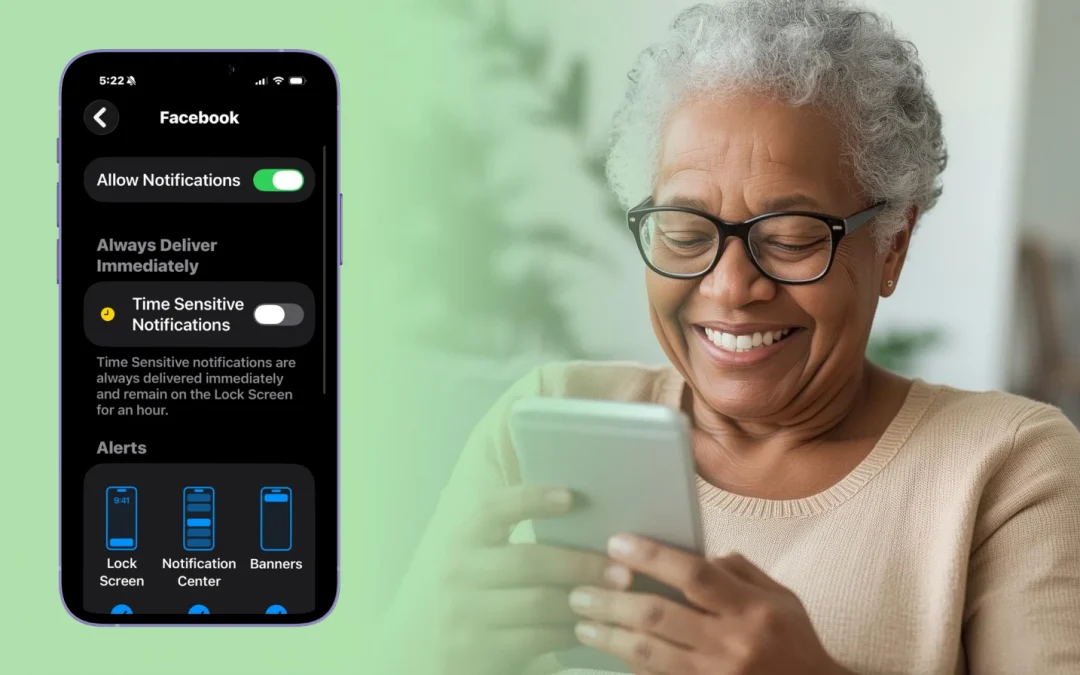
Yes, you can turn notifications on or off on an iPhone at any time using simple settings. Most seniors can adjust these in just a few minutes, and it does not require any technical skills. This applies to all iPhones, and changes take effect immediately.
Table of Contents
- Quick Summary
- What This Usually Means
- Step-by-Step: How to Turn Notifications On or Off
- When This Is NOT Normal
- What Can Go Wrong
- Safety Reminder
- Common Questions
Quick Summary
- Notifications are alerts from apps like messages, calls, or reminders.
- The most common issue is too many alerts or none showing at all.
- This usually takes 2–5 minutes to fix in Settings.
- It’s only serious if notifications are missing after checking settings.

What This Usually Means
Notifications are the small alerts you see or hear when something happens on your iPhone, such as a new text message, email, or reminder. If you are getting too many notifications, it usually means several apps have permission to send alerts. If you are not getting any, those settings may be turned off.
This is normal and happens often, especially after installing new apps or updating your phone. Each app controls its own notifications, so you can choose which ones are allowed.
For example, a senior might notice their phone keeps buzzing all day because of news or shopping apps. Turning those off can make the phone quieter and easier to use.
One limitation is that some apps require notifications to work properly, like messaging or phone apps. Turning them off completely may cause you to miss important alerts.
Step-by-Step: How to Turn Notifications On or Off
You can control notifications for each app individually. This lets you decide exactly what alerts you want to see or hear.
Difficulty: Easy
Time: 2–5 minutes
- Open the Settings app on your iPhone.
- Scroll down and tap Notifications.
- Tap the app you want to change (for example, Messages or Mail).
- To turn notifications off, toggle Allow Notifications off.
- To turn them on, toggle Allow Notifications on.
- You can also choose how alerts appear (Lock Screen, Banners, or Sounds).
If your screen looks different, your iPhone may be using a newer version of iOS. The steps are still very similar—just look for “Notifications” in Settings.
Common mistake: Turning off notifications for important apps like Messages or Phone, which can cause missed calls or texts.
Limitation: Some apps may still send critical alerts even if most notifications are turned off.
When This Is NOT Normal
If notifications are still not working after turning them on, that may not be normal.
- No notifications from any app at all
- Phone is completely silent even when volume is up
- “Do Not Disturb” or Focus mode is stuck on
In these cases, check Focus settings or restart your phone. If the issue continues, it may help to contact Apple Support or visit a local Apple Store.
What Can Go Wrong
- Notifications still not showing: Check if Focus or Do Not Disturb is turned on.
- Setting looks different: iOS updates can move options slightly—look for “Notifications” in Settings.
- No sound alerts: Make sure volume is up and silent switch is off.
- Changes not saving: Restart your iPhone and try again.
Safety Reminder
Always adjust notification settings directly on your iPhone. Do not follow pop-ups or messages asking you to change settings or pay for help. Apple does not charge for basic settings changes, and you should never give remote access to your phone.
Common Questions
Is this serious?
No, notification issues are usually simple settings problems.
Will I lose anything by turning notifications off?
No, but you may miss alerts like messages or reminders.
Do I need to pay to fix this?
No, this can be done for free in your phone settings.
Is this caused by a virus?
No, this is almost always a normal settings issue.
How long does this take?
Usually just a few minutes.
Final Summary
Turning notifications on or off on an iPhone is simple and can be done in just a few minutes. Most issues come from normal settings changes and are easy to fix. You can control which apps alert you and how often.
If something doesn’t look right, take your time and check each step. And if you’re unsure, it’s always okay to ask a trusted friend or family member for help.
