
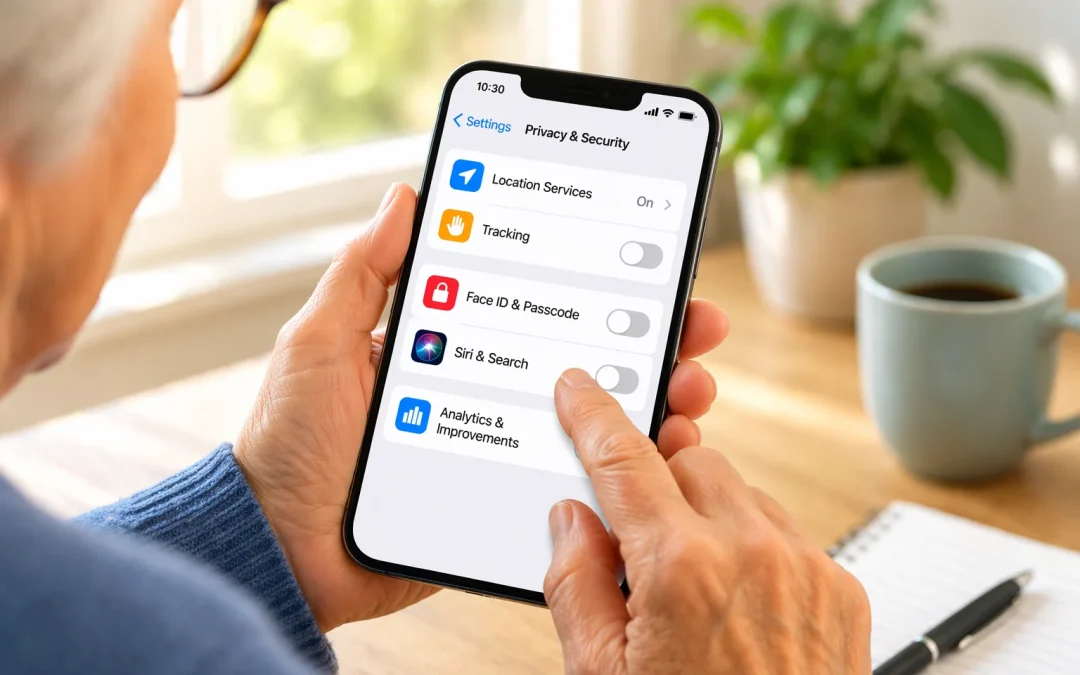

Yes, there are several iPhone settings you can safely turn off to improve your privacy and security, especially if you are a senior or a beginner. This guide walks you through five important settings in calm, simple steps, with pictures in mind even if you do not see them on the page. These changes will not make your iPhone “hack-proof,” but they can reduce how much of your information is shared and lower your risk from scams. You can always turn any setting back on later if something does not work the way you like.
Table of Contents
- Quick Summary
- 1. Limit Location Services
- 2. Turn Off Personalized Ads and Tracking
- 3. Limit What Can Be Done from the Lock Screen
- 4. Tighten Siri & Voice Privacy
- 5. Reduce Data Sharing & Analytics
- Safe vs Unsafe: What’s Realistic
- Practical Action Plan
- What Can Go Wrong (and How to Recover)
- Safety and Scam Awareness
- Frequently Asked Questions
- Final Summary
Quick Summary
- Turning off a few iPhone settings can reduce how much of your information is shared and who can see it.
- You will still be able to use your iPhone for calls, messages, photos, and everyday tasks.
- Never change settings because of a scary pop-up or a stranger on the phone; ask someone you trust instead.
- The main goal is to give you more control and peace of mind, not to make your phone perfect or “unhackable.”
1. Limit Location Services
Location Services is the part of your iPhone that uses GPS, Wi‑Fi, and cell towers to know where you are. This is helpful for maps, weather, and emergencies, but many apps do not truly need your exact location all the time. By limiting which apps can see where you are, you protect your privacy and reduce how much of your daily life is quietly recorded.
To find this setting, open the Settings app (the gray gear icon), then tap “Privacy & Security,” then “Location Services.” You will see a list of apps with words like “Always,” “While Using,” or “Never” under each one. “Always” means the app can see your location even when you are not using it; “While Using” means only when the app is open on the screen; “Never” means it cannot see your location at all.
Imagine Margaret, 76, who uses Maps to visit her doctor and a weather app to check the forecast. She needs location for Maps and maybe for Weather, but her puzzle game and flashlight app do not need to know where she is. She goes down the list and changes most apps to “Never” or “While Using,” leaving “Always” only for something like “Find My” (which helps locate a lost phone) if she wants that safety feature.
A common misunderstanding is thinking you must turn Location Services completely off or your phone is unsafe. In reality, turning it fully off can make useful features stop working, like directions or emergency services having your location. A better approach is to keep Location Services on, but be picky about which apps can use it and when.
There is also a setting called “Precise Location.” When this is on, an app can see your exact spot; when it is off, it only sees your general area. For many apps, such as news or basic weather, you can safely turn Precise Location off and still get good results. The limitation is that some apps, especially navigation or ride services, really do need precise location to work correctly.
Practical recommendation: Go to Settings > Privacy & Security > Location Services. For each app:
- Set most apps to “While Using” or “Never.”
- Keep “Always” only for apps you truly trust and rely on, like “Find My” or a medical alert app.
- Tap each app and turn off “Precise Location” unless you clearly need exact directions or location-based services.
2. Turn Off Personalized Ads and Tracking
Many apps and websites try to “follow” what you do so they can show you personalized ads. This is called tracking. It does not usually mean someone is watching you personally, but it does mean companies collect information about your interests, where you tap, and sometimes where you go, to build a profile about you.
On your iPhone, you can limit this in two main places: the “Ask Apps Not to Track” setting and Apple’s own advertising settings. To find them, open Settings, tap “Privacy & Security,” then “Tracking.” Here you can turn on “Allow Apps to Request to Track” or turn it off. When it is off, apps are not allowed to ask to track you across other apps and websites.
Next, go back to Settings and scroll down to “Privacy & Security” or “Apple Advertising” (depending on your iOS version). There you may see options related to “Personalized Ads.” Turning this off means Apple will not use your activity to tailor ads to you, though you will still see ads, just more general ones.
Consider Robert, 81, who enjoys reading news and playing card games on his iPhone. He notices ads that seem to “know” what he has been looking at. He worries that someone is spying on him. By turning off app tracking and personalized ads, he still sees advertisements, but they are less personal, and he feels more comfortable knowing less of his behavior is being shared.
A common misunderstanding is thinking that turning off tracking will remove all ads or make the internet faster. It will not. Ads will still appear, but they will be less targeted. The limitation is that some free apps rely on ads to stay free, and they may still collect some information that is necessary to function, even with tracking limited.
Another misunderstanding is believing that if you tap “Ask App Not to Track,” the app will always obey perfectly. Apple requires apps to follow this rule, and consumer protection agencies widely report that Apple enforces these rules, but no system is perfect. Still, turning off tracking is an important and worthwhile step that reduces how much of your information is shared.
Practical recommendation:
- Go to Settings > Privacy & Security > Tracking and turn off “Allow Apps to Request to Track.”
- Then go to Settings > Privacy & Security > Apple Advertising (or similar) and turn off “Personalized Ads.”
- If any app pops up later asking to track you, choose “Ask App Not to Track.”
3. Limit What Can Be Done from the Lock Screen
Your lock screen is what you see before you unlock your iPhone with your passcode, Face ID, or Touch ID. By default, your lock screen may show notifications, allow replies to messages, or give access to certain features without unlocking. This is convenient, but it can also expose private information if someone else picks up your phone.
To adjust this, open Settings and tap “Face ID & Passcode” or “Touch ID & Passcode.” Enter your passcode. Scroll down to the section called “Allow Access When Locked.” Here you will see switches for things like “Today View,” “Notification Center,” “Control Center,” “Reply with Message,” “Wallet,” and more.
Imagine Helen, 79, who often leaves her phone on the kitchen table when family visits. She does not mind them seeing that she has a message, but she does not want anyone to be able to read or reply to her texts without her permission. By turning off “Reply with Message” and limiting what shows on the lock screen, she keeps her conversations more private.
A common misunderstanding is thinking that if you turn off lock screen access to something, you will lose that feature completely. In reality, you can still use those features after you unlock your phone. The change only affects what can be done before the phone is unlocked.
There is an honest limitation here: if you hide too much from the lock screen, you may miss quick information, like seeing who is calling or reading a short text without unlocking. You need to find a balance that feels right for you. For some seniors, especially those who live alone, it may be helpful to keep call and emergency information visible while hiding message details.
You can also control how much of a message is shown on the lock screen. Go to Settings > Notifications > Show Previews and choose “When Unlocked” instead of “Always.” This way, you will see that a message arrived, but the content will only appear after you unlock the phone.
Practical recommendation:
- Go to Settings > Face ID & Passcode (or Touch ID & Passcode) and review “Allow Access When Locked.”
- Turn off anything you do not want others to use without your passcode, such as “Reply with Message” or “Wallet.”
- Go to Settings > Notifications > Show Previews and set it to “When Unlocked” to hide message contents on the lock screen.
4. Tighten Siri & Voice Privacy
Siri is Apple’s voice assistant that responds when you say “Hey Siri” or press and hold a button. It can be very helpful for seniors, especially for making calls, sending messages, or setting reminders without typing. However, there are a few settings that can affect your privacy and what others can do with your phone using their voice.
First, decide how you want Siri to be activated. Go to Settings > Apple Intelligence and Siri. You may see options like “Listen for ‘Hey Siri’,” “Press Side Button for Siri,” and “Allow Siri When Locked.” If “Allow Siri When Locked” is on, anyone holding your phone can talk to Siri without unlocking it. This can be convenient, but it also means someone could send a message or make a call from your phone without your passcode.
Consider James, 83, who likes using Siri to call his daughter. He keeps “Press Side Button for Siri” turned on, but he turns off “Allow Siri When Locked.” That way, he presses the button and unlocks the phone first, then uses Siri. This small change reduces the chance of someone else using Siri on his phone without his knowledge.
Another part of Siri privacy is how your voice recordings are handled. In Settings > Privacy & Security > Analytics & Improvements (or similar), you may see an option like “Improve Siri & Dictation.” When this is on, some of your audio recordings may be sent to Apple to help improve Siri. Apple says these are handled carefully, but if you prefer more privacy, you can turn this off.
A common misunderstanding is thinking that Siri is always recording everything you say. In reality, Siri is designed to listen for a “wake word” like “Hey Siri.” However, like any technology, it can sometimes mishear and activate by mistake. Turning off “Listen for ‘Hey Siri’” if you do not use it can reduce these accidental activations.
The limitation is that if you turn off too many Siri features, you may lose some of the convenience that makes your iPhone easier to use, especially if typing is hard for you. For many seniors, the best balance is to keep Siri available but limit what it can do when the phone is locked and turn off any data sharing options they are not comfortable with.
Practical recommendation:
- Go to Settings > Siri & Search and turn off “Allow Siri When Locked” if you want more privacy.
- Turn off “Listen for ‘Hey Siri’” if you do not use voice activation or worry about accidental triggers.
- Go to Settings > Privacy & Security > Analytics & Improvements and turn off “Improve Siri & Dictation” if you prefer not to share voice samples.
5. Reduce Data Sharing & Analytics
Analytics and diagnostics are technical words for information your iPhone sends back to Apple and sometimes to app makers. This can include details about how often apps crash, how you use certain features, and basic information about your device. The goal is to help improve products, but many people prefer to share as little as possible.
To adjust this, open Settings, tap “Privacy & Security,” then scroll to “Analytics & Improvements” (the exact name can vary slightly by iOS version). Here you may see switches like “Share iPhone Analytics,” “Share iCloud Analytics,” “Improve Health & Activity,” and similar options for specific apps or services.
Imagine Linda, 74, who uses her iPhone mainly for calls, photos, and a few simple apps. She does not feel comfortable with extra data being sent from her phone, even if it is supposed to be anonymous. She goes into Analytics & Improvements and turns off most sharing options, keeping only what she truly needs for a specific health or safety feature.
A common misunderstanding is thinking that turning off analytics will break your phone or stop updates. That is not the case. Your iPhone will still receive software updates and security fixes even if you do not share analytics. The limitation is that by not sharing, you are contributing a little less to helping Apple and app developers find and fix problems, but this is a personal choice.
Some apps also have their own “Share Usage Data” or “Send Crash Reports” options inside the app’s settings. These are usually optional. If you are not sure, you can leave them on, but if privacy is a priority, you can turn them off without affecting basic use of the app.
Practical recommendation:
- Go to Settings > Privacy & Security > Analytics & Improvements.
- Turn off “Share iPhone Analytics” and any other sharing options you do not feel comfortable with.
- When new apps ask to “help improve the app” by sharing usage data, you can safely choose “No” if you prefer.
Safe vs Unsafe: What’s Realistic
When it comes to privacy and security on an iPhone, it helps to understand what is truly risky and what is more about comfort and preference. Consumer protection agencies widely report that many scams and privacy problems start not from the phone itself, but from tricking people into giving away information or tapping on harmful links. Changing settings is important, but it is only one part of staying safe.
Safe behavior includes using a passcode, keeping your iPhone updated, and being careful about who you trust with your phone. It is also safe to say “No” to app tracking, limit location access, and turn off data sharing and analytics. These steps reduce how much of your information is collected and shared in the background.
Less safe behavior includes leaving your phone unlocked, allowing strangers to “fix” your phone remotely, or following instructions from pop-ups that say things like “Your iPhone is infected” or “Call this number now.” It is also risky to allow unknown apps to always know your location or to give apps more access than they truly need.
Many people misunderstand and think that if they just flip a few switches, they will be completely protected. No setting can guarantee that. The realistic goal is to lower your risk and make it harder for companies and bad actors to collect or misuse your information. Seniors are often most vulnerable when they feel rushed, scared, or pressured, especially by phone calls or messages that pretend to be from Apple, a bank, or a government office.
Another misunderstanding is believing that you must understand every technical detail to be safe. You do not. You only need a few simple habits: be cautious with unexpected messages, do not share codes or passwords, and ask a trusted person or local tech helper if something feels off. The settings in this guide support those habits by giving you more control over what your iPhone shares.
If you are interested in related topics, you may also find it helpful to learn how to block spam calls and how to use QR codes safely, since many scams now arrive through calls and strange links.
Practical Action Plan
Making several changes at once can feel like a lot, so it helps to follow a simple, step-by-step plan. You do not have to do everything in one sitting. You can work through these steps over a few days, or ask a family member or friend to sit with you.
Step 1: Secure the basics
Before changing anything else, make sure you have a passcode on your iPhone and that you know what it is. Then, go to Settings > Face ID & Passcode (or Touch ID & Passcode) and review what is allowed when the phone is locked. Turn off anything you do not want others to access without your code, such as “Reply with Message” or “Wallet.”
Step 2: Tidy up location and tracking
Next, go to Settings > Privacy & Security > Location Services. Change most apps to “While Using” or “Never,” and turn off “Precise Location” for apps that do not need exact directions. Then, go to Settings > Privacy & Security > Tracking and turn off “Allow Apps to Request to Track,” and turn off “Personalized Ads” in Apple’s advertising settings.
Step 3: Fine-tune Siri and data sharing
Finally, go to Settings > Siri & Search and turn off “Allow Siri When Locked” if you want more privacy. Then, go to Settings > Privacy & Security > Analytics & Improvements and turn off any sharing options you do not want. If you have time and energy, you can also review notifications (Settings > Notifications) to control what appears on your lock screen; if you need help with this, see this step-by-step guide on how to turn off and turn on notifications on iPhone.
As you go, write down any setting you change on a piece of paper. If something later does not work the way you expect, you can look at your notes and change that one setting back. This simple habit can make you feel more confident and less afraid of “breaking” something.
What Can Go Wrong (and How to Recover)
It is normal to feel nervous about changing settings, especially if you did not grow up with smartphones. You might worry that you will tap the wrong thing, or that your screen will not look exactly like the instructions. Different iPhone models and software versions can have slightly different menus, which can be confusing.
One common problem is turning off a setting that an app really needs, such as location for Maps. If you notice something stops working, do not panic. Usually, the app will ask for permission again, or you can go back into Settings and turn that one option back on. Nothing in this guide is permanent; you can always reverse it.
Another issue is receiving conflicting advice. A friend might tell you to turn everything off, while a store employee says to leave everything on. Remember that your comfort and understanding matter most. If a change makes your phone too hard to use, it is okay to loosen that setting a little.
There is also the fear of breaking the phone. Changing privacy settings will not break your iPhone. At worst, an app may not work correctly until you restore a permission. If you feel stuck, you can ask a trusted family member, a local senior center tech helper, or a reputable store technician to look at your settings with you.
Software updates can also move or rename settings. If you cannot find something exactly where this guide says, use the search bar at the top of the Settings app. Type a word like “Location,” “Siri,” or “Analytics,” and your iPhone will show you where that setting lives now.
Safety and Scam Awareness
Privacy and security settings help, but many real dangers come from scams and trickery. It is important to know what a legitimate process looks like and what are clear red flags. This way, you can use your iPhone with more confidence.
A legitimate process usually starts with you. For example, you open the Settings app yourself to change something, or you call your bank using the number on the back of your card. Apple, your bank, or the government will not call you out of the blue to demand that you change settings, share passwords, or install special apps.
Red flags include pop-up messages that say things like “Your iPhone is infected” or “Do not turn off your phone, call this number now.” Another red flag is anyone asking you to share a one-time code that was just texted to you, or to give them remote control of your phone. If something feels urgent, scary, or secret, that is a sign to stop.
If something feels suspicious, do not tap any links or call any numbers shown on the screen. Instead, close the app or browser. You can press the Home button or swipe up to go back to your home screen. If you are still worried, call a trusted family member or the official support number for your bank or Apple (found on their official website, not in a pop-up).
To reduce unwanted calls that may be scams, you can also learn how to block spam calls. This, together with the settings in this guide, can make your iPhone a calmer and safer place.
Frequently Asked Questions
1. Is it safe for me to change these iPhone settings by myself?
Yes, these settings are designed for you to change. If you follow the steps slowly and only change what you recognize, you will not harm your phone. You can always switch a setting back if something does not work the way you like.
2. Can I break my iPhone by turning off these options?
No, turning off privacy, tracking, or analytics options will not break your iPhone. At most, an app may ask for permission again or may not work fully until you turn a specific setting back on. The phone itself will continue to work.
3. Do I need to pay anyone to help me with these privacy settings?
No, you do not need to pay anyone just to change the settings in this guide. Be very careful of anyone who calls or messages you asking for money to “secure” your phone. If you want in-person help, choose a trusted family member, friend, or a reputable local service.
4. What if my screens do not look exactly like the steps you describe?
That usually means your iPhone has a slightly different version of the software. The settings are still there, but they may be in a slightly different spot or have a slightly different name. You can use the search bar at the top of the Settings app to find them.
5. Will turning off tracking and analytics stop all scams?
No, these settings reduce how much of your information is shared, but they cannot stop all scams. Many scams come through phone calls, texts, or emails that try to trick you. You still need to be careful with unexpected messages and never share passwords or codes.
6. What should I do if I do not understand a step?
If a step is confusing, stop and do not guess. Write down where you got stuck and ask a trusted family member, friend, or local tech helper to walk through it with you. It is better to wait for help than to feel worried or rushed.
7. Can a family member help me set this up without seeing all my private information?
Yes, a family member can help you change settings without reading your messages or emails. Ask them to stay in the Settings app and not open your personal apps. You can also sit beside them and watch, so you learn where things are for next time.
Final Summary
By turning off or limiting a few key iPhone settings—location access, ad tracking, lock screen access, Siri when locked, and analytics—you give yourself more privacy and control. You learned what each setting does in plain language, how it affects your daily life, and how to find a balance between safety and convenience. The realistic limitation is that no phone can be made perfectly secure, and scams can still appear through calls, texts, and links.
What you can do is lower your risk and feel more confident using your iPhone. If you ever feel unsure, it is perfectly okay to pause, write down your question, and ask a trusted person or a reputable support service for help. Your phone is a tool for staying connected and informed, and with a few careful choices, it can also respect your privacy and peace of mind.
