
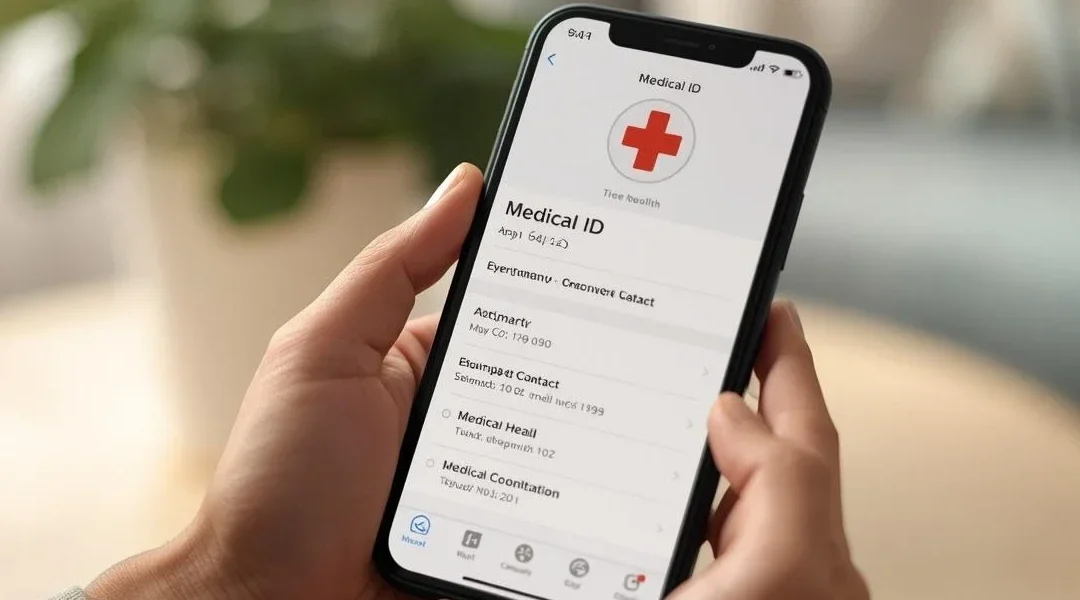
Yes, you can set up a Medical ID on your iPhone, and it only takes a few minutes. This allows you to add important health information so emergency workers can access it from your Lock Screen.
Table of Contents
- Quick Summary
- What This Usually Means
- Step-by-Step: How to Set Up Medical ID
- When This Is NOT Normal
- What Can Go Wrong
- Safety Reminder
- FAQ
- Final Summary
Quick Summary
- Medical ID on iPhone stores your important health details so emergency workers can see them without unlocking your phone.
- The most common issue is that Medical ID is simply not set up yet.
- It usually takes about 5–10 minutes to set up the first time.
- It’s serious if you rely on medicines, have allergies, or live alone and do not have this set up.
What This Usually Means

Medical ID is a built-in feature on the iPhone that keeps your key health information in one place. It can show your name, age, medical conditions, allergies, medications, and emergency contacts.
In an emergency, a helper or paramedic can tap “Emergency” on your Lock Screen, then “Medical ID,” to see this information without needing your passcode. This can help them treat you faster and contact your family.
A common misunderstanding is thinking Medical ID will automatically call 911. It does not call anyone by itself; it only shows your information when someone opens it. If you want automatic calling, that is a different feature called Emergency SOS (you can learn more here: How to Turn On Emergency SOS on Your Phone).
For example, imagine Mary, age 78, who has a heart condition and takes blood thinners. She slips while shopping and cannot speak clearly. The paramedic checks her iPhone’s Medical ID, sees her condition and medications, and calls her daughter listed as an emergency contact.
One limitation: Medical ID only helps if your phone is with you and has been set up in advance.
Step-by-Step: How to Set Up Medical ID
In this section, you will turn on Medical ID, add your health details, and choose who can see it from your Lock Screen. You only need to do this once, and you can update it anytime.
Time needed: 5–10 minutes
Difficulty: Easy
- Open the Health app
On your iPhone, find and tap the white app with a red heart called Health.
If you don’t see it on your Home Screen, swipe down from the middle of the screen, type “Health” in the search box, and tap the Health app when it appears. - Go to your Medical ID
In the Health app, look at the bottom of the screen and tap Summary or Browse (both are fine).
Then, in the top-right corner, tap your profile picture or initials (it may look like a small circle with your initials).
On the next screen, tap Medical ID.
If you don’t see “Medical ID,” make sure your iPhone is updated to a recent version of iOS, then try again. - Tap “Edit” and fill in your details
Tap Edit in the top-right corner.
You can now enter:- Name and date of birth
- Medical conditions (for example: “Diabetes Type 2”)
- Allergies & reactions (for example: “Penicillin – rash”)
- Medications (for example: “Warfarin 5 mg daily”)
- Blood type (if you know it)
- Organ donor status (optional)
Type clearly and simply. You can leave any section blank if you are not sure.
- Add emergency contacts
Scroll down and tap add emergency contact.
Choose a person from your Contacts list (for example, your spouse, child, or trusted friend).
Select their relationship to you (for example: “Daughter,” “Friend”).
You can add more than one contact if you like. - Allow access from the Lock Screen
Near the bottom, make sure Show When Locked (or “Show When Locked / Emergency Access”) is turned ON (the switch should be green).
This is important so emergency workers can see your Medical ID without your passcode. - Save and test it
Tap Done in the top-right corner to save everything.
Now press the Side button (or top button) to lock your iPhone.
Wake the screen, then tap Emergency at the bottom-left of the passcode screen, and then tap Medical ID.
Check that your information and contacts look correct.
A common mistake is forgetting to tap “Done” at the end, which means your changes are not saved. One limitation is that Medical ID does not share your information with your doctor; it only shows it on your phone.
Setting this up can give peace of mind to you and your family, knowing helpers can reach them quickly if something happens.
When This Is NOT Normal
Most of the time, Medical ID is easy to set up and works right away. However, there are times when you should get extra help.
- If the Health app is completely missing and you cannot find it with search, your iPhone may need a software update or help from Apple Support.
- If you tap “Emergency” on the Lock Screen and do not see “Medical ID” at all, your iPhone may be very old or have a software problem.
- If the screen freezes or your phone keeps restarting while you try to set it up, this is not normal and you may need help from Apple or a trusted tech person.
- If you are unsure about what medical information to enter, ask your doctor, pharmacist, or a family member to help you fill it in correctly.
What Can Go Wrong
Sometimes small things get in the way, but they are usually easy to fix.
- Button missing: If you don’t see Medical ID in the Health app, tap your profile picture or initials again and scroll carefully. If it is still missing, restart your iPhone and check for a software update in Settings > General > Software Update.
- Setting looks different: Apple sometimes changes the layout. If your screen doesn’t match exactly, look for similar words like “Medical Details” or “Emergency Access.” The options are usually in the same area.
- Update changed layout: After an update, menus may move. Take your time, read each heading slowly, and do not worry if it looks slightly different from older instructions.
- Restart didn’t work: If you have restarted your iPhone and still cannot find or edit Medical ID, contact Apple Support or visit an Apple Store or your phone provider’s shop for in-person help.
Safety Reminder
Setting up Medical ID uses only the built-in Health app on your iPhone. You should never need to pay anyone online or enter your credit card to use this feature.
- Ignore any popups or messages that ask for payment to “unlock” Medical ID.
- Do not let strangers take remote control of your phone to “fix” Medical ID.
- Be careful with links and QR codes that claim to “set up emergency info for you” (learn more here: How to Use QR Codes Safely).
- Only change settings inside your iPhone’s official Settings and Health apps.
If you are worried someone else has been changing things on your phone, you may want to read: How to Tell If Someone Is Spying on Your Phone (5 Warning Signs).
FAQ
Is this serious if I don’t have Medical ID set up?
It can be serious if you have health conditions, allergies, or take important medicines. Emergency workers may not know your situation without it.
Will I lose anything on my phone by turning this on?
No. Medical ID only adds information; it does not delete or change anything else on your iPhone.
Do I need to pay to use Medical ID?
No. Medical ID is a free feature built into the iPhone. You do not need any subscription or special app.
Is this a virus or risky to my privacy?
No. Medical ID is made by Apple and is part of the Health app. It only shows your information when someone opens it, usually in an emergency.
How long does it take to set up?
Most people can set it up in about 5–10 minutes, especially if they have their medicine list nearby.
Can someone help me set this up?
Yes. A trusted family member, friend, or caregiver can help you. You can also ask staff at an Apple Store or your phone provider’s shop.
If you find the text on your iPhone hard to read while doing this, you can make it larger using this guide: How to Make Text Bigger on iPhone for Seniors.
Final Summary
Setting up Medical ID on your iPhone lets you store important health information and emergency contacts where helpers can find them quickly. For most seniors, it is a simple, one-time setup that can make a big difference in an emergency.
While it does not call 911 or your family by itself, it gives emergency workers the details they need to care for you and reach your loved ones. If any step feels confusing, it is perfectly fine to ask a trusted person to sit with you and go through it together.
Once it is set up, you can feel more confident carrying your iPhone, knowing it quietly helps protect your health and keeps your family easier to reach when it matters most.
