
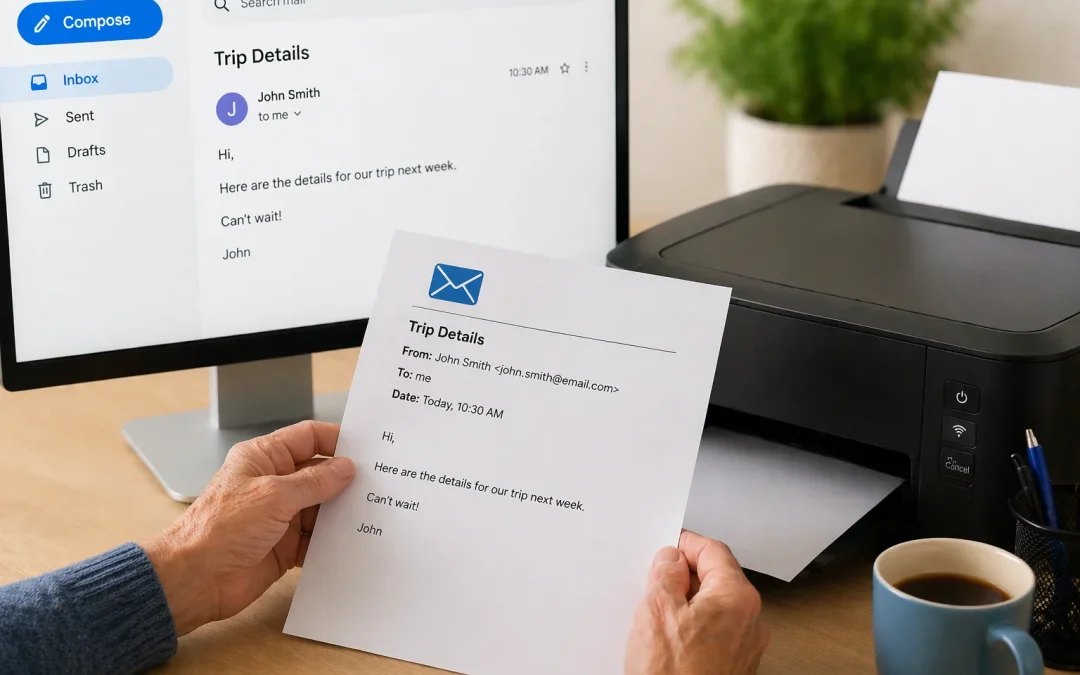

Yes, you can usually print an email, whether you use Gmail, Outlook, Yahoo, or another email service. This guide is for beginners, especially seniors, who can open and read emails but are not sure how to get them onto paper. In most cases, printing an email is quick and simple once you know where to click. This guide does not cover fixing broken printers or advanced printer problems, but it will help you with the basic steps on common devices.

Table of Contents

Quick Summary

  • What the problem usually means: You can read your email on the screen but do not see how to get a paper copy.
  • Most common cause: The print button is hidden in a menu, or the printer is not selected correctly.
  • How long it takes to fix: Usually 5–15 minutes once you know where to click.
  • When it may require help: If your printer will not turn on, shows error lights, or your device cannot find the printer at all.

Before You Start: What You Need

Before you try to print an email, it helps to make sure a few basic things are ready. This avoids frustration later. You do not need to be “good with computers” to do this, but you do need to know which printer you are using and have it set up nearby.

First, check that your printer is turned on and has paper in the tray. If it has a small screen, make sure there are no warning messages, such as “out of ink” or “paper jam.” If you see those, you may need help from a family member, friend, or local tech support before you can print.

Next, make sure your device (computer, phone, or tablet) is connected to the same Wi‑Fi network as your printer, if it is a wireless printer. If your printer uses a cable, check that the cable is firmly plugged into both the printer and the computer.

Finally, sign in to your email account and open the email you want to print. If you are new to email, you may find it helpful to review a beginner guide such as How to Use Gmail for Beginners or How to Send an Email so you are comfortable opening messages before printing them.

On a Windows computer, you can print an email from your web browser (like Chrome, Edge, or Firefox) or from an email program (like Outlook). The basic idea is the same: open the email, choose Print, check the preview, and then confirm.

Steps:

  1. Open your email and click on the message you want to print so it fills most of the screen.
  2. Look for the word “File” at the very top left of the window. Click “File,” then click “Print.” If you do not see “File,” press the Ctrl and P keys on your keyboard at the same time (this is a shortcut for Print).
  3. A Print window or panel should appear. At the top, look for “Printer” and make sure the correct printer is selected. If you have more than one, choose the one you actually use.
  4. Look at the preview on the right side. This shows how your email will look on paper. If it looks fine, click the main “Print” button.
  5. Wait a few seconds. You should hear the printer start and see your email come out on paper.

If it looks different: Some email websites have their own small printer icon inside the email itself, often near the top-right of the message. If you see a tiny printer picture, you can click that instead of using File > Print. The Print window may slide in from the side instead of popping up in the middle; the options are still similar.

How long it takes: Usually 5–10 minutes the first time, and much faster once you have done it once.

Difficulty level: Easy to Moderate, depending on how comfortable you are with menus.

Common mistake: Many people click “Print” but have the wrong printer selected (for example, “Microsoft Print to PDF” instead of their real printer). If nothing comes out, check the printer name in the Print window.

Realistic limitation: If your printer is not installed correctly on Windows, these steps will not fix that. In that case, you may need help setting up the printer software or drivers.

On a Mac, printing an email works much like Windows, but the buttons look a little different. You can print from the Mail app or from a web browser such as Safari or Chrome. The main steps are to open the email, choose Print from the menu, and confirm your printer.

Steps:

  1. Open the Mail app or your web browser, then open the email you want to print so it is clearly visible.
  2. At the very top of the screen, click the word “File” in the menu bar, then click “Print…” from the list. You can also press the Command (⌘) and P keys together as a shortcut.
  3. A Print window will appear. At the top, look for “Printer” and make sure your printer is selected. If you see “No printers selected,” click the drop‑down arrow and choose your printer.
  4. Check the preview on the left or right side. If the text looks too small, you can adjust the scale or choose “Layout” or “Paper Size” if needed, but usually the default is fine.
  5. When you are ready, click the blue “Print” button. Wait for your printer to start and collect your printed email.

If it looks different: Some versions of macOS show a simpler Print window at first. Look for a small “Show Details” button to see more options. If you are using Gmail in Safari or Chrome, you may first see a browser print preview, then the Mac print window.

How long it takes: Usually 5–10 minutes the first time, then just a minute or two later on.

Difficulty level: Easy.

Common mistake: Closing the Print window by accident instead of clicking “Print.” If nothing prints, try the steps again and make sure you click the final Print button.

Realistic limitation: If your Mac does not see your printer at all (no printer listed), you may need help adding the printer in System Settings > Printers, which is beyond this basic guide.

On an iPhone or iPad, you can print emails wirelessly if you have a printer that supports AirPrint (most newer printers do). You do not plug the phone into the printer; instead, both devices use the same Wi‑Fi network. The print option is a little hidden in the “Share” or “Reply” menu.

Steps:

  1. Open the Mail app (or Gmail app) and tap the email you want to print so you can read it.
  2. In the Mail app, tap the arrow-shaped “Reply” button at the bottom of the screen. In the Gmail app, tap the three dots (⋯) in the top-right corner of the email.
  3. Scroll the menu that appears and look for “Print.” Tap “Print.”
  4. A Print screen will appear. Tap “Printer” and wait a moment for your printer to appear in the list. Tap your printer’s name.
  5. Choose how many copies you want (usually 1), then tap “Print” in the top-right corner. Your email should start printing.

If it looks different: On some older iPhones or apps, the Print option may be under a “Share” icon that looks like a square with an arrow pointing up. Tap that, then scroll down until you see “Print.” If you do not see your printer, make sure your phone’s Wi‑Fi is turned on and connected.

How long it takes: About 5–10 minutes the first time, then very quick once your printer is remembered.

Difficulty level: Easy to Moderate, mainly because the Print option is hidden in menus.

Common mistake: People often forget to tap “Printer” to select a printer the first time, so the Print button may be grayed out or nothing happens.

Realistic limitation: If your printer does not support AirPrint or is very old, your iPhone or iPad may not be able to print directly to it. In that case, you may need to print from a computer instead.

On Android devices, you can print emails using the Gmail app or another email app, as long as your printer is set up for wireless printing. The print option is usually in the three-dot menu. Once you choose Print, Android uses its built‑in printing system to send the email to your printer.

Steps:

  1. Open the Gmail app (or your email app) and tap the email you want to print so it fills the screen.
  2. Tap the three vertical dots (⋮) in the top-right corner of the email. This opens a menu of options.
  3. Tap “Print.” You may see a preview screen showing how the email will look on paper.
  4. At the top of the preview, tap the drop‑down that shows the printer name. Choose your printer from the list. If you do not see it, make sure Wi‑Fi is on and the printer is connected.
  5. Check the number of copies (usually 1), then tap the printer icon or the word “Print” to start printing.

If it looks different: On some Android versions, the Print option may be under “Share” first, then “Print.” If you are using a manufacturer’s email app (for example, Samsung Email), the menus may be in slightly different places, but there is usually still a three‑dot menu with a Print option.

How long it takes: Around 5–10 minutes to set up the first time, then just a minute or two later on.

Difficulty level: Moderate, because Android phones can vary by brand and version.

Common mistake: Some people accidentally choose “Save as PDF” instead of their real printer, which saves a file on the phone but does not print. If you do not hear the printer start, check the printer selection again.

Realistic limitation: Very old Android devices or printers may not support modern wireless printing. In that case, printing from a Windows or Mac computer may be easier.

If you use Gmail in a web browser (such as Chrome, Edge, Firefox, or Safari), Gmail has its own print button inside each email. This works on both Windows and Mac computers and is often the simplest way to print a Gmail message.

Steps:

  1. Open your web browser and go to the Gmail website. Sign in if needed, then click on the email you want to print.
  2. At the top-right of the email (not the whole page), look for a small printer icon. It may appear when you move your mouse over the email area. Click that printer icon.
  3. A new window or tab will open showing a clean version of your email, ready to print. This removes some of the extra buttons and sidebars.
  4. The browser’s Print window should appear automatically. Check that the correct printer is selected and that the preview looks right.
  5. Click the main “Print” button. Your printer should start printing the email.

If it looks different: If you do not see the printer icon, click the three vertical dots (⋮) near the top-right of the email and look for “Print” in that menu. If the Print window does not appear, you can press Ctrl + P (Windows) or Command + P (Mac) to open it.

How long it takes: Usually 5 minutes or less once you are signed in to Gmail.

Difficulty level: Easy.

Common mistake: Some people try to print the whole Gmail page (with the inbox and folders) instead of the email itself. Using Gmail’s own printer icon avoids this and gives a cleaner printout.

Realistic limitation: If you cannot sign in to your Gmail account, you will not be able to print your emails. If you have forgotten your password, you may need to follow a guide like How to Recover a Lost Email Password first.

What Can Go Wrong (and Simple Fixes)

Even when you follow the steps correctly, a few common issues can make printing an email confusing. Most of these are simple to understand and do not mean anything is badly broken.

If the print button or menu looks different from the pictures you have seen, it may be because your email app or browser was updated. In that case, look for similar words like “Print,” a small printer icon, or three dots (⋮ or …) that open more options. The exact shape may change, but the idea is the same.

If a setting seems to be missing, such as the printer name, give the device a moment to search for printers, or close the Print window and try again. Sometimes simply reopening the email and the Print window helps.

If you restart your computer, phone, or printer and it still does not print, check the basics: Is the printer turned on? Is there paper? Are there any blinking warning lights? These are often the real cause, not the email itself.

Older devices and printers may take longer to respond or may not support wireless printing. This does not mean you did anything wrong. It may just mean that printing from a newer device or getting help with printer setup is the next step.

Safety and Scam Awareness

Printing an email is usually safe, but some emails themselves can be dangerous if they are scams or fake messages. Be careful about what you choose to print and what you click inside an email.

Legitimate instructions for printing an email will never ask you to pay money just to make the Print button work. No real helper will need to take remote control of your computer or phone just to show you how to print. If someone calls or emails you saying you must pay quickly to fix your printer or email, that is a warning sign.

Never share verification codes, passwords, or bank details with anyone who contacts you unexpectedly about printing or email problems. If you are unsure whether an email is real, you may find it helpful to read How to Spot Fake Emails and Phishing Scams before opening or printing it.

Frequently Asked Questions

Is this a serious problem if I cannot print an email?

No, it is usually not serious. In most cases, it is simply a matter of finding the right Print button or selecting the correct printer. Your emails are still safe and stored in your account even if the printer is not working.

Will I lose any emails or files by trying to print?

No. Printing an email only makes a copy of what is on the screen onto paper. It does not delete or change the original email in your inbox. You can print the same email again later if you need another copy.

Do I need to pay someone to fix this?

Usually, no. Most people can learn to print emails by following simple steps like the ones in this guide. You might choose to pay for help if your printer is broken or needs new ink, but you should not have to pay just to see the Print option.

Could this be a virus or a hack?

Not being able to print is almost never a sign of a virus. It is more likely a printer setup issue or a menu that has changed. Still, be careful about suspicious emails, especially those asking for money or personal information. When in doubt, do not click links inside a strange email.

How long should it take to get printing working?

For most people, it takes about 5–15 minutes to get comfortable with printing an email, especially the first time. Once you know where the Print button is on your device, it usually takes less than a minute.

What if I make a mistake while printing?

That is okay. The worst that usually happens is you print an extra page or choose the wrong printer. You can simply try again with the correct settings. Mistakes are part of learning, and they do not damage your email account.

Final Summary

Printing an email is a straightforward task once you know where to find the Print option on your computer, phone, or tablet. Most problems come from hidden menus or the wrong printer being selected, not from anything serious with your email account. With a bit of practice, you can quickly turn important messages, tickets, or receipts into paper copies whenever you need them. If you still feel unsure, it is perfectly fine to ask a trusted family member, friend, or local tech helper to walk through the steps with you the first time.

📤 Share this guide:

Facebook | Email | Text | Copy Link
