
Yes, you can usually make text larger on your computer using built-in settings, without buying anything new. This guide is for people who find words on the screen too small or hard to read on Windows or Mac computers. It will show you simple ways to make text bigger in most programs and on most websites. If you use a tablet, phone, or very old computer, some steps here may not match exactly, but the ideas are still helpful.
Table of Contents
- Quick Summary
- Understanding Why Text Looks Small
- Make Text Larger on a Windows Computer
- Make Text Larger on a Mac Computer
- Make Text Larger in Your Web Browser
- Make Text Larger in Common Programs (Email, Documents)
- What Can Go Wrong (and What to Do)
- Safety and Scam Awareness
- FAQ
- Final Summary
Quick Summary
- What the problem usually means: The default text size or zoom level on your computer is set too small for comfortable reading.
- Most common cause: Display settings or browser zoom are at 100% or less, or your screen resolution is very high.
- How long it takes to fix: Usually 5–15 minutes to adjust the main settings and test them.
- When it may require help: If menus look very different, your computer is quite old, or changes affect how programs fit on the screen.
Understanding Why Text Looks Small

When text on your computer looks tiny, it is usually not your fault and does not mean anything is broken. Modern screens can show a lot of detail, which sometimes makes words and icons appear smaller than many people find comfortable. The good news is that both Windows and Mac computers include tools to increase text size and zoom in on content.
There are three main places where text size can be adjusted:
- The overall display settings for your computer (this affects menus, icons, and many programs).
- Your web browser (this affects websites only).
- Individual programs, such as email or word processors (this affects only that program).
In this guide, you will start with the easiest and most effective changes: the main display settings and browser zoom. These usually solve the problem for most people. If you use your computer for photos or documents, you may also want to learn how to zoom in on those, similar to how you might zoom in when taking a screenshot on Windows or organizing photos. You can always change these settings back later if you do not like how they look.
Make Text Larger on a Windows Computer
On a Windows computer, you can increase text size and overall display scale so that words, icons, and buttons are easier to see. This change affects most programs, the taskbar, and system menus. It does not delete anything or harm your files. You can adjust it as many times as you like until it feels comfortable.
Steps to make text larger in Windows
- Click the Start button (Windows logo) in the bottom-left corner of the screen.
- Click the Settings gear icon. If you do not see it, type “Settings” into the search box and press Enter.
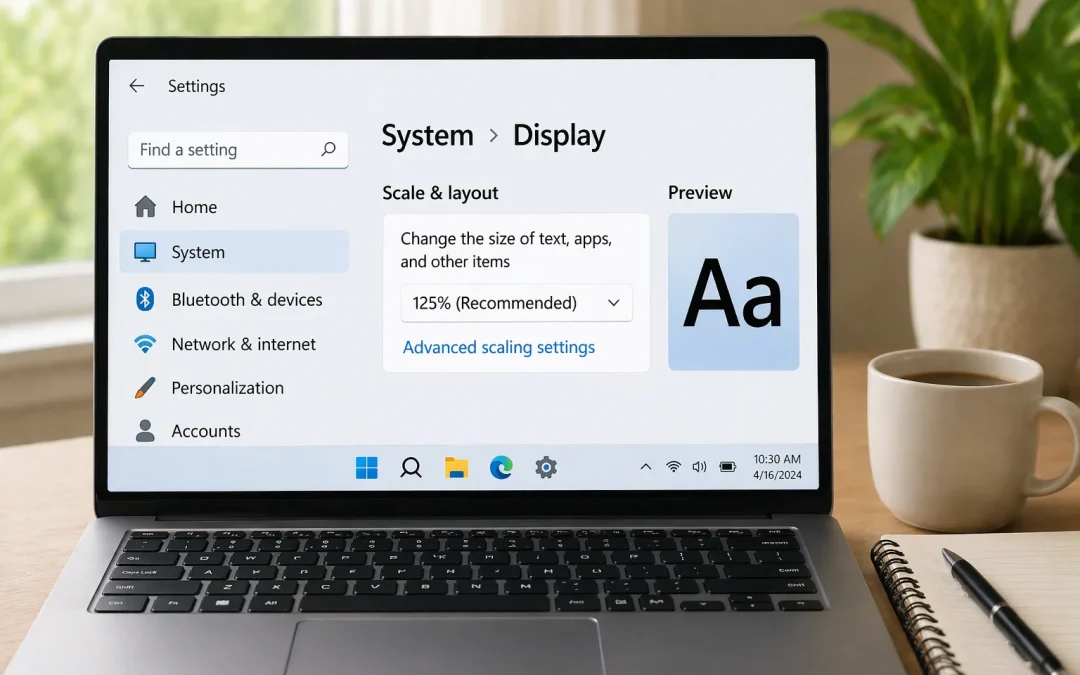
- In Settings, click System, then click Display on the left side.
- Look for a section called Scale and layout or Scale. You should see a number like 100%, 125%, or 150%.
- Click the drop-down box and choose a higher number, such as 125% or 150%. The screen may flicker for a moment as it adjusts.
- If there is a separate option called Text size or Make text bigger, move the slider to the right, then click Apply.
What to do if it looks different: On some older versions of Windows, you may need to open Control Panel, then choose Appearance and Personalization, then Display, and look for “Make text and other items larger or smaller.” If you cannot find these options, your Windows version may be very old. In that case, consider reading about newer computers that are easier to see and use or ask a trusted helper to check your version.
How long it takes: 5–10 minutes, including testing different sizes.
Difficulty level: Easy.
One common mistake: Choosing a very large scale (for example, 200%) right away. This can make windows too big to fit on the screen. If that happens, simply go back to the same setting and choose a slightly smaller number.
One realistic limitation: Some older programs may not resize perfectly and could look a bit blurry. This is normal and does not mean anything is wrong with your computer.
Make Text Larger on a Mac Computer
On a Mac, you can make text and items larger by adjusting the display settings and some accessibility options. This will help menus, icons, and many apps appear bigger and easier to read. These changes are safe and can be reversed at any time.
Steps to make text larger on a Mac
- Click the Apple menu in the top-left corner of the screen.
- Choose System Settings (or System Preferences on older Macs).
- Click Displays.
- Look for options such as Text size or Resolution. On many Macs, you will see “Default for display” and “Scaled.”
- Select Scaled, then choose an option that says something like Larger Text or shows larger items in the preview.
- If available, adjust any Text size slider to make words bigger, then close the window to save your changes.
What to do if it looks different: On some older Mac versions, you may need to go to System Preferences > Accessibility > Display and check options like “Increase contrast” or adjust the cursor size. If your Mac is older and cannot update, you may also want to review how to install updates safely on a Mac to keep things running smoothly.
How long it takes: About 5–10 minutes.
Difficulty level: Easy.
One common mistake: Confusing screen brightness with text size. Making the screen brighter does not make text larger; you still need to adjust the display or text size settings.
One realistic limitation: Some apps use their own text settings and may not fully follow the system size. You might still need to adjust text size inside those apps separately.
Make Text Larger in Your Web Browser
Even after you adjust your main computer settings, websites might still look small. Each web browser (such as Chrome, Edge, Safari, or Firefox) has its own zoom controls. These let you make web pages larger without changing everything else on your computer. This is especially helpful if you mainly struggle to read news sites, email websites, or online forms.
Steps to zoom in on websites (works in most browsers)
- Open your web browser and go to any website.
- On your keyboard, hold down the Ctrl key (on Windows) or the Command (⌘) key (on Mac).
- While holding that key, press the + (plus) key to zoom in and make everything larger. Press it several times until the text is comfortable.
- If you go too far, hold the same key and press the – (minus) key to zoom out.
- To return to normal size, hold the same key and press the number 0 (zero).
You can also usually find zoom controls in the browser menu, often shown as three dots or three lines in the top-right corner. Look for “Zoom” with a percentage number, and click the + button to increase it.
What to do if it looks different: In Safari on a Mac, click View at the top of the screen, then choose Zoom In or Zoom Out. In some browsers, you can set a default zoom level in Settings so all sites open larger automatically.
How long it takes: 2–5 minutes to learn and adjust.
Difficulty level: Easy.
One common mistake: Forgetting that zoom is set high, which can make some websites look “too big” or cut off at the sides. If a site looks strange, reset zoom to 100% using the steps above.
One realistic limitation: A few websites are not designed well for zooming and may not display perfectly when enlarged. You can still read them, but you might need to scroll more.
Make Text Larger in Common Programs (Email, Documents)
Many programs, such as email apps and word processors, have their own text size or zoom settings. Adjusting these can make reading and writing much more comfortable, especially if you spend a lot of time with documents, letters, or organizing photos and files.
Steps to make text larger in email and documents
- Open the program you use most, such as Mail, Outlook, Word, or another email or document app.
- Look along the top of the window for a menu or toolbar with words like View, Format, or Zoom.
- Click View (or similar), then look for Zoom, Zoom In, or Text Size.
- Choose a higher zoom level, such as 120% or 150%, or select a larger font size like 14 or 16 points.
- Read a sample email or document to see if it feels comfortable. Adjust again if needed.
In many programs, you can also use the same keyboard shortcuts as in the browser: hold Ctrl (Windows) or Command (⌘) (Mac) and press + or – to zoom in and out.
What to do if it looks different: Some apps hide the menu bar by default. Look for three dots, three lines, or a small gear icon, and click it to open more options. If you are working with photos or many files, you may also find it helpful to review how to organize files and photos so you can find things more easily once they are larger.
How long it takes: 5–15 minutes to adjust your main programs.
Difficulty level: Easy to Moderate, depending on the program.
One common mistake: Changing the font size for the document but not the reading or “view” size. This can make printed documents look much larger than you intended. Use zoom for on-screen reading, and font size for how it will print.
One realistic limitation: Some older or very simple programs may not offer zoom controls. In those cases, rely more on your main system text size settings.
What Can Go Wrong (and What to Do)
Sometimes, when you follow instructions, what you see on your screen does not match exactly. This is common and usually easy to work around. The key is to stay calm and try the closest option you can find.
- Button looks different: If you cannot find the exact button or word mentioned, look for something similar, such as “Display,” “Screen,” “View,” or a small gear icon for settings. The names may change slightly between versions.
- Setting missing: If a setting is not there, your computer may be using an older version of Windows or macOS. In that case, adjust what you can, and consider checking how to install updates safely or ask a trusted person to help review your options.
- Update changed layout: After an update, menus may move. The text size settings are usually still under “Display” or “Accessibility.” Take a moment to look around calmly; you are unlikely to break anything by opening a settings window.
- Restart did not fix it: Most text size changes take effect immediately. If a program still looks small after a restart, it may have its own zoom setting that you need to adjust separately.
- Device is older: Very old computers may not support all the options described here. You can still often increase text somewhat, but there may be limits. If reading remains difficult, you might consider a newer device designed with clearer screens, or ask a family member or local computer helper for advice.
If you ever feel stuck, it is fine to stop, write down what you see on the screen, and ask for help later. Your files and photos are not harmed by looking at settings.
Safety and Scam Awareness
Adjusting text size and zoom should always be done through your computer’s own settings or inside trusted programs. You do not need to pay anyone or install special “text enlarger” software from the internet.
- Legitimate fixes do not require payment just to change text size.
- No one needs remote access to your computer to help you make text larger. Be cautious if someone you do not know offers to “fix” it for you online.
- Ignore popups or websites that say your vision problem is an “urgent error” or that you must download a tool immediately.
- Never share verification codes, passwords, or banking details with anyone who contacts you about computer problems.
Sticking to the built-in settings and well-known programs keeps you safer. If you are unsure about a message or offer of help, close it and ask a trusted friend, family member, or local computer professional before doing anything.
FAQ
Is this a serious problem?
No. Text being too small is usually just a comfort issue, not a sign that your computer is damaged. It is one of the most common adjustments people make.
Will I lose anything by changing text size?
No. Changing text size or zoom does not delete files, photos, or programs. It only changes how large things appear on the screen.
Do I need to pay for special software?
Usually no. Windows and Mac computers already include tools to make text larger. You do not need to buy extra software just for this.
Is this a virus or a sign of hacking?
No. Small text by itself is not a sign of a virus or hacking. It is normally just a setting that needs to be adjusted.
How long will this take to fix?
Most people can find a comfortable text size in about 10–20 minutes, including trying different settings and testing websites and programs.
What if I make a mistake?
You can always go back into the same settings and change them again, or reset zoom to 100%. If you get confused, restart the computer and ask someone you trust to look at it with you.
Final Summary
Making text larger on your computer is usually a simple matter of adjusting display settings and zoom levels. In most cases, the cause is just that the default size is set smaller than is comfortable for your eyes. By changing a few settings in Windows or macOS, and learning how to zoom in your browser and main programs, you can make everyday reading much easier. If you ever feel unsure, it is perfectly fine to pause, ask a trusted helper, or consult a local professional for gentle guidance.
