
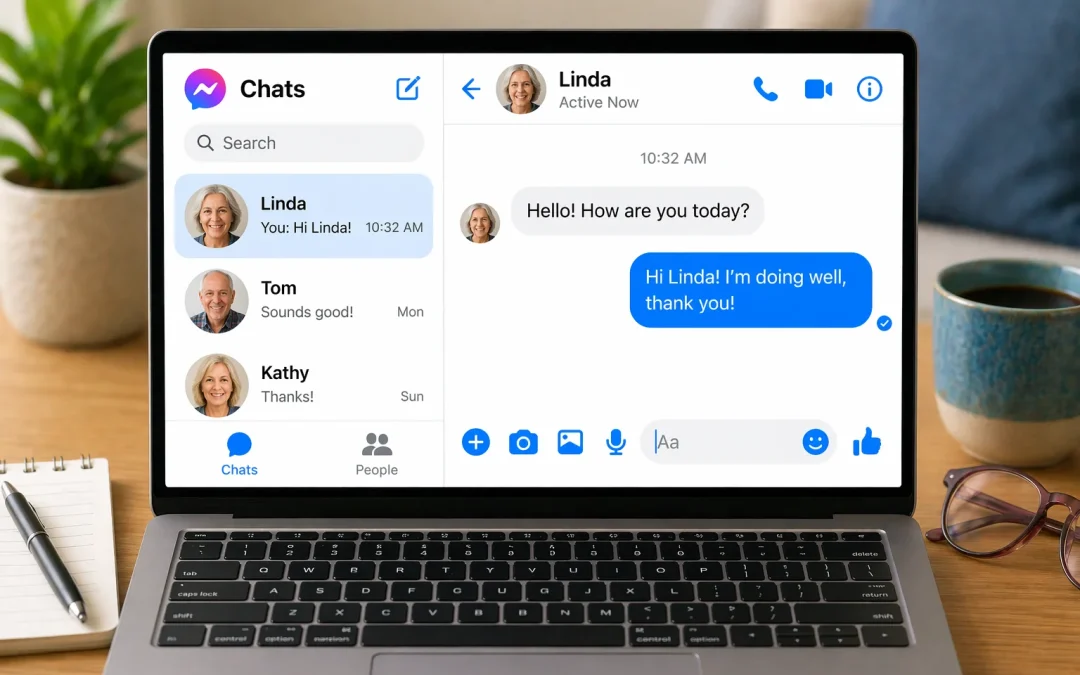

To send a message on Facebook Messenger, open the Messenger app or Facebook website, tap the Messages icon, select a person, type your message, and tap Send.
This works on most smartphones, tablets, and computers and usually takes just a few minutes. This guide is designed for seniors and beginners, with simple step-by-step instructions and clear explanations of each button.
Sending messages is an easy way to stay in touch with family and friends, but some buttons or layouts may look slightly different depending on your device or recent Facebook updates.
Table of Contents
- Quick Summary
- Before You Start: What You Need
- How to Send a Message on Messenger (iPhone or iPad)
- How to Send a Message on Messenger (Android Phone or Tablet)
- How to Send a Message on Messenger (Computer or Laptop)
- What Can Go Wrong and Simple Fixes
- Safety and Scam Awareness on Messenger
- Frequently Asked Questions
- Final Summary
Quick Summary
- What the problem usually means: You are not sure which button to press to start a chat or send a message on Facebook Messenger.
- Most common cause: Confusing icons, small buttons, or changes in the app layout after an update.
- How long it takes to fix: Usually 5–15 minutes to learn and send your first message.
- When it may require help: If you cannot sign in to Facebook, forgot your password, or the app will not open at all.
Before You Start: What You Need
Before sending a message on Facebook Messenger, it helps to check a few basics. This avoids frustration later. You do not need to be “good with technology” to do this, but you do need a few things in place.
First, you need a Facebook account and the correct password. Messenger uses your Facebook account, so if you cannot sign in to Facebook at all, you will need to fix that first. If you are already seeing your Facebook news feed or your name and photo in the app, you are likely signed in correctly.
Second, you need an internet connection. This can be home Wi‑Fi or mobile data. If other apps that use the internet (like email or a web browser) are working, Messenger should work too. If nothing online works, you may need to restart your router or ask someone to check your internet connection.
Third, decide which device you will use: an iPhone or iPad, an Android phone or tablet, or a computer. The steps are slightly different on each, so follow the section that matches your device. If your screen looks different from the pictures you see in other guides, do not worry; the buttons are usually in similar places, even if the colors or shapes have changed.
If you are new to Facebook in general, you may also find it helpful to learn about safe use. For example, you can read “How to Use Facebook Safely for Seniors” and “How to Avoid Scams on Facebook” on Senior Tech Help for more background on staying safe while you message and share online.
How to Send a Message on Messenger (iPhone or iPad)
On an iPhone or iPad, you will usually use the Messenger app, which is separate from the main Facebook app. The icon is a speech bubble with a small lightning bolt inside. If you do not see the Messenger app, you may need to install it from the App Store, or you can use the built‑in Messages app for text messages instead (which is different from Facebook Messenger).
Steps to send a message on Messenger (iPhone/iPad)
- Open the Messenger app. Look for the blue and white speech bubble icon. Tap it once to open.
- Sign in if asked. If you see a screen asking for your Facebook email/phone and password, enter them and tap Log In. If you see a list of conversations, you are already signed in.
- Start a new message. Look for a pencil icon or a square with a pencil in the top right corner. Tap it to start a new chat.
- Choose who to message. In the “To” or “Search” box at the top, slowly type the person’s name (for example, “Mary Smith”). When their name appears in the list, tap it once.
- Type your message. At the bottom of the screen, tap in the box that says Message… or Type a message…. The keyboard will appear. Type your message, such as “Hi Mary, this is my first message on Messenger.”
- Send the message. Tap the blue arrow or Send button to the right of the message box. Your message should move up into the conversation area.
If it looks different: On some iPhones, the “new message” button may look like a small person with a plus sign, or it may be at the bottom instead of the top. If you do not see it, you can also tap the Search bar at the top of the main Messenger screen, type the person’s name, tap their name, and then type your message in the box at the bottom.
How long it takes: Once you know where the buttons are, sending a message usually takes under a minute.
Difficulty level: Easy, especially after you have done it a few times.
Common mistake: Many people accidentally tap the microphone or camera button instead of the message box. If you see a recording or camera screen, just tap the X or Cancel and try again, making sure to tap in the text box.
Realistic limitation: If the person you are messaging does not use Facebook or Messenger, they will not receive your message. In that case, you may need to call them or send a regular text message instead.
How to Send a Message on Messenger (Android Phone or Tablet)
On Android phones and tablets, the Messenger app works much like it does on iPhone, but the buttons may be in slightly different places. The icon is still a speech bubble with a lightning bolt. Some Android phones also come with a built‑in messaging app for text messages, which is different from Facebook Messenger.
Steps to send a message on Messenger (Android)
- Open the Messenger app. Find the blue and white speech bubble icon on your home screen or in your list of apps, then tap it.
- Check that you are signed in. If you see your list of conversations, you are already signed in. If not, enter your Facebook email/phone and password, then tap Log In.
- Start a new chat. Look for a blue circle with a pencil or a plus sign in the bottom right or top right corner. Tap it to create a new message.
- Find the person you want to message. In the search bar at the top, type the person’s name. When their name appears, tap it. This opens a blank conversation with them.
- Type your message. Tap in the box at the bottom that says Message… or Type a message…. The keyboard will appear. Type what you want to say.
- Send the message. Tap the blue arrow or Send button on the right side of the message box. Your message should appear above in the chat.
If it looks different: Some Android versions show a three‑line menu or a People tab at the bottom. If you cannot find the new message button, tap People, then use the search bar to find the person’s name, tap it, and then type your message at the bottom.
How long it takes: After you are familiar with it, sending a message usually takes less than a minute.
Difficulty level: Easy, though different Android brands (Samsung, Motorola, etc.) may look slightly different.
Common mistake: Some people tap on a person’s Story or profile instead of opening a chat. If you see only photos or short videos, look for a Message or Chat button on their profile, or go back and try again from the main Messenger screen.
Realistic limitation: If your phone has very little storage space or is quite old, the Messenger app may be slow or may not update properly. In that case, you might prefer to use Messenger in a web browser on a computer instead.
How to Send a Message on Messenger (Computer or Laptop)
On a computer or laptop, you can use Facebook Messenger through a web browser such as Chrome, Edge, or Safari. You do not need a separate app. This can be easier for some people because the screen is larger and the keyboard is full‑size.
Steps to send a message on Messenger (computer)
- Open your web browser. Double‑click the icon for Chrome, Edge, Firefox, or Safari.
- Go to the Facebook website. Click in the address bar at the top, type facebook.com, and press Enter.
- Sign in to Facebook. Enter your email or phone number and your password, then click Log In. If you already see your news feed, you are signed in.
- Open Messenger. Look for the speech bubble with a lightning bolt icon at the top right of the Facebook page. Click it once. A small panel with recent conversations will open. At the bottom of that panel, click See all in Messenger if you want a full‑screen view.
- Start a new message. In Messenger, look for a New message button or a pencil icon, usually near the top left. Click it. A small window or panel will appear.
- Choose who to message and type. In the “To” box, type the person’s name and click it when it appears. Then click in the message box at the bottom, type your message using the keyboard, and press the Enter key or click the Send button (often a blue arrow).
If it looks different: Facebook sometimes changes the layout. If you do not see the Messenger icon, look for the word Messenger on the left side of the Facebook home page and click it. That will open your messages list, where you can click a person’s name and type at the bottom.
How long it takes: Once you are signed in, sending a message usually takes just a minute or two.
Difficulty level: Easy to moderate, depending on how comfortable you are with using a mouse and keyboard.
Common mistake: Some people accidentally post a message on their Facebook timeline instead of sending a private message. To avoid this, always make sure you see the person’s name at the top of the chat window and that the word Messenger appears on the page.
Realistic limitation: If your internet connection is very slow or keeps dropping, messages may take longer to send or may not send at all. In that case, you may see a small warning sign next to the message, and you may need to try again later.
What Can Go Wrong and Simple Fixes
Even when you follow the steps carefully, things may not look exactly the same on your screen. This is normal. Apps and websites change their appearance from time to time, and different devices can show things in slightly different ways.
If a button looks different, try looking for something with a similar shape or in a similar place. For example, the “new message” button might be a pencil, a plus sign, or the words “New message.” If you cannot find it, use the search bar at the top of Messenger, type the person’s name, and then open the chat that appears.
If a setting seems to be missing, it may have moved. Look along the bottom or top of the screen for tabs like Chats, People, or Settings. Tap Chats to see your messages. Updates can change the layout, but the basic idea stays the same: find the person, tap their name, type at the bottom, and send.
If restarting the app or your device did not fix the problem, check your internet connection. Try opening another website. If nothing loads, the issue may be with your internet, not Messenger. You can also try updating the Messenger app from the App Store or Google Play Store if your device allows it.
On older devices, the app may run slowly or may not support the newest version of Messenger. In that case, you can try using Facebook and Messenger in a web browser on a computer, which often works better on older equipment.
Safety and Scam Awareness on Messenger
When you use Messenger, it is important to stay safe and avoid scams. Most messages from friends and family are harmless, but some messages from strangers or hacked accounts can be risky.
Legitimate help with Messenger will never require you to pay money just to fix basic problems like sending a message. Be cautious of anyone who messages you saying they can “fix” your Facebook or Messenger for a fee, especially if you did not ask for help.
Do not allow anyone you do not fully trust to control your device remotely. If someone you do not know asks you to install software so they can “take a look” at your phone or computer, decline and end the conversation.
Real messages from Facebook will not threaten you with urgent warnings in Messenger, such as “Your account will be deleted in 10 minutes unless you click here.” Avoid clicking on strange links, and never share verification codes, passwords, or bank details in a message.
If you want more guidance on staying safe on Facebook, you can read “How to Use Facebook Safely for Seniors” and “How to Avoid Scams on Facebook” on Senior Tech Help. These guides explain common tricks scammers use and how to protect yourself.
Frequently Asked Questions
1. Is it serious if I cannot send a message on Messenger?
Usually, no. Most problems with sending a message are minor, such as a weak internet connection, a small app glitch, or confusion about which button to press. These can often be fixed by following the steps in this guide, restarting the app, or trying again later.
2. Will I lose anything if I make a mistake?
In most cases, no. If you type the wrong thing, you can usually delete or correct the message, especially if you notice quickly. You will not lose your whole account just by pressing the wrong button while sending a message. At worst, you may send a message to the wrong person, which you can explain or delete if needed.
3. Do I need to pay to use Facebook Messenger?
No. Facebook Messenger itself is free to use. You may pay your phone or internet company for data or Wi‑Fi, but you should not pay anyone to “unlock” or “activate” Messenger. If someone asks you for money to fix simple messaging problems, that is a warning sign of a possible scam.
4. Is this a virus if my Messenger looks different?
Almost always, no. Messenger and Facebook change their design from time to time, which can make buttons look different or move to new places. This is usually just an update, not a virus. If you see many strange messages being sent from your account that you did not write, then you should change your password and consider it a security issue.
5. How long does it take to learn how to send a message?
Most people can learn the basic steps in about 5–15 minutes. After you have done it a few times, it becomes much quicker and more natural. You might want to practice by sending a short message to a close family member who knows you are learning.
6. What if I make a mistake and send the wrong thing?
Do not worry. Everyone makes mistakes when learning. You can usually send a follow‑up message saying, “Sorry, that was a mistake,” or correct what you meant to say. On many versions of Messenger, you can also delete a message by pressing and holding on it and choosing Remove or Delete, though this may not always remove it from the other person’s screen.
Final Summary
Sending a message on Facebook Messenger is usually a simple process once you know where to tap or click. Most difficulties come from small changes in the app’s layout or from not being sure which icon to use. By following the step‑by‑step instructions for your device, you can confidently send messages to friends and family. If you still feel unsure, it is perfectly fine to ask a trusted family member or local tech helper to sit with you the first time while you practice.
