
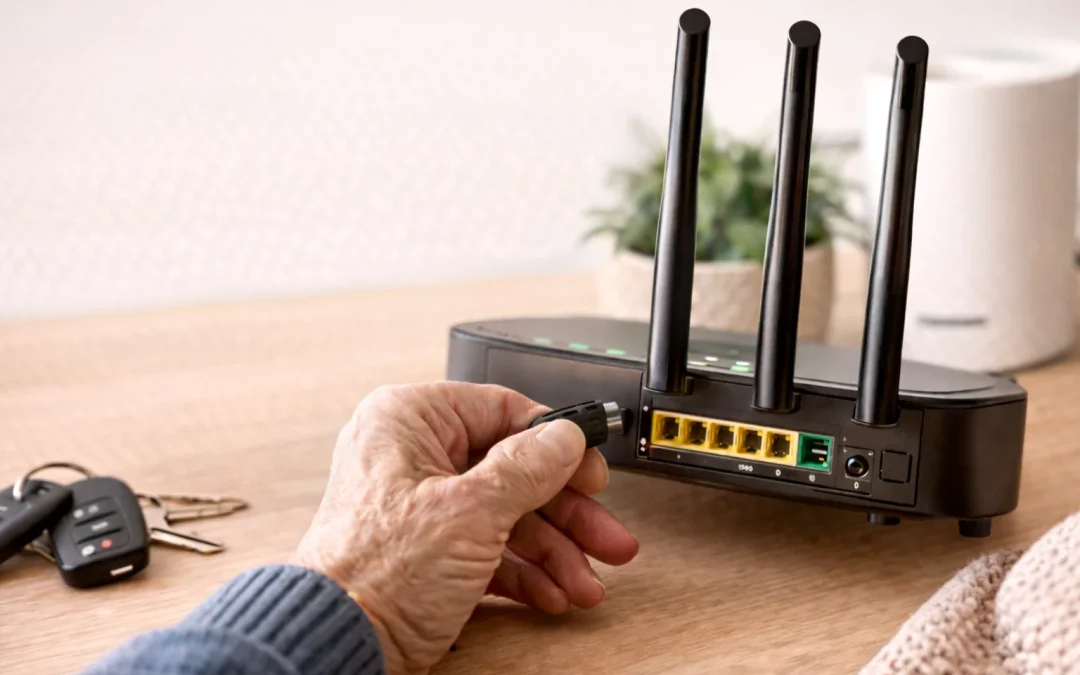
Yes, restarting your router usually fixes many common internet problems for most home users, including seniors. This guide is for people whose internet is slow, keeps dropping, or says “connected but no internet.” It will not help if your internet service is completely out in your area, your bill is unpaid, or your router is physically damaged. Restarting is safe, simple, and worth trying before calling your internet company.
Table of Contents
- Quick Summary
- Understanding What “Restarting a Router” Means
- Before You Start: Simple Checks
- How to Restart a Router Using the Power Button
- How to Restart a Router by Unplugging It
- How to Restart a Separate Modem and Router
- How to Restart a Router Using a Phone App or Website
- What Can Go Wrong When Restarting a Router
- Safety and Scam Awareness
- FAQ
- Final Summary
Quick Summary
- What the problem usually means: Your router or modem needs a fresh start to clear small connection errors.
- Most common cause: The router has been on for weeks or months without a restart, or there was a brief power or service glitch.
- How long it takes to fix: About 5–10 minutes, including waiting for the lights to come back on.
- When it may require help: If restarting does not restore your internet, lights stay off or red, or other devices also cannot get online.
Understanding What “Restarting a Router” Means

Many people are told, “Just restart your router,” but no one explains what that really means. Your router is the small box in your home that sends out WiFi so your phone, tablet, and computer can get online. Sometimes it is combined with a modem in one box from your internet company. Restarting simply means turning it off completely for a short time, then turning it back on so it can start fresh.
Restarting a router does not erase your WiFi name or password. It is not the same as “resetting,” which wipes out settings. A restart is like turning a TV off and back on when it freezes. It clears temporary problems, helps when WiFi says “connected but no internet,” and can improve slow or unreliable connections.
This section is for anyone who feels unsure or nervous about touching their internet equipment. You do not need technical knowledge. You just need to be able to see the box, find the power button or plug, and watch the lights. If your router is in a hard-to-reach place or you have trouble moving safely, ask someone you trust to help.
Before You Start: Simple Checks
Before you restart your router, it helps to do a few quick checks. These can save time and confirm that restarting is the right next step. First, check whether the problem is only on one device or on all devices. For example, if your phone cannot get online but your tablet or another computer can, the issue might be with that one device, not the router.
Try these simple checks:
- Look at the router: Are the lights on? Are any red or blinking in an unusual way?
- Try another device: See if a different phone, tablet, or computer can connect to WiFi and open a website.
- Check for an outage: If you can, use mobile data on your phone to visit your internet provider’s website and look for outage notices.
- Make sure cables are firmly plugged in: Gently press the power cord and the cable from the wall or modem into the router.
If everything looks normal but your internet is still slow or not working, restarting the router is a good next step. This usually takes less than 10 minutes and is considered Easy difficulty. A common mistake is confusing “restart” with “reset” and pressing a tiny reset hole with a paperclip. Avoid that unless your internet provider specifically tells you to do it.
How to Restart a Router Using the Power Button
If your router has a power button, this is often the easiest and safest way to restart it. The power button is usually on the back or side of the box. It may be a small round button you press in, or a tiny switch you flip. It is often labeled “Power” or has a circle with a line symbol. This method is suitable for most modern routers and combined modem/router units.
Follow these steps:
- Find your router: Look for the box with antennas or cables where your WiFi comes from. It may be near your TV, computer, or phone line.
- Locate the power button: Check the back or side for a button or switch labeled “Power” or with a power symbol.
- Turn it off: Press the button once or flip the switch to the “Off” position. The lights on the front should go off or begin to fade.
- Wait 30–60 seconds: Give the router time to fully power down. This helps clear temporary errors.
- Turn it back on: Press the power button again or flip the switch to “On.” The lights will come back on slowly.
- Wait 3–5 minutes: Allow time for the router to fully start and reconnect to your internet provider before testing your devices.
If your router looks different and you cannot find a power button, do not worry. Many routers do not have one, and you can use the unplug method in the next section instead. This process usually takes about 5–10 minutes and is Easy difficulty. A common mistake is not waiting long enough after turning it back on; give it a few minutes before deciding it did not work. A limitation is that if your internet provider is having an outage, restarting will not fix the problem.
How to Restart a Router by Unplugging It
If your router does not have a power button, or if the button is hard to reach, you can safely restart it by unplugging the power cord. This method works for almost all routers and modem/router boxes. You will not erase your WiFi name or password by unplugging it. You are simply cutting the power for a short time so it can start fresh.
Here is how to do it:
- Find the power cord: Look at the back of the router for the cable that goes to a wall outlet or power strip.
- Unplug from the wall: Gently pull the plug out of the wall socket or power strip. You can also unplug the cord from the back of the router if that is easier to reach.
- Check the lights: Make sure the lights on the front of the router go off. If any stay on, you may have unplugged the wrong cable.
- Wait 30–60 seconds: This short pause allows the router to fully shut down and clear its memory.
- Plug it back in: Firmly plug the power cord back into the wall or power strip. Make sure it feels secure.
- Wait 3–5 minutes: The lights will come back on in stages. Wait until they stop flashing as much before testing your internet.
If your router is in a tight space or behind furniture, move carefully and avoid straining yourself. Ask for help if needed. This method usually takes about 5–10 minutes and is Easy difficulty. A common mistake is unplugging the wrong cable, such as the cable to your TV instead of the router. A realistic limitation is that if your router is very old or failing, it may not come back on properly even after a restart.
How to Restart a Separate Modem and Router
Some homes have two boxes: a modem and a router. The modem connects to the wall (cable, phone line, or fiber), and the router sends out WiFi. If you have two boxes, restarting them in the right order is important. This section is for you if you see two separate devices with cables between them, often from different brands.
Use this step-by-step order:
- Identify the modem: It is usually the box connected directly to the wall with a thick cable. It may say your internet provider’s name on it.
- Identify the router: This is the box that sends WiFi, often with antennas, and is connected to the modem with a network cable.
- Turn off or unplug the router first: Use the power button or unplug the router’s power cord. Wait until its lights go off.
- Turn off or unplug the modem next: Unplug the modem’s power cord from the wall or the back of the modem. Wait until all lights go off.
- Wait 60 seconds: Give both devices a full minute with no power.
- Turn on the modem first: Plug the modem back in and wait 2–3 minutes until its lights are steady.
- Turn on the router next: Plug the router back in or press its power button. Wait another 3–5 minutes for WiFi to return.
If your setup looks different or you are unsure which box is which, take your time. You can also write down which cables go where before unplugging anything. This process usually takes 10–15 minutes and is Moderate difficulty because there are more pieces to manage. A common mistake is turning both devices on at the same time, which can cause connection delays. A limitation is that if the modem itself is not getting a signal from your provider, restarting both boxes will not restore your internet.
How to Restart a Router Using a Phone App or Website
Some newer routers and internet providers offer an app or website that lets you restart your router without touching the box. This can be helpful if your router is in a hard-to-reach place or you are not comfortable dealing with cables. This method requires that your phone or computer can still connect to the router, or that you can use mobile data on your phone to reach your provider’s app.
Here is a general guide:
- Open your provider’s app or router app: Look for an app from your internet company (such as Xfinity, Spectrum, AT&T, etc.) or from your router brand.
- Sign in if needed: Use the username and password you set up with your provider. If you do not know it, there is usually a “Forgot password” option.
- Find the “Internet” or “WiFi” section: Tap on the area that shows your home network or devices.
- Look for “Restart” or “Reboot” option: Many apps have a button labeled “Restart modem,” “Restart router,” or “Reboot gateway.”
- Confirm the restart: The app may warn that you will be offline for a few minutes. Tap “Yes” or “Confirm.”
- Wait 5–10 minutes: Your internet will go down while the router restarts. Check your devices after the app says it is complete.
If your app looks different, look for words like “Troubleshoot,” “Fix my internet,” or “Network settings.” This method usually takes about 10 minutes and is Easy to Moderate difficulty, depending on your comfort with apps. A common mistake is closing the app too soon and assuming nothing happened; give the router time to restart. A limitation is that if your internet is completely down and the app cannot reach your router, this method may not work and you will need to restart it manually.
What Can Go Wrong When Restarting a Router
Sometimes, things do not look exactly like the instructions, and that is okay. Router designs change over time, and your model may have different lights, buttons, or labels. If the power button looks different, focus on whether pressing it turns the lights off. If there is no button, use the unplug method instead.
If you cannot find a setting mentioned in an app or website, it may have moved after an update. Look for similar words such as “Reboot,” “Power cycle,” or “Troubleshoot.” If your router is older, the lights may take longer to come back on after a restart. Give it a full 10 minutes before deciding it did not work.
If restarting does not fix the problem, or if lights stay red or off, the issue may be with your internet provider or the wiring to your home. In that case, it is reasonable to call your provider’s support line. You can tell them, “I already restarted my router and modem, but I still cannot get online.” This lets them know you have tried the basic steps and may speed up help. If you continue to have slow or unstable internet, you may also find it helpful to read about how to fix slow internet at home or what to do when WiFi says connected but no internet.
Safety and Scam Awareness
Restarting your router should always be something you can do yourself without paying anyone. Legitimate fixes from your internet provider will not require you to pay just to restart your equipment. Be cautious of phone calls or pop-up messages that claim your router is infected or your internet will be shut off unless you act immediately.
Real support staff from your internet company will not ask for remote access to your computer just to restart a router. They also will not ask for your banking information, gift cards, or to read out verification codes that are texted to you. If someone pressures you with urgent warnings or threats, hang up and call the number printed on your bill or on your provider’s official website instead.
Restarting your router involves only physical buttons, power cords, or official apps from your provider or router brand. If you are ever unsure, ask a trusted family member or friend to help you check whether a message or call is genuine.
FAQ
Is restarting my router serious or risky?
No, restarting your router is a normal, safe step that many internet providers recommend. It is similar to turning a TV or computer off and back on. You are not changing settings or erasing anything; you are just giving the device a fresh start.
Will I lose my WiFi name or password when I restart?
No, a simple restart does not erase your WiFi name or password. Your devices should reconnect automatically once the router is back on. Only a full “reset” using a tiny reset hole or special instructions from your provider would erase settings, and you should not do that unless clearly told to.
Do I need to pay someone to restart my router?
No, you should not need to pay anyone just to restart your router. The steps in this guide are free and safe to do yourself. If you call your internet provider, they may walk you through a restart or send a signal to your modem at no extra charge as part of your service.
Is this a sign of a virus or hacking?
Most of the time, needing to restart your router is not a sign of a virus or hacking. It usually means the device has been running for a long time or there was a small glitch. If you often lose connection or see strange network names, you may want to talk to your provider about updating your equipment or security.
How long should I wait after restarting before I worry?
In most cases, your router should be fully back online within 5–10 minutes after a restart. Older equipment may take a little longer. If, after 15 minutes, you still have no internet and lights are red or off, it is reasonable to contact your internet provider for further help.
What if I make a mistake while restarting?
Most mistakes, such as unplugging the wrong cable, are easy to fix by plugging things back in and trying again. As long as you avoid pressing the tiny reset hole, you are unlikely to cause lasting problems. If you feel unsure, stop and ask a trusted person or your provider’s support line to guide you through the steps.
Final Summary
Restarting your router is a simple, safe way to fix many everyday internet problems at home. In most cases, issues like slow speeds or “connected but no internet” are caused by minor glitches that clear when the router and modem get a fresh start. By following the step-by-step methods in this guide, you can often restore your connection in just a few minutes.
If restarting does not solve the problem, it may point to an outage, aging equipment, or a service issue that your provider needs to address. You can still feel confident knowing you have tried the basic steps they usually recommend first. When in doubt, contact your internet company or a trusted helper, and consider learning more about how to test your internet speed or what internet speed seniors really need so your home connection works comfortably for you.
