
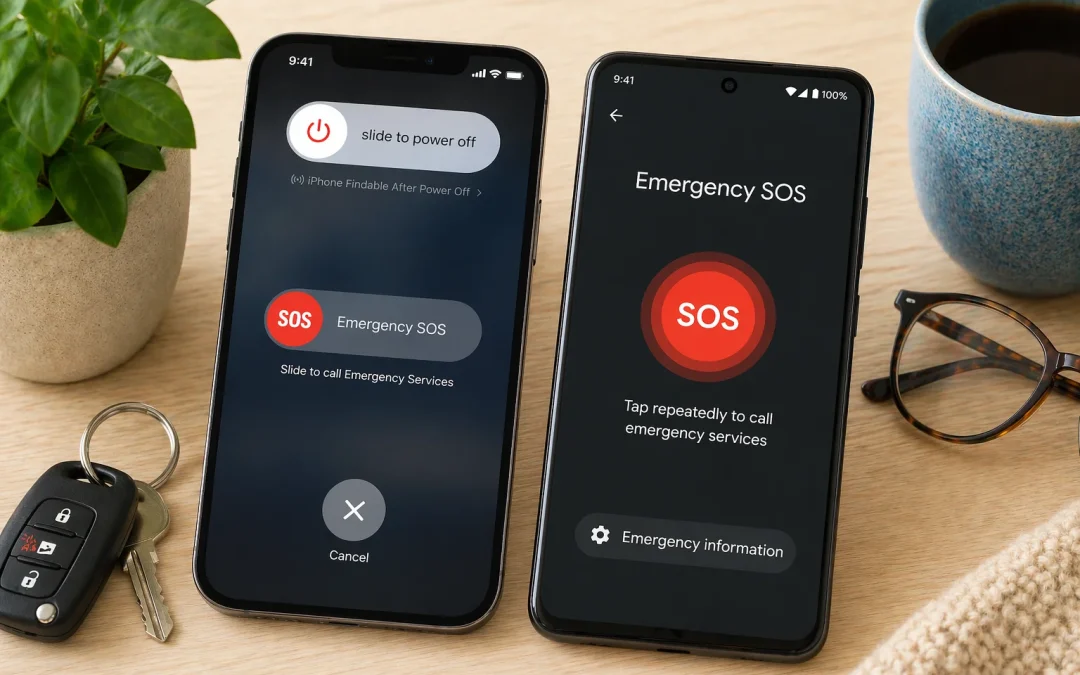

The short answer:
- iPhone: press and hold the side button and either volume button until the sliders appear and the countdown ends. To use five quick presses of the side button instead, go to Settings > Emergency SOS and turn on Call with 5 Presses (Apple).
- Google Pixel and many Android phones: go to Settings > Safety & emergency > Emergency SOS and tap Start setup. In an emergency, press the power button 5 times or more (Google).
- Samsung Galaxy: go to Settings > Safety and emergency > Emergency SOS. In an emergency, press the Side button five times in a row (Samsung).
Set it up today, add your emergency contacts and medical information, and tell your family how it works.
iPhone: set up Emergency SOS
- Open Settings and tap Emergency SOS.
- Turn on Call with 5 Presses if you’d rather press the side button five times than hold two buttons (Apple).
- Open the Health app, tap your profile picture, then Medical ID. Add medications, allergies and conditions (Apple).
- In Medical ID, tap Edit next to Emergency Contacts and add one or two people (Apple).
- Turn on Show When Locked and Share During Emergency Call so responders can see the information (Apple).
What happens when you use it
Your iPhone plays a warning sound, counts down and then calls emergency services. After the call ends, it texts your emergency contacts with your current location, and keeps them updated for a while if you move, unless you cancel (Apple).
Google Pixel and other Android phones: set up Emergency SOS
- Open Settings, tap Safety & emergency, then Emergency SOS.
- Tap Start setup and check that the emergency number is right (911 in the U.S.).
- Choose your emergency contacts and allow location sharing so they can be told where you are.
- Choose how it starts: Touch & hold to start actions (a confirmation step) or Start actions automatically after a 5-second countdown (Google).
To add medical information, open the Safety app, tap Your info, then Medical information and Emergency contacts. Turn on Emergency info access > Show when locked (Google). These steps need Android 12 or later, and the Safety app isn’t on every Android phone (Google).
Important: Google says Emergency SOS doesn’t work in airplane mode or when Battery Saver is on (Google).
Samsung Galaxy: set up Emergency SOS
- Open Settings, tap Safety and emergency, then Emergency SOS.
- Turn on Require swipe to call if you want a chance to confirm before it dials.
- Tap Countdown and choose how long to wait before emergency actions start (Samsung).
Then press the Side button five times in a row to start it (Samsung). The exact menus can vary by carrier, software version and model (Samsung).
No cell signal? Emergency SOS via satellite (iPhone 14 and later)
Try calling 911 first. Your call may still go through even if your own carrier’s network isn’t available. If it won’t connect, your iPhone offers Emergency Text via Satellite. You’ll need to be outside with a clear view of the sky (Apple). It asks a few simple questions, then sends your answers, location, Medical ID and battery level to responders (Apple). Apple has a demo you can try before you need it, and it’s not available in every country or region (Apple, Apple).
Make sure it will work when you need it
- Don’t test it by placing a real call. If you do call by mistake, stay on the line and explain (Apple).
- Learn where your side and volume buttons are, so you can find them without looking.
- Keep your phone charged, and update it. See how to install updates safely.
- Make sure your emergency contacts are saved correctly. See how to add contacts.
- If small text makes setup hard, enlarge it first: how to make text bigger on iPhone and Android.
Questions people ask about Emergency SOS
Does Emergency SOS cost anything?
No. It’s built into the phone and calls the same emergency number you’d dial yourself. On iPhone 14 and later, Emergency SOS via satellite is free for two years after you activate the phone (Apple).
What if I set it off by accident?
Don’t hang up. Apple’s advice is to wait until a responder answers and explain that you don’t need help (Apple). On Samsung, you can turn on Require swipe to call and set a countdown so there’s time to cancel (Samsung).
Can I call 911 without unlocking my phone?
Yes. On iPhone, tap Emergency on the passcode screen and dial (Apple). On a Samsung Galaxy, swipe up as if unlocking and tap Emergency call (Samsung).
Can I text 911?
In some areas. On iPhone you can type 911 in the To field in Messages and send your message, though this isn’t available everywhere (Apple). If you can, call.
Will it work if I have no SIM card or no service from my carrier?
Samsung says you can still call 911 without a working SIM as long as any network signal is nearby (Samsung). iPhone tries other networks if your carrier’s isn’t available (Apple).
Keep learning
