
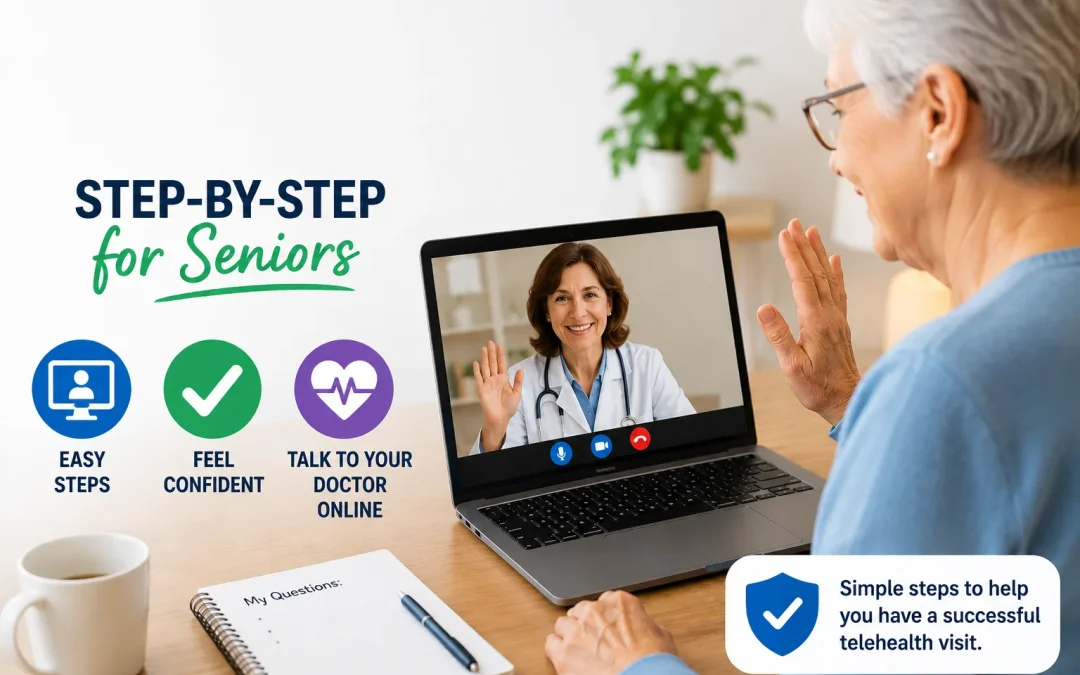
Most seniors can use telehealth appointments for many routine medical visits using a smartphone, tablet, or computer with a camera and internet connection. Telehealth lets you see and talk with your doctor from home, which is easier for many people with mobility or transportation challenges. However, it may not be suitable for emergencies or situations where your doctor needs to physically examine you.
Table of Contents
- Quick Summary
- What Is a Telehealth Appointment?
- What You Need Before Your Telehealth Visit
- How to Prepare for a Telehealth Appointment
- What Actually Happens During a Telehealth Visit
- Safe vs Unsafe Telehealth: What to Watch For
- Step-by-Step Action Plan for Your First Telehealth Visit
- What Can Go Wrong (and How to Handle It Calmly)
- Safety, Privacy, and Avoiding Scams
- Frequently Asked Questions
- Final Summary
Quick Summary
- Telehealth lets you meet with your doctor by video or phone instead of going into the office.
- Most seniors only need a basic smartphone, tablet, or computer and a quiet space to use telehealth.
- Never share your passwords, full Social Security number, or payment details by text or email for a telehealth visit.
- Telehealth is very useful for many routine issues, but in-person care is still needed for emergencies and hands-on exams.

What Is a Telehealth Appointment?
A telehealth appointment is a medical visit that happens by video or phone instead of in the doctor’s office. You and your doctor talk in real time, just like a regular visit, but you stay at home and connect using your device. Many clinics use the word “telemedicine” to mean the same thing: medical care delivered over the internet or by phone.
For example, imagine Mary, age 76, who has high blood pressure. Instead of driving 30 minutes to her doctor every three months, she now has a video visit where she shows her home blood pressure readings and talks about how she is feeling. Her doctor can adjust her medication and answer questions without Mary leaving her living room.
A common misunderstanding is that telehealth is only for “computer experts” or younger people. In reality, many clinics design their telehealth systems with seniors in mind, using large buttons, simple links, and reminder messages. The honest limitation is that telehealth cannot replace every type of visit: if you need stitches, an X-ray, a physical exam, or urgent treatment, you still need in-person care or emergency services.
Telehealth works best for follow-up visits, medication checks, reviewing test results, mental health counseling, and many common issues like colds, rashes, or urinary symptoms. A practical recommendation is to ask your doctor’s office directly, “Is this something we can do by telehealth?” when you call to schedule. They can tell you if your concern is appropriate for a remote visit or if you should come in person.
What You Need Before Your Telehealth Visit
To use telehealth comfortably, you need three main things: a device, an internet or phone connection, and a quiet, private space. A “device” can be a smartphone, a tablet, or a computer with a camera and microphone. If you have trouble seeing small screens, a tablet is often easier to use; you can learn more about senior-friendly tablets in guides like “Best Tablets for Seniors With Bad Eyesight.”
In a realistic scenario, John, age 82, uses a basic Android smartphone and home Wi‑Fi. His clinic sends him a text message with a link to his telehealth visit. He taps the link, and his phone opens the video screen. He does not need to install anything complicated, but he does need to know how to tap the link and allow the phone to use his camera and microphone.
Many seniors worry that their internet is “not good enough.” For most telehealth visits, a normal home internet connection or a strong cellular signal is fine. The limitation is that if your connection is very weak or cuts out often, the video may freeze or the sound may break up. If that happens, most clinics can switch to an audio-only phone call, which still counts as telehealth in many cases.
A common misunderstanding is that you must buy expensive new equipment. In most cases, the device you already use for email, browsing, or video calls with family is enough. A practical recommendation is to test your device before your first visit: make a video call with a family member or friend, or use a simple video app like FaceTime, WhatsApp, or Zoom to be sure your camera and microphone work.
How to Prepare for a Telehealth Appointment
Preparing for a telehealth appointment is similar to getting ready for an in-person visit, with a few extra technology steps. Good preparation helps you feel calmer and makes the visit more useful for you and your doctor. Think of it as setting up your “home exam room.”
First, gather your information. Write down your current medications (including vitamins and supplements), your allergies, and any recent blood pressure, blood sugar, or weight readings you have taken at home. For example, Susan, age 70, keeps a small notebook where she records her morning blood pressure. Before her telehealth visit, she places the notebook, her pill bottles, and a glass of water next to her chair so she does not have to get up during the call.
Next, choose your space. Pick a quiet, well-lit room where you can close the door. Sit with a light in front of you (like a lamp) rather than behind you, so your doctor can see your face clearly. A common misunderstanding is that you must sit at a desk; in reality, a comfortable chair or couch is fine as long as you can hold or prop up your device so it is steady and at about eye level.
The honest limitation is that not every home has a perfectly private space. If you live with others, let them know when your appointment is and ask them not to interrupt. Turn off the TV and radio. A practical recommendation is to do a “practice run” 10–15 minutes before your visit: open the link if you have it, check your volume, and make sure your device is charged or plugged in. If you are unsure, ask a family member to sit with you for the first visit to help with any buttons or settings.
What Actually Happens During a Telehealth Visit
Most telehealth visits follow a simple pattern: you connect, you verify your information, you talk with your doctor, and then you review the plan. Knowing what to expect can reduce anxiety and help you focus on your health instead of the technology.
Typically, your clinic will send you a link by text message, email, or through a patient portal. At the appointment time (or a few minutes before), you tap or click the link. You may see a screen asking for your name and date of birth, or asking you to “allow” access to your camera and microphone. This is normal and safe when it comes directly from your clinic. Then you may wait in a “virtual waiting room” until your doctor joins.
For example, Robert, age 79, clicks his appointment link five minutes early. A screen appears that says “Please wait, your provider will be with you shortly.” After a minute, his doctor appears on the screen, greets him, and confirms his name, date of birth, and sometimes his address. They talk about his recent lab results, his knee pain, and his medications, just as they would in the office.
A common misunderstanding is that telehealth visits are rushed or less “real” than in-person visits. In many practices, the time scheduled for a telehealth visit is the same as an office visit. The limitation is that your doctor cannot listen to your heart or lungs with a stethoscope or press on your abdomen through the screen. If they feel they need a physical exam, they may ask you to schedule an in-person visit.
A practical recommendation is to keep a pen and paper nearby. During the visit, write down the main points: any medication changes, tests ordered, and follow-up plans. At the end, you can say, “Let me repeat back what I heard to be sure I understood.” This simple step helps avoid confusion and makes you an active partner in your care.
Safe vs Unsafe Telehealth: What to Watch For
Telehealth can be very safe when it is done through your regular doctor, clinic, hospital, or a trusted health service. Consumer protection agencies widely report that most problems come from impostors pretending to be medical providers, or from websites that push unnecessary treatments or collect personal information. Understanding the difference between safe and unsafe telehealth helps you protect yourself.
Safe telehealth usually looks like this: you call your doctor’s office to schedule, or you use a known clinic website or app. You receive appointment details from a phone number or email address you recognize from that clinic. You are asked to confirm your identity with basic information like your name, date of birth, and sometimes your address or insurance details. Payment, if needed, is handled the same way as your regular visits, often through your existing patient portal or billing system.
Unsafe telehealth often starts with an unexpected call, text, or email from someone you do not know, offering “free” medical care, miracle cures, or special tests if you give your Medicare number or credit card. Red flags include pressure to decide immediately, requests for your full Social Security number, or links that look strange or unrelated to your clinic. Another warning sign is someone asking you to pay with gift cards, cryptocurrency, or wire transfers; legitimate medical offices do not do this.
A realistic vulnerability for many seniors is clicking on a link that looks official but is not. The limitation is that scam messages can sometimes look very convincing. A practical recommendation is this: if you did not schedule a telehealth visit and you receive a message about one, call your doctor’s office using the phone number on your insurance card or their official website to confirm. Never use the phone number in a suspicious message.
Most people misunderstand and think they must answer every text or email that mentions health care. You are allowed to ignore or delete messages that feel wrong. When in doubt, ask a trusted family member or call your clinic directly before clicking anything.
Step-by-Step Action Plan for Your First Telehealth Visit
Starting telehealth can feel like a big change, but breaking it into clear steps makes it manageable. You do not need to master everything at once; you only need to follow one step at a time. This plan assumes you already have a doctor or clinic that offers telehealth.
Step 1: Call your doctor’s office.
Tell the receptionist or nurse, “I’d like to try a telehealth appointment.” Ask what device works best (phone, tablet, or computer) and how they will send you the link (text, email, or patient portal). Write down the date, time, and how you will connect.
Step 2: Get your device ready.
Charge your device or plug it in. Make sure you know how to turn up the volume and how to answer a video call or open a link. If you are unsure, ask a family member to show you, or practice by making a video call to them. If you have a tablet that is easier to see, consider using it; guides like “Best Tablets for Seniors With Bad Eyesight” can help you choose a device for future use if needed.
Step 3: Prepare your health information.
Write down your questions and concerns. Gather your medications, recent readings (like blood pressure or blood sugar), and any recent test results you have at home. Keep everything within reach of where you will sit during the visit.
Step 4: Set up your space.
Choose a quiet, well-lit spot. Place your device so the camera is steady and shows your face clearly. Have your glasses, hearing aids, and a glass of water nearby. Let others in your home know you will be in an appointment and should not be disturbed.
Step 5: Join the visit early.
About 10–15 minutes before your appointment, open the text, email, or app and find the link. Tap or click it and follow any simple instructions, such as typing your name or allowing camera access. If something does not work, call the office right away; many clinics have staff who can walk you through the steps.
Step 6: During and after the visit.
Speak clearly and do not be afraid to say, “I didn’t understand that, could you repeat it?” Write down the plan. After the visit, check your patient portal or ask the office how you will receive any prescriptions, test orders, or follow-up instructions. Over time, these steps will feel more natural, just like learning to use online tools for other tasks such as paying bills or ordering groceries.
What Can Go Wrong (and How to Handle It Calmly)
Even when you prepare well, small problems can happen during telehealth visits. Technology changes, devices behave differently, and it is normal to feel worried about “breaking something.” The key is to know that most issues are fixable and that your doctor’s office expects some technical bumps, especially for first-time users.
One common issue is confusion about settings. For example, you might see your doctor but not hear them because your volume is low or your microphone is muted. Or your camera might be off, so they can hear you but not see you. In a realistic scenario, Helen, age 81, joins her visit and only sees a black screen. The nurse gently guides her: “Tap the little camera icon at the bottom.” Once she does, her face appears and the visit continues.
Another challenge is that every device looks a little different. The “Join” button on an iPhone may not look exactly like the one on an Android phone or a Windows computer. A common misunderstanding is thinking, “If I press the wrong button, I might break my phone or delete something important.” In reality, simply tapping on-screen buttons in a telehealth app will not damage your device. The limitation is that it can still feel confusing when screens change after updates.
Software updates can also move buttons or change colors, which can be unsettling. If your screen looks different from last time, pause and read the words on the screen slowly. Look for familiar terms like “Join Visit,” “Start Video,” or your doctor’s name. If you are unsure, it is perfectly acceptable to close the app and call the office for help.
Sometimes you may receive conflicting advice from different people—one family member says, “Use the app,” while another says, “Just click the email link.” When this happens, follow the instructions from your doctor’s office first, because they know how their system works. A practical recommendation is to keep a small notebook just for telehealth: write down which app you use, your username (but not your password), and the steps that worked last time. This turns each problem you solve into a helpful note for the future.
Safety, Privacy, and Avoiding Scams
Telehealth involves sharing personal health information, so safety and privacy are important. Legitimate clinics and hospitals use secure systems designed to protect your information, similar to how banks protect your financial data. While no system is perfect, you can greatly reduce your risk by following a few simple rules.
In a legitimate telehealth process, you will usually:
- Schedule through your known doctor, clinic, or hospital.
- Receive reminders from familiar phone numbers, emails, or a patient portal you already use.
- Be asked to confirm your identity with basic details like your name and date of birth.
- Pay any co-pays or bills through the same methods you use for in-person visits.
Red flags include:
- Unsolicited calls or messages offering “free” telehealth or special treatments if you share your Medicare or Social Security number.
- Pressure to act immediately or threats like “Your benefits will be cut off if you don’t sign up now.”
- Requests for payment by gift cards, wire transfer, or cryptocurrency.
- Links that look unrelated to your clinic or that have many random letters and numbers.
A realistic concern for many seniors is, “If I click the wrong link, will my information be stolen?” The limitation is that you cannot always tell by looking at a link whether it is safe. A practical recommendation is to only use links that come directly from your doctor’s office or from a patient portal you log into yourself. If you receive a message about a telehealth visit that you did not schedule, call your clinic using a phone number you already trust.
If something feels suspicious, stop. Do not provide personal or financial information. You can hang up, delete the message, or close the window. Then, contact your doctor’s office or a trusted family member to ask for help. If you believe you may have shared sensitive information with a scammer, contact your doctor’s office, your insurance company, and, if needed, your bank to let them know what happened and ask what to do next.
Frequently Asked Questions
Is telehealth safe for seniors?
Yes, telehealth is generally safe when you use your regular doctor, clinic, or hospital and follow their instructions. They use secure systems to protect your information. The main risk comes from scammers pretending to be medical providers, so always confirm messages with your clinic if you are unsure.
Will I break my phone or computer by using telehealth?
No, you will not break your device by joining a telehealth visit or tapping the wrong on-screen button. At worst, you may close the app or turn off your camera or sound, which can be fixed. If something goes wrong, you can always call the office for help.
Do I have to pay extra for a telehealth appointment?
In many cases, telehealth visits are billed the same way as in-person visits, and your usual co-pays or insurance rules apply. You should not have to pay extra just because it is a video visit. If you are unsure, ask your doctor’s office or insurance company how telehealth is covered for you.
What if I don’t understand a step or get stuck?
If you get stuck, stop and take a breath. You can call your doctor’s office and say, “I’m having trouble joining my telehealth visit; can someone walk me through it?” Many clinics have staff who help patients with these exact issues.
Can a family member or caregiver help me during the visit?
Yes, family members or caregivers are often welcome to help you set up and even join the visit, especially if you want support. Let your doctor know who is with you at the start of the appointment. This can be very helpful if you have hearing, vision, or memory challenges.
What if my internet or video stops working during the visit?
If your video freezes or the sound cuts out, wait a moment to see if it comes back. If it does not, close the app and try the link again, or call the office. Many doctors will switch to a regular phone call if the video will not cooperate.
Can I use telehealth for emergencies?
No, telehealth is not for emergencies like chest pain, trouble breathing, or severe injury. In those situations, you should call emergency services or go to the nearest emergency room. Telehealth is best for routine care, follow-ups, and non-urgent concerns.
Final Summary
By now, you have learned what telehealth is, what you need to use it, how a typical visit works, and how to stay safe and avoid scams. You have seen that many common problems—like sound issues, confusing buttons, or weak internet—are normal and can usually be solved with simple steps or a quick call to the office. The realistic limitation is that telehealth cannot replace every in-person visit, especially in emergencies or when a hands-on exam is needed.
Telehealth is simply another tool to help you stay connected with your doctors and manage your health without always leaving home. You do not need to be “good with technology” to benefit from it; you only need to take it one step at a time. If you ever feel unsure, ask your doctor’s office, a trusted family member, or caregiver to help you practice until it feels comfortable.
