
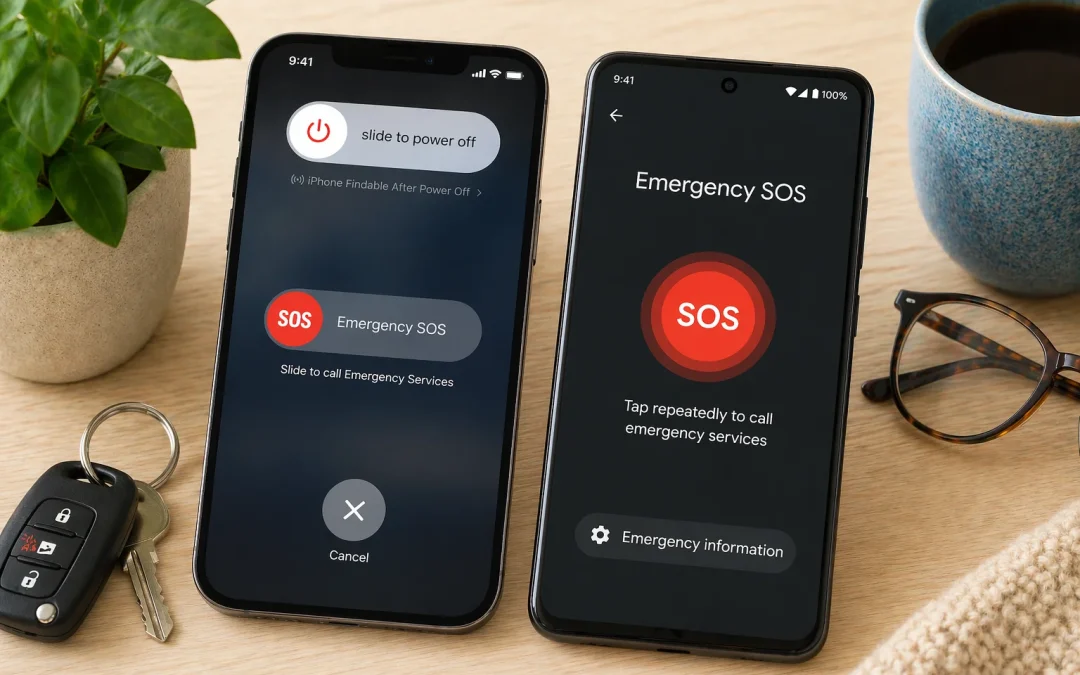

To turn on Emergency SOS on your phone, go to Settings, find Emergency SOS (or Safety & Emergency on Android), and enable the options for quick emergency calling and alerts.
This works on most modern iPhones and Android phones and only takes a few minutes to set up. This guide is designed for seniors and beginners, with simple step-by-step instructions for both types of phones.
Emergency SOS can quickly call for help and alert trusted contacts, but it may not work if your phone has no signal, no battery, or if emergency features are not fully set up in advance.
Table of Contents
- Quick Summary
- What Is Emergency SOS and Why It Matters
- How Emergency SOS Works on iPhone
- How Emergency SOS Works on Android Phones
- Safe vs Unsafe Use: What Seniors Should Know
- Step-by-Step Action Plan
- What Can Go Wrong (and How to Handle It)
- Safety, Privacy, and Scams
- Frequently Asked Questions
- Final Summary
Quick Summary
- Emergency SOS is a built-in feature on most smartphones that quickly calls emergency services.
- It can usually be turned on in your phone’s Settings app in just a few minutes.
- It does not replace 911; it uses 911 (or your local emergency number) and still needs a signal and battery.
- The main goal is to make it faster and easier for you to get help in an emergency.
What Is Emergency SOS and Why It Matters
Emergency SOS is a special feature on smartphones that lets you call emergency services quickly, often by pressing a button several times or holding it down. Instead of unlocking your phone, finding the Phone app, and dialing 911 (or your local emergency number), Emergency SOS does this for you with a simple motion. On many phones, it can also send a message with your location to trusted contacts you choose.
For seniors, this can be especially important in situations like a fall, chest pain, or feeling unsafe when out alone. Imagine you are in a parking lot, you suddenly feel dizzy, and your hands are shaking. Finding the right app and dialing can feel impossible. With Emergency SOS, you can press the side button several times or hold it down, and your phone will start calling for help automatically.
A common misunderstanding is that Emergency SOS is a separate service you must pay for, like a medical alert subscription. In reality, it is a free feature built into your phone that uses the same emergency number you would dial yourself. The limitation is that it only works as well as your phone’s connection: if you have no signal, no battery, or the phone is damaged, it may not be able to place the call.
Another misunderstanding is that turning on Emergency SOS means your phone is “always calling” or “always listening.” That is not how it works. It only activates when you perform the specific button presses or gestures. The practical recommendation is to turn it on, learn the exact button steps for your phone, and practice them once or twice so your hands remember what to do.
If you find the screen text small while setting this up, you may want to make the text larger first so you can see everything clearly. On iPhone, you can follow a simple guide like How to Make Text Bigger on iPhone for Seniors before you start.
How Emergency SOS Works on iPhone
On iPhone, Emergency SOS is built into the system and can be turned on in the Settings app. When it is set up, you can usually call emergency services by pressing and holding the side button and one of the volume buttons, or by pressing the side button quickly five times (depending on your model and region). The phone can also send a text message with your location to your emergency contacts after the call ends.
To find Emergency SOS on iPhone, open the Settings app (the gray gear icon), scroll down, and tap “Emergency SOS.” Here you will see options such as “Call with Hold” and “Call with 5 Presses.” “Call with Hold” means you press and hold the side button and a volume button until a countdown appears and the phone calls emergency services. “Call with 5 Presses” means you quickly press the side button five times to start the call. You can turn these on or off depending on what feels safest and easiest for you.
A realistic senior scenario: Margaret, age 78, lives alone and sometimes feels unsteady. Her daughter helps her open Settings > Emergency SOS and turns on “Call with Hold” so Margaret can simply squeeze the phone’s side and volume buttons together if she falls. They also add her daughter as an emergency contact, so if Margaret ever uses SOS, her daughter gets a text with Margaret’s location.
A common misunderstanding is that if you turn on Emergency SOS, you will “accidentally call 911 all the time.” While accidental calls can happen, they are not automatic. You must still press and hold or press the button several times in a row. The honest limitation is that some people with weaker hands or arthritis may find the button presses difficult or uncomfortable.
To reduce accidental calls, you can choose only one method (for example, “Call with Hold”) and turn the other off. You can also turn off the “Countdown Sound” if the loud siren noise would startle you, though leaving it on can warn you before the call is placed. A practical recommendation is to sit down with a family member, open Settings > Emergency SOS together, and decide which button method feels most natural for your hands.
On newer iPhones, Emergency SOS can also work with a feature called Medical ID, which shows your medical information on the lock screen for first responders. If you have an iPhone, it is wise to set this up at the same time. You can follow a detailed guide like How to Set Up Medical ID on iPhone to add your conditions, medications, and emergency contacts.
How Emergency SOS Works on Android Phones
On Android phones, Emergency SOS exists but may look a little different depending on the brand (Samsung, Google Pixel, Motorola, etc.). In general, it lets you quickly call emergency services by pressing the power button several times, and some phones can also send your location, record video, or share other information with your chosen contacts. The basic idea is the same: a quick way to get help without unlocking your phone and dialing.
To find Emergency SOS on many Android phones, open the Settings app (often a gear icon), then look for “Safety & emergency,” “Security & emergency,” or “Advanced features.” On Samsung phones, it is often under “Advanced features” > “Emergency SOS.” On Google Pixel phones, it is usually under “Safety & emergency.” Once there, you can turn on Emergency SOS and choose what happens when you press the power button quickly several times.
For example, you might set it so that pressing the power button five times calls emergency services and sends a text with your location to your emergency contacts. Some Android phones also offer extra options, like recording a short video or sharing your phone’s camera view. These can be helpful, but they are not required; the most important part is that it calls your local emergency number.
A realistic senior scenario: Robert, age 72, has a Samsung phone and worries about getting lost while walking. His grandson opens Settings > Advanced features > Emergency SOS and turns it on. They set it so that pressing the power button five times calls emergency services and sends Robert’s location to his daughter and neighbor. Robert practices pressing the button five times quickly until he feels confident.
A common misunderstanding is that all Android phones work exactly the same way. In reality, the screens and names of the settings can vary. The honest limitation is that your phone may not have every feature described in general guides, especially if it is older or a budget model. Also, some very simple phones designed just for calls may not have Emergency SOS at all.
The practical recommendation is to first find out what kind of phone you have (brand and model), then look in Settings for “Emergency,” “Safety,” or “SOS.” If the menus are hard to read or confusing, you might consider a phone that is easier for seniors to see and use. Guides like Easiest Phones for Seniors with Bad Eyesight or Best Budget Phones for Seniors in 2026 can help you choose a device that makes safety features easier to manage.
Safe vs Unsafe Use: What Seniors Should Know
Emergency SOS is designed to keep you safe, but like any powerful tool, it can be used in ways that are more or less helpful. Safe use means turning it on, understanding how it works on your specific phone, and using it only when you truly need emergency help. Unsafe or unhelpful use includes testing it by actually calling 911 when there is no emergency, or relying on it instead of seeking regular medical care.
Consumer protection agencies widely report that emergency services are often overloaded with accidental or non-urgent calls. Many people worry that if they accidentally trigger Emergency SOS, they will get in serious trouble. In most places, if you accidentally call 911, the safe and honest thing to do is stay on the line and calmly explain that it was a mistake and that you are safe. Hanging up without speaking can cause more concern and may lead them to try to call you back.
Another area where seniors are vulnerable is confusing Emergency SOS with other apps or services that claim to “monitor” you for a fee. Emergency SOS on your phone is free and built in; you do not need to pay a monthly subscription to use it. Paid medical alert systems can be useful for some people, but they are separate products and should not be confused with the phone’s own SOS feature.
It is also realistic to understand that Emergency SOS is not magic. It cannot make help appear instantly, and it cannot work if your phone is out of battery, turned off, or has no signal. It also does not replace telling your doctor about ongoing health problems or having a plan with family members for check-ins.
A common misunderstanding is that turning on Emergency SOS makes your phone less private or more open to hackers. In fact, it mainly changes what happens when you press the physical buttons; it does not open your phone to strangers. If you are concerned about privacy, you can also review other settings that improve security, such as those described in guides like 5 iPhone Settings to Turn Off for Better Privacy and Security.
The practical recommendation is to treat Emergency SOS as one part of your safety plan. Combine it with simple habits: keeping your phone charged, carrying it with you at home and outside, and making sure trusted family or friends know how to reach you. Talk openly with them about when you would use SOS and who should be listed as an emergency contact.
Step-by-Step Action Plan
Setting up Emergency SOS does not need to be overwhelming if you take it one step at a time. The goal is to get it working in a simple, reliable way that you can remember, without turning on every possible option. You can do this on your own, or you can invite a family member or friend to sit with you and help.
Step 1: Find out what phone you have
Look at the back of your phone or in Settings > About (or About phone) to see the brand (Apple, Samsung, Google, etc.) and model. Knowing this will help you follow the right instructions. If you are not sure, write down what you see and keep it near your phone for future reference.
Step 2: Open your Settings app
On both iPhone and Android, the Settings app usually looks like a gray gear icon. Tap it once to open. If you have trouble finding it, ask a family member to move it to your home screen or dock so it is always easy to reach.
Step 3: Turn on Emergency SOS on iPhone
If you have an iPhone, scroll down in Settings and tap “Emergency SOS.” Turn on “Call with Hold” if you want to press and hold the side and volume buttons to call emergency services. If available, you can also turn on “Call with 5 Presses” to use five quick presses of the side button. Review whether you want the countdown sound on or off.
Step 4: Turn on Emergency SOS on Android
If you have an Android phone, in Settings look for “Safety & emergency,” “Security & emergency,” or “Advanced features.” On Samsung, tap “Advanced features,” then “Emergency SOS.” Turn on the option to press the power button quickly several times to call emergency services. Choose whether you also want to send messages or location to your contacts.
Step 5: Add or check your emergency contacts
In the same Emergency SOS or Safety section, look for “Emergency contacts” or similar. Add close family members, neighbors, or friends who would respond if they got a message that you used SOS. Make sure their phone numbers are correct; you can use a simple guide like How to Add Contacts for Seniors if you need help managing your contact list.
Step 6: Practice the button presses (without completing the call)
Carefully practice the button steps until you see the emergency screen or countdown, then cancel before it calls. This helps your fingers remember what to do in a real emergency. If you accidentally start a call, stay calm and explain to the operator that it was a mistake.
Step 7: Write down your steps and tell someone you trust
On a small card, write “To call emergency with my phone: [describe your button steps].” Keep it near your favorite chair or in your wallet. Tell a family member or caregiver that you have set up Emergency SOS and show them how it works, so they can remind you later if needed.
What Can Go Wrong (and How to Handle It)
It is normal to feel nervous about changing settings on your phone, especially when they involve calling emergency services. Many seniors worry they will “break” something or make a mistake they cannot undo. Understanding what can realistically go wrong can make the process feel less scary.
One common issue is confusion about where the Emergency SOS setting is located. On iPhone and Android, the menus can change slightly after software updates, so the exact wording or location may move. If you open Settings and do not see “Emergency SOS” right away, scroll slowly and look for words like “Safety,” “Emergency,” or “Security.” The limitation is that older phones or very basic models may not offer this feature at all.
Another problem is accidental activation. For example, you might press the side button several times while putting your phone in your pocket and suddenly see an emergency countdown. This can be startling, but it is not dangerous. You can usually cancel the call by tapping “Stop” or “Cancel” on the screen. If the call goes through, calmly tell the operator it was an accident and that you are safe.
Software updates can also change how Emergency SOS looks or behaves. After a major update, the buttons or screens may look different, which can be confusing. If this happens, take your time, read the screen carefully, and consider asking a trusted family member to review the settings with you again.
Another realistic concern is receiving conflicting advice from different people or websites. One person may tell you to turn on every option; another may say to turn them all off. The practical recommendation is to choose the simplest setup that you understand and can remember. For most seniors, that means turning on one clear way to call (such as holding the side and volume buttons on iPhone or pressing the power button five times on Android) and adding one or two trusted emergency contacts.
Finally, there is the fear of “breaking” the phone. Turning on or adjusting Emergency SOS will not damage your device. If you feel you have changed too much, you can usually turn the feature off and start again. If you ever feel stuck, it is perfectly okay to pause and ask for help from a family member, a tech-savvy friend, or a local phone store.
Safety, Privacy, and Scams
Because Emergency SOS is related to your safety, it is important to know what a legitimate process looks like and how to avoid scams. Setting up Emergency SOS should always be done through your phone’s own Settings app, not through a website link, email, or text message someone sends you. You do not need to give your Social Security number, bank information, or passwords to turn it on.
A legitimate setup usually looks like this: you open Settings yourself, tap on “Emergency SOS” or “Safety & emergency,” and adjust the options. You may add emergency contacts from your existing contact list. No one should be asking you to pay a fee just to turn on the built-in SOS feature on your phone.
Red flags to watch for include phone calls from strangers claiming to be from “Apple support” or “Android security” who say you must pay to activate Emergency SOS. Also be cautious of pop-up messages or ads that say things like “Your phone is unsafe—click here to turn on emergency protection.” These are often attempts to scare you into installing unnecessary apps or giving away personal information.
If something feels suspicious, slow down. Do not click links or give out personal details. Instead, close the message and, if needed, contact a trusted family member or call your phone carrier using the number on your bill or their official website. Remember that the real Emergency SOS feature is already on your phone and can be turned on for free in Settings.
In terms of privacy, Emergency SOS mainly shares your information with emergency services and the specific contacts you choose. It may send your location to those contacts when you use it, which is the point of the feature. If you are uncomfortable with this, you can choose fewer contacts or turn off location sharing, but understand that this may limit how helpful the feature can be in an emergency.
Frequently Asked Questions
Is turning on Emergency SOS safe?
Yes, it is safe to turn on Emergency SOS. It only calls emergency services when you press the buttons in the specific way you set up, and it does not open your phone to hackers or strangers.
Will I break my phone if I change these settings?
No, you will not break your phone by turning Emergency SOS on or off. If you change something and do not like it, you can go back into Settings and turn it off or adjust it again.
Do I have to pay to use Emergency SOS?
No, Emergency SOS is a free feature built into most smartphones. You may still be charged your normal phone rates for calls or texts, but there is no extra fee just to turn it on.
What if I accidentally call 911 using Emergency SOS?
If you accidentally call 911, stay on the line and calmly tell the operator it was a mistake and that you are safe. They prefer that you explain rather than hang up without speaking.
What if I don’t understand a step in this guide?
If a step is confusing, it is okay to stop and ask for help from a family member, friend, or local phone store. You can also write down your questions so you remember to ask them later.
Can a family member help me set this up?
Yes, and it is often a good idea. A trusted family member can help you find the right settings, add emergency contacts, and practice the button presses with you.
Will Emergency SOS work if my phone is off or has no signal?
No, Emergency SOS cannot work if your phone is turned off, has no battery, or has no signal. It is still important to keep your phone charged and with you as much as possible.
Final Summary
You have learned what Emergency SOS is, how it works on both iPhone and Android, and how to turn it on in a simple, safe way. You also know its limits: it still needs battery, signal, and the right button presses to help you in a real emergency. By setting it up, adding a few trusted contacts, and practicing once or twice, you give yourself another layer of protection without needing extra gadgets or subscriptions.
If any part of the process feels confusing, it is completely normal and not a sign that you are “bad with technology.” Ask a family member, friend, or local tech helper to walk through the steps with you at a calm pace. The most important thing is that you feel more confident that, if something goes wrong, you and your phone know how to call for help quickly.
