
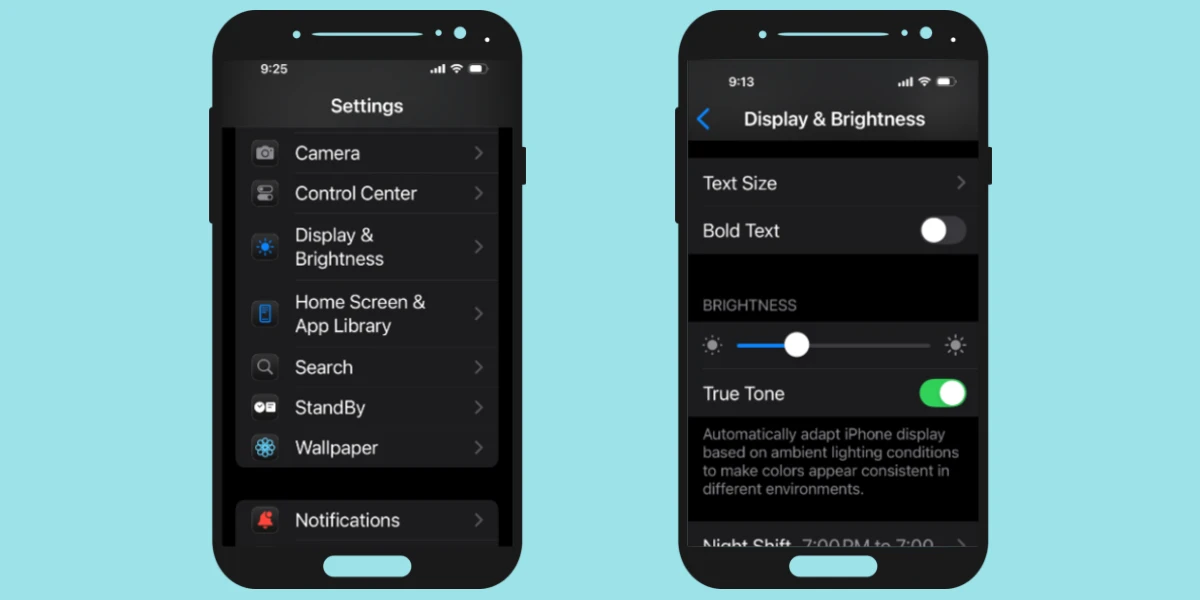

To make text bigger on an iPhone, open Settings, tap Display & Brightness, select Text Size, and move the slider to the right until the text is easier to read. You can also turn on Bold Text or use Accessibility settings for even larger text.
Most seniors can make their iPhone text larger in just a few minutes using these built-in settings. This guide is for older adults (and anyone helping them) who find the text too small or hard to read. It walks through simple, safe steps to make your screen more comfortable—without deleting anything or changing how your phone works.
These steps work on most modern iPhones. If your menus look slightly different, don’t worry—Apple sometimes moves settings around, but the process is very similar. This guide does not apply to very old phones that cannot update past iOS 9 or to devices with broken screens or touch problems.
Table of Contents
- Quick Summary
- Understanding Text Size on iPhone
- How to Make Text Bigger with Display & Text Size
- How to Quickly Change Text Size from Control Center
- How to Use Zoom and Magnifier for Hard-to-Read Text
- What Can Go Wrong (and Simple Fixes)
- Safety and Scam Awareness
- FAQ: Common Questions from Seniors
- Final Summary
Quick Summary
- The problem usually means the default iPhone text size is too small for your eyes.
- The most common cause is that the “Text Size” and “Display & Text Size” settings are still on the factory defaults.
- It usually takes 5–10 minutes to make text bigger and easier to read.
- You may need help if menus look very different, your iPhone is very old, or you have trouble with touch gestures.
Understanding Text Size on iPhone
On an iPhone, there are a few different ways to make things easier to see. You can make the main text bigger, make it bolder (thicker), and even zoom in on the whole screen. These are built-in tools from Apple, designed for people who need larger or clearer text, including seniors.
Most reading on your iPhone uses a setting called “Text Size.” This affects apps like Messages, Mail, Notes, and many others. There is also a section called “Display & Text Size” that lets you turn on Bold Text and other helpful options. None of these settings delete your photos, contacts, or apps. They only change how things look on the screen.
In this guide, you will learn three main methods: changing text size in Settings, using a quick shortcut called Control Center, and using Zoom or Magnifier when something is still too small. Take your time, and feel free to try one method at a time. You can always change the settings back later if you do not like how they look.
How to Make Text Bigger with Display & Text Size
This is the main and most reliable way to make text bigger on your iPhone. It uses the standard Settings app and works on most modern iPhones (iPhone 6s and newer, and many older ones that still get updates). You will be changing only how large the words appear, not the content of your phone.
Steps:
- On your Home screen, find and tap the gray Settings app (it looks like a gear).
- Scroll down a little and tap Display & Brightness.
- Tap Text Size. You will see a slider with small “A” on the left and big “A” on the right.
- Place your finger on the slider and drag it to the right to make text bigger. As you move it, the sample text above will change size.
- When the text looks comfortable, tap the back arrow at the top left to save and go back.
- Optional: Go back to Settings > Accessibility > Display & Text Size, then turn on Bold Text to make letters thicker and easier to see.
What to do if it looks different: On some older iPhones, “Display & Brightness” may be slightly lower in the list, or “Text Size” may appear directly under “Accessibility.” If you cannot find it, use the search bar at the top of the Settings app and type “Text Size.”
How long it takes: About 3–5 minutes.
Difficulty level: Easy.
One common mistake: Some people drag the slider only a tiny bit and do not notice much change. Do not be afraid to move the slider farther to the right until the text is clearly comfortable for your eyes.
One realistic limitation: Not every app follows the iPhone text size setting. Most Apple apps do, but some third-party apps may still show smaller text. For those, you may need the Zoom or Magnifier tools described later.
How to Quickly Change Text Size from Control Center
Once you know your way around, you may want a faster way to make text bigger or smaller without going deep into Settings. The iPhone has a shortcut area called Control Center that you can open by swiping from the top-right corner of the screen (on most newer iPhones) or from the bottom (on older models with a Home button). You can add a Text Size button there for quick changes.
Steps to add Text Size to Control Center:
- Open the Settings app.
- Tap Control Center.
- Scroll down to the “More Controls” section and find Text Size.
- Tap the green + button next to Text Size. It will move up into the “Included Controls” list.
- Close Settings.
Steps to use Text Size from Control Center:
- Open the app where text is too small (for example, Messages or Mail).
- Open Control Center:
- On iPhones with Face ID: swipe down from the top-right corner of the screen.
- On iPhones with a Home button: swipe up from the very bottom of the screen.
- Tap the Text Size (AA) button.
- Drag the slider up to make text bigger or down to make it smaller. You can choose to change text size just for the current app or for all apps.
- Tap anywhere outside to close and return to your app.
What to do if it looks different: If you do not see “Control Center” in Settings, your iPhone may be running a very old version of iOS. In that case, use the main Settings method in the previous section instead.
How long it takes: About 5–10 minutes to set up once, then just a few seconds each time you use it.
Difficulty level: Easy to Moderate, depending on your comfort with swiping gestures.
One common mistake: Some people forget to open the app first, so they change the text size for “All Apps” when they only meant to change one. If something suddenly looks too big or too small everywhere, just open Control Center again and adjust the slider back.
One realistic limitation: This method still depends on apps that support Dynamic Type (Apple’s text size system). A few apps may ignore these changes and keep their own text size.
How to Use Zoom and Magnifier for Hard-to-Read Text
Even with larger text, some seniors still find certain parts of the screen hard to read, such as tiny buttons or small print inside some apps. For these situations, the iPhone has two extra tools: Zoom (which enlarges the screen itself) and Magnifier (which uses the camera like a digital magnifying glass). These are especially helpful if you have low vision or if some apps do not respect your text size settings.
Steps to turn on Zoom:
- Open Settings.
- Tap Accessibility.
- Tap Zoom.
- Turn on the Zoom switch.
- Use three fingers to double-tap the screen to zoom in and out. You can drag three fingers to move around the screen.
Steps to turn on Magnifier:
- Open Settings.
- Tap Accessibility.
- Tap Magnifier.
- Turn on the Magnifier switch.
- On most iPhones, you can now triple-click the side button (or Home button on older phones) to open Magnifier and use the slider to zoom in on small print, such as labels or paper documents.
What to do if it looks different: On some older iPhones, Magnifier may be under “Accessibility Shortcut” instead. If you cannot find it, use the search bar at the top of Settings and type “Magnifier.”
How long it takes: About 5–10 minutes to set up and practice the gestures.
Difficulty level: Moderate, because it uses multi-finger taps and button clicks that may feel new at first.
One common mistake: People sometimes turn on Zoom and then forget the three-finger double-tap gesture, so the screen stays zoomed in and feels “stuck.” If this happens, calmly double-tap with three fingers again to zoom out, or ask a helper to do it.
One realistic limitation: Zoom and Magnifier can make things easier to see, but they also reduce how much of the screen you can see at once. You may need to move around more with your fingers, which can be tiring if you use it all the time.
What Can Go Wrong (and Simple Fixes)
Sometimes, things do not look exactly like the steps above. This is usually due to a different iOS version, an older device, or a small change in Apple’s layout. Here are some calm, simple ways to handle common issues.
Button looks different: If the Settings icon or menu names look slightly different, read the words carefully instead of relying on the exact picture. Apple sometimes changes icons, but the names like “Display & Brightness” and “Accessibility” usually stay similar.
Setting missing: If you cannot find “Text Size” or “Display & Brightness,” your iPhone may be running a very old software version. Ask a trusted family member to help you check for updates under Settings > General > Software Update, or consider whether it may be time to look at a newer phone. If you are thinking about a new device, you may find “Best Budget Phones for Seniors in 2026” helpful: Best Budget Phones for Seniors in 2026.
Update changed layout: After an update, some menus may move. If you get lost, use the search bar at the top of the Settings app and type words like “Text Size,” “Display,” or “Accessibility.” This search is very forgiving and can quickly take you to the right place.
Restart did not fix it: Turning your phone off and on again will not usually change text size settings. If something looks wrong, go back into the settings you changed and adjust them slowly until the screen looks comfortable again.
Device is older: On older iPhones, some features like Magnifier or app-specific text size may not be available. You can still often use the basic Text Size and Bold Text options. If reading is still difficult, consider using your iPhone mainly for calls and simple messages, and ask a trusted person to help you explore other options.
Safety and Scam Awareness
Changing text size and display settings on your iPhone should always be done inside the official Settings app. You do not need to pay anyone online, download special apps, or give anyone remote access to your phone just to make text bigger.
- Legitimate fixes do not require payment for “unlocking” text size or display features.
- No one needs to control your screen remotely to change these settings.
- Ignore pop-ups or messages that say your phone is “infected” and ask you to call a number to fix it.
- Never share verification codes or passwords with anyone who contacts you, even if they claim to be from Apple or your phone company.
If you receive suspicious calls or texts while working on your phone, you may want to learn how to block them. For iPhone users, see: How to Block Scam Calls on iPhone. Android users can read: How to Block Scam Calls on Android.
FAQ: Common Questions from Seniors
Is this serious if I cannot read the text on my iPhone?
No, it is usually not serious in a technical sense. It simply means the default text size is too small for your comfort. The phone itself is normally fine, and the steps in this guide should help you adjust it.
Will I lose any photos, contacts, or messages by changing text size?
No. Changing text size, Bold Text, Zoom, or Magnifier does not delete or remove any of your information. These settings only change how things look on the screen. Your photos, contacts, and messages stay exactly where they are.
Do I need to pay someone to fix this for me?
No, you do not need to pay anyone just to make text bigger. All of these options are free and built into your iPhone. If you feel more comfortable, you can ask a trusted family member, friend, or local senior center volunteer to sit with you while you follow the steps.
Is this a virus or a sign that my phone is broken?
No. Small text is not a virus and does not mean your phone is broken. It is simply the way Apple sets up the phone by default. You are allowed and encouraged to adjust the text size to match your eyesight.
How long does it take to make text bigger?
Most people can change the main text size and turn on Bold Text in about 5–10 minutes, even if they are new to iPhones. Learning Zoom or Magnifier may take a little longer, but you can practice at your own pace.
What if I make a mistake and everything looks strange?
If something looks wrong, you can always go back into Settings and move the sliders back toward the middle, or turn off Zoom or Magnifier. Nothing you do in these sections will damage your phone. If you feel stuck, simply set the phone down, take a break, and ask a trusted person to help you reset the settings.
Final Summary
Making text bigger on your iPhone is both possible and safe, and most seniors can do it with a little patience. In most cases, the issue is simply that the default text size is too small, not that anything is wrong with your phone. By adjusting Text Size, turning on Bold Text, and using tools like Zoom or Magnifier when needed, you can make your screen much easier to read. If you ever feel unsure, ask a trusted family member, friend, or local tech helper to sit with you and go through these steps together.
