
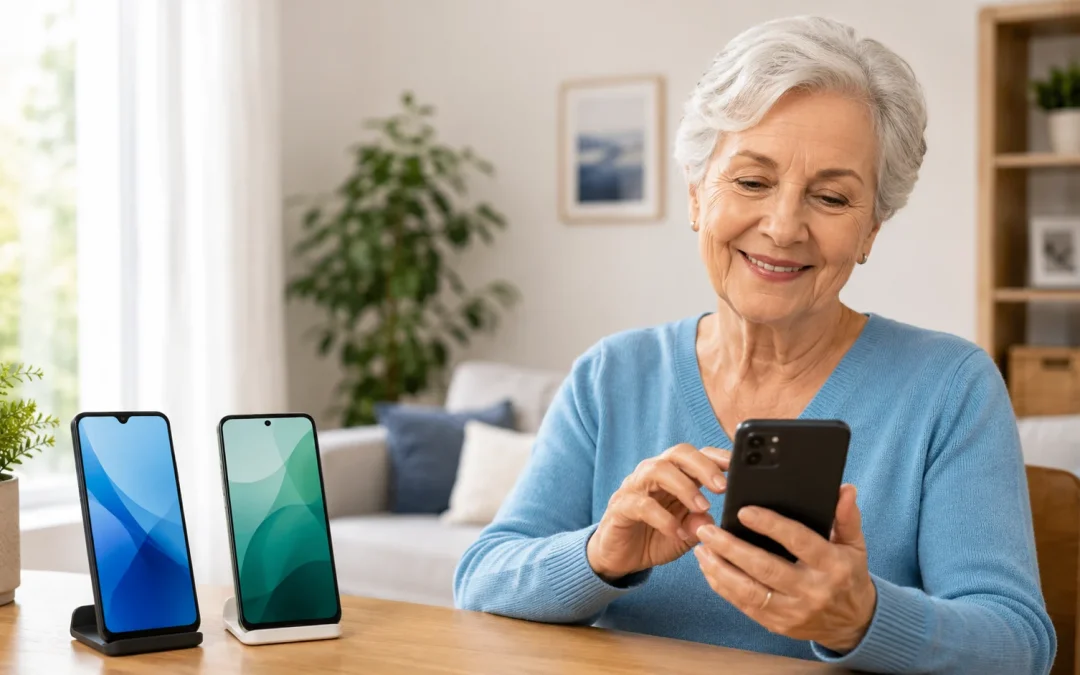

For most seniors in 2026, the best budget phone is a simple Android phone with a large screen from a well-known brand, because it offers good value and easy access to help. In most cases, an affordable iPhone is better for seniors who already use Apple devices or have family members with iPhones who can help them. Both options can work well, but budget phones may have cameras, speakers, or batteries that are not as strong as more expensive models.

Table of Contents

Quick Comparison

  • Best for simplicity: Budget iPhone (used or older model) with a clear home screen
  • Best for typing and productivity: Larger-screen budget Android phone with good keyboard options
  • Best for portability: Smaller budget Android or iPhone SE–style device that fits easily in a pocket
  • Best value: Mid-range Android phone from a major brand on sale
  • Biggest limitation of each: Budget Android phones may stop getting updates sooner; budget iPhones can have higher repair and accessory costs

Ease of Use

When it comes to ease of use, both budget Android phones and budget iPhones can be set up to be very senior-friendly. The main difference is how the screens look and how the menus are organized. Budget iPhones usually have a very simple layout with fewer ways to change things, which many seniors find less confusing. Budget Android phones can be made simple too, but they often start with more icons, extra apps, and different styles depending on the brand.

For example, a senior who only wants to see Phone, Messages, Camera, and Photos on the home screen may find it easier on an iPhone, because the steps are the same on all iPhones and family members often know how to help. On Android, the same thing is possible, but the steps can vary between Samsung, Motorola, and other brands. A common misunderstanding is that “Android is always complicated” or “iPhone is always easy.” In reality, both can be easy once they are set up correctly.

The honest limitation is that budget phones sometimes come with extra apps you do not need, and removing or hiding them can take a little time. Difficulty level for basic calling, texting, and taking photos is **Easy** on both once set up. Expect to spend about 30–60 minutes with a family member or store helper to make the home screen simple, enlarge text, and adjust volume. If you have poor eyesight, you may also want to read about the easiest phones for seniors with bad eyesight.

Learning Curve

The learning curve is how long it takes before the phone feels comfortable. If you have never used a smartphone, both Android and iPhone will feel new at first. Budget iPhones tend to have more consistent buttons and screens, so instructions from friends, family, or online guides usually match what you see. Budget Android phones can look slightly different from brand to brand, which can slow down learning if you are following a guide that does not match your exact phone.

Imagine a senior who wants to learn how to send a picture to a grandchild. On an iPhone, a family member can often walk them through the steps over the phone using the same words, or they can follow a simple guide like how to send a picture on iPhone. On Android, the steps are similar but the buttons may be in different places, which can be frustrating at first. A common misunderstanding is that you must understand “apps,” “cloud,” or other technical terms to use a smartphone. You do not. You mainly need to know how to tap, swipe, and open the same few icons each day.

The limitation is that the first week or two can feel slow, especially if you are moving from a flip phone. Difficulty level is **Moderate** for complete beginners, but it becomes **Easy** once you repeat the same actions a few times. Plan for a few short practice sessions of 10–15 minutes over several days instead of trying to learn everything in one sitting.

Cost

Cost is often the main reason to choose a budget phone. In 2026, a good budget Android phone from a major brand is usually cheaper to buy than a budget iPhone, especially if you find a sale or a carrier discount. However, a slightly older or refurbished iPhone can also be a strong budget choice, especially if you want longer software support and help from family members who already use iPhones.

For example, a senior on a fixed income might buy a mid-range Android phone for a low price upfront and use a low-cost monthly plan. Another senior might choose a one- or two-year-old iPhone model that costs a bit more but holds its value longer and may receive updates for more years. A common misunderstanding is that the cheapest phone is always the best deal. Very low-cost phones can have weak batteries, slow performance, and poor screens, which can be frustrating and may need replacing sooner.

The honest limitation is that both Android and iPhone have ongoing costs: a monthly phone plan, a case, possibly a screen protector, and sometimes extra storage or cloud services. Difficulty level for understanding costs is **Easy** if you ask the store to clearly list the one-time price and the monthly price. Expect to spend time comparing at least two or three options before deciding, and remember that a slightly higher upfront cost can save money and frustration over several years.

Maintenance & Updates

All smartphones need occasional updates to stay secure and work well. Budget iPhones usually receive updates from Apple for many years, even if the phone is older or less expensive. These updates are mostly automatic and look the same on all iPhones. Budget Android phones also get updates, but how often and for how long depends on the brand and model. Some budget Android phones may stop getting updates sooner than more expensive ones.

Consider a senior who just wants the phone to “keep working” without fuss. On an iPhone, you may see a message asking to install an update overnight; tapping “Install Tonight” is usually enough. On Android, you may see similar messages, but the wording and timing can vary. A common misunderstanding is that updates will “break” the phone. While updates can change how some screens look, they are important for security and usually fix problems rather than cause them.

The limitation is that very old or very cheap phones may eventually stop getting updates, which can make them less secure over time. Difficulty level for basic maintenance is **Easy** if you simply allow updates when the phone suggests them and keep the charger handy. Expect to spend a few minutes every month or two checking for updates and clearing old photos or apps you no longer use.

Safety & Security

Safety and security are important for seniors, especially with scams and unwanted calls. Both budget Android phones and budget iPhones can be kept safe with a few simple habits. iPhones are often considered slightly easier to secure because Apple controls the app store and updates more tightly. Android phones are also safe when you only install apps from the official Google Play Store and keep the phone updated.

For example, a senior who receives many spam calls can use built-in tools or follow guides like how to block spam calls on most phones. Android users can also follow how to block scam calls on Android. A common misunderstanding is that you must install extra antivirus apps. In most cases, if you keep your phone updated, use a strong passcode, and avoid tapping unknown links or QR codes (see how to use QR codes safely), you do not need extra security apps.

The limitation is that no phone can fully protect you from scams if you trust every caller or message. Difficulty level for basic safety is **Easy**: use a passcode, do not share codes or passwords over the phone, and be cautious with unknown texts or links. Expect to spend a few minutes during setup to turn on a passcode and review call-blocking options.

Daily Use Scenarios

In daily life, both budget Android phones and budget iPhones can handle the most common senior tasks: calling, texting, taking photos, checking email, and looking up information. The main differences show up in small details like how loud the speaker is, how bright the screen gets, and how long the battery lasts. Some budget Android phones offer larger screens and bigger batteries for the price, while budget iPhones often offer smoother performance and strong video calling with family through FaceTime.

Imagine a typical day for a senior: calling a friend, checking a doctor’s appointment, taking a photo of a grandchild, and maybe joining a video call. On an iPhone, FaceTime is built in and easy to use with guides like how to use FaceTime step by step. On Android, you can use apps like Google Meet or WhatsApp for video calls, but you may need help installing and setting them up. A common misunderstanding is that budget phones cannot take good photos or handle video calls. Many budget phones in 2026 are more than good enough for everyday use.

The limitation is that some budget models have weaker speakers or lower screen brightness, which can be harder for seniors with hearing or vision issues. Difficulty level for daily tasks is **Easy** once the main apps are placed on the home screen and you practice a few times. Expect a short adjustment period while you learn where your favorite apps are and how to adjust volume and brightness; guides like how to make your phone louder can help.

If You’re a Senior Who…

If you are new to technology
If you have never used a smartphone, a budget iPhone is often the calmer choice because the screens are consistent and many helpers are familiar with it. The limitation is that the phone itself may cost a bit more than some Android options. For example, a senior moving from a flip phone might choose an older iPhone model, ask a grandchild to set up large text and simple icons, and then only use Phone, Messages, and Photos for the first few months.

If you mainly check email and browse
If your main tasks are checking email, reading news, and looking up information, a budget Android phone with a larger screen can be very comfortable. The limitation is that some cheaper models may feel slower if you open many tabs or apps at once. For instance, a senior who likes to read the newspaper online and check weather and email each morning may enjoy a mid-range Android phone with a bright, big display that is easier on the eyes.

If you type often
If you send many text messages or emails, a larger-screen Android phone can make typing easier because the on-screen keyboard is bigger. The limitation is that the phone may be slightly heavier or harder to use with one hand. A senior who writes long messages to family or keeps notes on their phone might prefer a 6.5-inch Android phone, where the keys are larger and mistakes are less frequent.

If you want fewer updates
If you do not like seeing update messages, a budget iPhone is usually better because updates are less confusing and more automatic. The limitation is that you still need to allow updates from time to time to stay secure. For example, a senior who dislikes change might ask a family member to turn on automatic updates on an iPhone and check the phone every few months to make sure everything is current.

If you travel often
If you travel or visit family in different places, either type of budget phone can work, but a mid-range Android phone with a strong battery can be helpful on long days. The limitation is that you may need a portable charger or power bank for heavy use. A senior who takes long train rides or flights might choose an Android phone known for good battery life and use it for maps, tickets, and messages throughout the day.

If a family member helps you
If you have a child or grandchild who will help you, it is usually best to choose the same type of phone they use. The limitation is that this might not always be the absolute cheapest option. For example, if your family mostly uses iPhones, choosing a budget iPhone means they can easily show you how to add contacts (or follow a guide like how to add a contact on your phone) and fix small issues quickly.

What Can Go Wrong With Either Option

Even with the best budget phone, some things can go wrong, but most issues are manageable. Hidden costs can appear in the form of higher monthly plans, extra data charges, or paid apps you did not realize you were subscribing to. It helps to ask your carrier to block unexpected purchases and to review your bill for the first few months.

Software compatibility can be an issue if you buy a very old or very cheap phone that cannot run newer apps. For example, a senior might find that a favorite banking or video call app no longer works after a few years. Storage limitations are also common: taking many photos and videos can fill up the phone, especially on lower-cost models with small storage. You may see messages saying the phone is “full,” which can be frustrating.

Update changes can make buttons or menus look different after an update, which may be confusing at first. Finally, both Android and iPhone rely on the internet for many features. Without Wi‑Fi or mobile data, you can still call and text (depending on your plan), but many apps will not work fully. The key is to remember that these problems are normal and can usually be fixed with help from a family member, a trusted friend, or the phone store.

Safety Considerations

From a safety point of view, both budget Android phones and budget iPhones can be kept secure with simple steps. iPhones are slightly easier to keep secure because Apple controls updates and apps more tightly, but Android phones are also safe when you use the official app store and keep the phone updated. In both cases, using a strong passcode and not sharing it with strangers is more important than any technical setting.

Updates are important because they fix security problems and keep your phone protected. iPhones usually receive updates for many years, even on older models. Android phones also get updates, but the length of support can vary. Scam and fraud risks are similar on both types of phones. Scammers may call, text, or send links that look real. The best protection is to be cautious: do not tap links from unknown senders, do not share codes or passwords, and hang up on callers who pressure you.

You do not need to be alarmed, just aware. A few simple habits—using a passcode, allowing updates, and being careful with unknown calls and messages—go a long way. If you are unsure about a message or link, ask a trusted family member before tapping anything.

FAQ

Which is easier for seniors?
For most seniors, a budget iPhone is slightly easier because the screens and settings are more consistent, but a well-set-up Android phone can be just as simple.

Which lasts longer?
iPhones usually receive updates for more years, but a good mid-range Android phone can also last several years if you treat it carefully and keep it updated.

Which is cheaper long term?
A budget Android phone often costs less upfront, while an iPhone may cost more but can stay usable longer and hold its value better, so the long-term cost can be similar.

Can I use it without internet?
Yes, you can make calls and send regular text messages without internet, but many features like email, maps, and video calls need Wi‑Fi or mobile data.

Will I need antivirus?
Most seniors do not need extra antivirus apps if they keep their phone updated, use a passcode, and avoid installing apps or tapping links from unknown sources.

Can a family member help set it up?
Yes, and it is often the best idea; a family member can set up large text, simple icons, and favorite contacts so the phone feels comfortable from day one.

Final Decision Summary

For most seniors, a budget iPhone is the best choice if you want a simple, consistent experience and have family members who already use Apple devices. A budget or mid-range Android phone is better if you want a larger screen, lower upfront cost, or more flexibility. Both options can handle everyday tasks like calling, texting, photos, and basic apps when set up with large text and clear icons. No budget phone is perfect, but choosing a well-known brand and planning a little time for setup will make your experience smoother. If you are unsure, ask a trusted family member or friend which type they use and are willing to help you with, then choose a budget model in that family.

📤 Share this guide:

Facebook | Email | Text | Copy Link

📱 Smartphone Help Hub

This article is part of our complete Smartphone Help for Seniors guide covering iPhone and Android safety, privacy, emergency features, and everyday tips.
